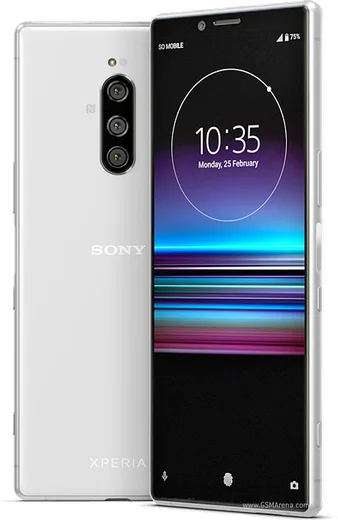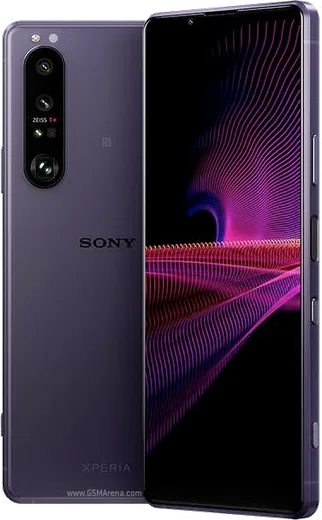
WhatsApp on Xperia 1 (2019)
Sony Xperia Android

WhatsApp for Xperia 1 (2019)

Snapdragon 855, 6.5-inch 21:9 4K OLED

WhatsApp Messenger 4.7 · 64.2M reviews Free · Android · ~40 MB · by WhatsApp LLC
Download WhatsApp

Ask a question / report a problem

You can ask any question about WhatsApp support on the Xperia 1 (2019) — leave it below and we'll help.

Ask a question

Can the Xperia 1 (2019) run WhatsApp?

Fully supported
  • Operating systemAndroid
  • ProcessorSnapdragon 855
  • WhatsApp versionLatest supported

Latest known WhatsApp problems on Xperia 1 (2019)

1

Why do my WhatsApp photos look low quality on the Xperia 1, even though the camera is good?

WhatsApp compresses images sent through chats, so the limitation is the app and not the Xperia 1's triple camera. To keep full resolution, open the chat, tap the attach (paperclip or +) icon, choose Document instead of Gallery, and send the photo as a file so it isn't recompressed. You can also raise everyday quality under WhatsApp > Settings > Storage and data > Media upload quality > Best quality. See how others solved this on Reddit
2

Is the Xperia 1 (2019) still good as a main phone for WhatsApp and daily use?

The Xperia 1 runs Android 11 (its final update) on a Snapdragon 855 with 6GB of RAM, which still handles WhatsApp calls, media and backups smoothly for everyday use. The main caveat is that it no longer receives Android security patches, so keep WhatsApp itself updated via the Play Store and be cautious with sensitive banking apps. Battery life from the 3330mAh cell is the weakest point, so enable STAMINA mode in Settings > Battery to stretch a full day. See how others solved this on Reddit
3

WhatsApp videos and the 21:9 tall screen on the Xperia 1 leave black bars or crop oddly, how do I fix it?

The Xperia 1's 21:9 CinemaWide display is taller than most apps expect, so shared clips and video calls often show letterboxing. This is normal, not a fault, because the apps are built for 16:9 and the extra height simply stays empty. You can try to force a wider fill per app via Settings > Display > Aspect ratio (App display settings), but for WhatsApp leaving it at the default avoids stretched, distorted faces during calls. See how others solved this on Reddit
4

WhatsApp keeps getting killed in the background on my Xperia 1 and I miss notifications, what's wrong?

Sony's STAMINA mode and battery optimisation can close WhatsApp in the background, delaying or dropping notifications. Go to Settings > Apps > WhatsApp > Battery and set it to Unrestricted, then under Settings > Battery > STAMINA mode add WhatsApp as an exception. Finally confirm alerts are on under Settings > Apps > WhatsApp > Notifications so chats notify you reliably. See how others solved this on Reddit
5

Does the Xperia 1's 6GB of RAM struggle with WhatsApp plus other apps open at once?

With 6GB of RAM the Xperia 1 holds WhatsApp alongside a few apps fine, but heavy multitaskers may notice WhatsApp reloading after switching away. Reduce the strain by clearing WhatsApp's cache via Settings > Apps > WhatsApp > Storage > Clear cache, and close unused apps from the recents view. Cutting back on live wallpapers and widgets also frees memory so WhatsApp stays resident and notifications arrive promptly. See how others solved this on Reddit

Ask a question / report a problem

You can ask any question about WhatsApp support on the Xperia 1 (2019) — leave it below and we'll help.

Ask a question

Watch: setting up WhatsApp

Prefer to watch? This short walkthrough shows the whole installation and number-verification flow.

How to install WhatsApp on Xperia 1 (2019) — video walkthrough

How to install WhatsApp on Xperia 1 (2019)

1

Choose how to download

On your Xperia 1 (2019) you can get the official app two ways: from the Google Play Store — the easiest option, since it keeps WhatsApp updated automatically — or directly from the official website. You can download an APK file, by clicking a link “Download WhatsApp directly”.

2

Open WhatsApp

Launch WhatsApp from your home screen or app drawer and accept the Terms of Service to start setup.

3

Verify your phone number

Enter your phone number. If your Xperia 1 (2019) uses dual SIM, pick the line you want WhatsApp tied to, then enter the 6-digit code it sends by SMS — it usually fills in automatically.

4

Restore chats and finish setup

Restore your chat history from Google Drive (use the same Google account), add your name and photo, and tap Allow for notifications so messages and calls arrive reliably.

Stay safe: only ever install WhatsApp from the official Android source. The Download button above already points there — modified copies (GB/Plus/Aero WhatsApp) can get your number banned.

Comments (5)

No registration needed. No email required.
L
lucy.kApr 3, 2026

wow this fixed whatsapp on my xperia 1 :)

K
kate07Mar 28, 2026

Honestly thank u, whatsapp installed on my xperia 1 🙏

AppWhatsOfficialMar 31, 2026

Great to hear it worked out!

I
im_theoSep 8, 2025

ngl had whatsapp on my Xperia 1 in no time 🙏

L
leo60Jul 5, 2025

ugh plz heeeelp me how to download on my xperia 1 😩

AppWhatsOfficialJul 8, 2025

Relax, it is simpler than it looks. Press Download, install, then verify with the SMS code. You got this! It is easier than it looks, promise.

K
kev2000Aug 22, 2024

mein 1 hat endlich whatsapp, klasse