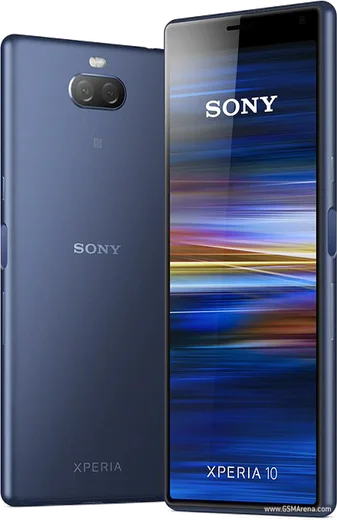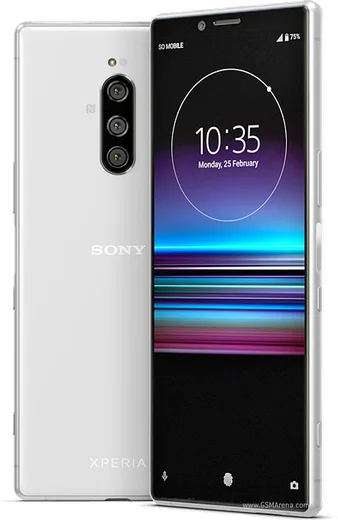
WhatsApp on Xperia 10 (2019)
Sony Xperia Android

WhatsApp for Xperia 10 (2019)

Snapdragon 630, 6-inch 21:9 LCD

WhatsApp Messenger 4.7 · 64.2M reviews Free · Android · ~40 MB · by WhatsApp LLC
Download WhatsApp

Ask a question / report a problem

You can ask any question about WhatsApp support on the Xperia 10 (2019) — leave it below and we'll help.

Ask a question

Can the Xperia 10 (2019) run WhatsApp?

Fully supported
  • Operating systemAndroid
  • ProcessorSnapdragon 630
  • WhatsApp versionLatest supported

Latest known WhatsApp problems on Xperia 10 (2019)

1

Why do my WhatsApp photos look blurry and low quality on the Xperia 10?

WhatsApp heavily compresses images, which looks worse on the Xperia 10 because its Snapdragon 630 camera is already soft in low light. To send a sharp photo, attach it as a file instead of from the gallery: in a chat tap the paperclip (attach), choose Document, then Browse, and pick the image so it sends at full resolution without re-compression. For everyday shots, use the stock Camera app in good light rather than WhatsApp's in-app camera. See how others solved this on Reddit
2

People say my voice is very quiet on WhatsApp calls from my Xperia 10

Low mic volume on the Xperia 10 is usually a blocked bottom microphone port or WhatsApp lacking mic access. Remove any case and gently clean the small mic hole near the USB-C port, then go to Settings > Apps > WhatsApp > Permissions and confirm Microphone is allowed. If it persists, restart in Safe Mode (press and hold the power button, then long-press the on-screen Power off option until the Safe Mode prompt appears) to rule out another audio app holding the mic. See how others solved this on Reddit
3

My Xperia 10 storage is full and WhatsApp won't download media anymore

WhatsApp media piles up fast and the Xperia 10's modest internal storage fills quickly, which blocks new downloads and backups. Open WhatsApp > Settings > Storage and data > Manage storage to delete large forwarded files and videos, then move older media to a microSD card using the Files app. The Xperia 10 supports microSD expansion, so adding a card frees up internal space for WhatsApp to keep saving. See how others solved this on Reddit
4

Is WhatsApp still safe to use on the Xperia 10 now that it stopped getting Android updates?

The Xperia 10 (2019) topped out at Android 11, and WhatsApp still supports Android 11, so it keeps working for now, but newer phones get features and security patches first. Keep the app itself current from the Play Store (open WhatsApp's Play Store page and tap Update), since app updates ship independently of the OS. If WhatsApp eventually warns that your Android version is too old, back up your chats to Google Drive (WhatsApp > Settings > Chats > Chat backup) before moving to a newer device. See how others solved this on Reddit
5

WhatsApp notifications are delayed or silent on my Xperia 10

Sony's battery saving (STAMINA mode) often suspends WhatsApp in the background, which delays message notifications on the Xperia 10. Go to Settings > Battery > STAMINA mode and turn it off, then open Settings > Apps > WhatsApp > Battery (or App battery usage) and set it to Unrestricted so it isn't put to sleep. Finally confirm Settings > Apps > WhatsApp > Notifications is enabled with sound for the message channels. See how others solved this on Reddit

Ask a question / report a problem

You can ask any question about WhatsApp support on the Xperia 10 (2019) — leave it below and we'll help.

Ask a question

Watch: setting up WhatsApp

Prefer to watch? This short walkthrough shows the whole installation and number-verification flow.

How to install WhatsApp on Xperia 10 (2019) — video walkthrough

How to install WhatsApp on Xperia 10 (2019)

1

Choose how to download

On your Xperia 10 (2019) you can get the official app two ways: from the Google Play Store — the easiest option, since it keeps WhatsApp updated automatically — or directly from the official website. You can download an APK file, by clicking a link “Download WhatsApp directly”.

2

Open WhatsApp

Launch WhatsApp from your home screen or app drawer and accept the Terms of Service to start setup.

3

Verify your phone number

Enter your phone number. If your Xperia 10 (2019) uses dual SIM, pick the line you want WhatsApp tied to, then enter the 6-digit code it sends by SMS — it usually fills in automatically.

4

Restore chats and finish setup

Restore your chat history from Google Drive (use the same Google account), add your name and photo, and tap Allow for notifications so messages and calls arrive reliably.

Stay safe: only ever install WhatsApp from the official Android source. The Download button above already points there — modified copies (GB/Plus/Aero WhatsApp) can get your number banned.

Comments (7)

No registration needed. No email required.
A
alex.pJun 17, 2026

ok so my new xperia 10 is all set up now

L
leo_pabJun 15, 2026

this actually works unlike others thanks again

B
bea91Apr 28, 2026

Finally no problems installing on my Xperia 10 ❤️

M
ms_pabloApr 28, 2026

someone whyyy is this so hard pls help me get whatsapp 😭

AppWhatsOfficialMay 1, 2026

You are almost there! Tap Download, allow the install, open WhatsApp and confirm your number. You got this!

J
just_marcApr 11, 2026

ngl couldnt install whatsapp on my 10 until i found this 💯

L
leo_maxAug 7, 2025

Instalé whatsapp en mi 10 sin problemas

M
mr_andyMay 28, 2025

Hey my phone is a few years old will it work

AppWhatsOfficialJun 1, 2025

Of course, if the store lets you install it, you are supported. Very old systems may eventually lose support though. Let us know if you need anything else.