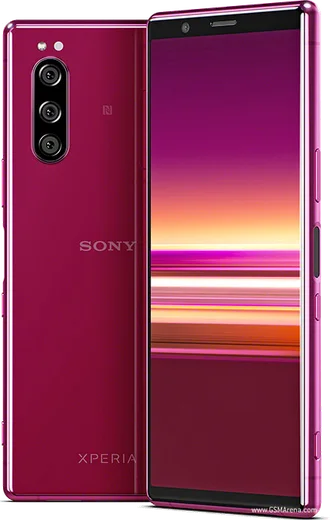
WhatsApp on Xperia 5 (2019)
Sony Xperia Android

WhatsApp for Xperia 5 (2019)

Snapdragon 855, compact 6.1-inch 21:9 OLED

WhatsApp Messenger 4.7 · 64.2M reviews Free · Android · ~40 MB · by WhatsApp LLC
Download WhatsApp

Ask a question / report a problem

You can ask any question about WhatsApp support on the Xperia 5 (2019) — leave it below and we'll help.

Ask a question

Can the Xperia 5 (2019) run WhatsApp?

Fully supported
  • Operating systemAndroid
  • ProcessorSnapdragon 855
  • WhatsApp versionLatest supported

Latest known WhatsApp problems on Xperia 5 (2019)

1

Why does WhatsApp camera quality look so bad on my Xperia 5 (2019)?

WhatsApp's built-in in-app camera heavily compresses photos, which looks especially poor next to what the Xperia 5's sensors can actually do. For sharp results, take the photo with Sony's Camera (Photo Pro) app first, then in WhatsApp tap the attach (paperclip) icon, choose Gallery, and pick the photo so the full-quality file is sent instead of a live capture. You can also reduce compression by opening WhatsApp > Settings > Storage and data > Media upload quality and setting it to HD. See how others solved this on Reddit
2

Is the Xperia 5 (2019) still usable as a main phone for WhatsApp in 2026?

The Xperia 5 shipped on Android 9 and received updates up to Android 11, and it still handles WhatsApp messaging, calls and media fine. Be aware that WhatsApp periodically raises its minimum supported Android version, so confirm the app still updates from the Play Store on your device. Keep a couple of GB of free storage and clear WhatsApp's cache via Settings > Apps > WhatsApp > Storage if it feels sluggish. If the Play Store eventually blocks updates, you'll need a newer phone to keep getting security and feature patches. See how others solved this on Reddit
3

WhatsApp calls drop or won't connect over mobile data on my Xperia 5 (2019) - is VoLTE the issue?

WhatsApp calls run over your data connection, not your carrier's voice (VoLTE) network, so dropped calls usually point to a weak data signal or aggressive battery optimization rather than VoLTE. Go to Settings > Apps > WhatsApp > Battery (or App battery usage) and set it to Unrestricted, and turn off STAMINA/battery saver during a call. If 4G keeps dropping in your area, you can also try toggling Airplane mode off and on, or changing the preferred network type under Settings > Network & internet > Mobile network > Preferred network type. See how others solved this on Reddit
4

How do I turn off the WhatsApp notification dots on my Xperia 5 (2019) home screen?

Those badge dots come from Android's notification system, not from WhatsApp. To remove them everywhere, long-press the home screen, tap Home settings, and turn off Allow notification dots (this also lives under Settings > Apps & notifications > Notifications). To hide them for WhatsApp only, go to Settings > Apps > WhatsApp > Notifications and turn off the badge/dot option there. See how others solved this on Reddit
5

WhatsApp notifications are delayed or don't arrive on my Xperia 5 (2019) - how do I fix it?

Sony's STAMINA battery mode and Adaptive Battery aggressively put background apps to sleep, which is the usual cause of late WhatsApp alerts. Go to Settings > Apps > WhatsApp > Battery and choose Unrestricted, then open Settings > Battery and turn off STAMINA mode (or exclude WhatsApp from it). Finally, check that notifications are fully enabled under Settings > Apps > WhatsApp > Notifications and that Do Not Disturb isn't silencing the app. See how others solved this on Reddit

Ask a question / report a problem

You can ask any question about WhatsApp support on the Xperia 5 (2019) — leave it below and we'll help.

Ask a question

Watch: setting up WhatsApp

Prefer to watch? This short walkthrough shows the whole installation and number-verification flow.

How to install WhatsApp on Xperia 5 (2019) — video walkthrough

How to install WhatsApp on Xperia 5 (2019)

1

Choose how to download

On your Xperia 5 (2019) you can get the official app two ways: from the Google Play Store — the easiest option, since it keeps WhatsApp updated automatically — or directly from the official website. You can download an APK file, by clicking a link “Download WhatsApp directly”.

2

Open WhatsApp

Launch WhatsApp from your home screen or app drawer and accept the Terms of Service to start setup.

3

Verify your phone number

Enter your phone number. If your Xperia 5 (2019) uses dual SIM, pick the line you want WhatsApp tied to, then enter the 6-digit code it sends by SMS — it usually fills in automatically.

4

Restore chats and finish setup

Restore your chat history from Google Drive (use the same Google account), add your name and photo, and tap Allow for notifications so messages and calls arrive reliably.

Stay safe: only ever install WhatsApp from the official Android source. The Download button above already points there — modified copies (GB/Plus/Aero WhatsApp) can get your number banned.

Comments (5)

No registration needed. No email required.
J
just_linaMay 7, 2026

guys had whatsapp on my 5 in no time

A
amy_ninJun 8, 2025

my xperia 5 was being difficult but this sorted it 😍

L
leo.yDec 14, 2024

Instalé whatsapp en mi 5 sin problemas

L
lucy74Sep 7, 2024

well this fixed whatsapp on my Xperia 5 🔥

B
budgetkingJul 19, 2024

someone pleeeease i really need whatsapp on my Xperia 5 today 🙏

AppWhatsOfficialJul 23, 2024

Hey, no need to stress! Tap the green Download button at the top, follow the steps, and you will have WhatsApp in a minute. You got this!