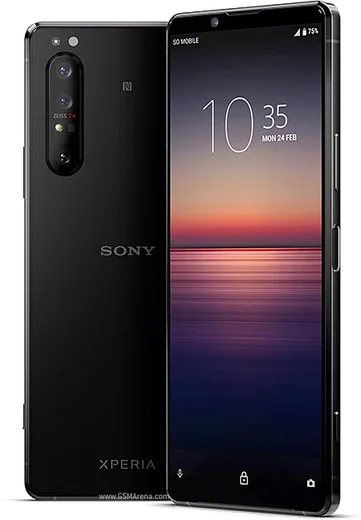
Sony Xperia Android

WhatsApp for Xperia 5 II

Snapdragon 865, 6.1-inch 120Hz 21:9 OLED

WhatsApp Messenger 4.7 · 64.2M reviews Free · Android · ~40 MB · by WhatsApp LLC
Download WhatsApp

Ask a question / report a problem

You can ask any question about WhatsApp support on the Xperia 5 II — leave it below and we'll help.

Ask a question

Can the Xperia 5 II run WhatsApp?

Fully supported
  • Operating systemAndroid
  • ProcessorSnapdragon 865
  • WhatsApp versionLatest supported

Latest known WhatsApp problems on Xperia 5 II

1

Why do I get no WhatsApp notification sound when my Xperia 5 II screen is locked?

This is almost always STAMINA mode or battery optimization restricting WhatsApp in the background while the screen is off. Open Settings > Apps > WhatsApp > App battery usage and set it to Unrestricted, then go to Settings > Battery > STAMINA mode and turn it off (or leave it off while you test). Also confirm WhatsApp's notifications are allowed to override Do Not Disturb under Settings > Apps > WhatsApp > Notifications. See how others solved this on Reddit
2

WhatsApp notifications are delayed or don't arrive at all on my Sony Xperia 5 II

Sony's aggressive battery optimization is the usual culprit, so set Settings > Apps > WhatsApp > App battery usage to Unrestricted. Then make sure background data and unrestricted data usage are both allowed for WhatsApp under Settings > Apps > WhatsApp > Mobile data & Wi-Fi, and confirm STAMINA mode isn't auto-closing the app. After changing these, fully restart the phone so the notification service rebinds. See how others solved this on Reddit
3

Can I set a custom notification sound for WhatsApp on the Xperia 5 II?

Yes. WhatsApp manages this through Android notification channels rather than the system sound menu. Open WhatsApp > Settings > Notifications and tap the Notification tone under Messages or Groups, or go to Settings > Apps > WhatsApp > Notifications > Messages > Sound to pick any tone, including a custom file you've placed in your phone's Notifications folder. Per-chat tones are set inside the individual chat via the contact name > Custom notifications. See how others solved this on Reddit
4

Does the Xperia 5 II have an LED notification light for WhatsApp messages?

No. Unlike older Xperia models, the Xperia 5 II has no physical notification LED, so there is no blinking-light setting to enable for WhatsApp. For an at-a-glance visual alert, rely instead on lock-screen notifications or turn on Ambient display under Settings > Display > Lock screen so messages show on the screen, and keep WhatsApp's notification channel and badges enabled under Settings > Apps > WhatsApp > Notifications. See how others solved this on Reddit
5

After a while my Xperia 5 II feels sluggish and apps like WhatsApp reload in the background

Long-term owners report that Sony's memory management closes background apps aggressively, which forces WhatsApp to reload and can drop notifications. Set WhatsApp to Unrestricted under Settings > Apps > WhatsApp > App battery usage, turn off STAMINA mode, and clear the WhatsApp cache via Settings > Apps > WhatsApp > Storage > Clear cache. Keeping the system and WhatsApp updated and doing an occasional reboot keeps performance stable over time. See how others solved this on Reddit
6

What common bugs should I expect on the Xperia 5 II and how do I fix WhatsApp acting up?

Early Xperia 5 II units shipped with notification and connectivity quirks that were largely resolved in later software updates, so first install all updates via Settings > System > Software update. For WhatsApp specifically, set it to Unrestricted under Settings > Apps > WhatsApp > App battery usage and re-grant Microphone, Camera, and Files permissions under Settings > Apps > WhatsApp > Permissions if calls or media fail. If problems persist, reinstalling WhatsApp after a Google Drive chat backup usually clears the corrupted state. See how others solved this on Reddit

Ask a question / report a problem

You can ask any question about WhatsApp support on the Xperia 5 II — leave it below and we'll help.

Ask a question

Watch: setting up WhatsApp

Prefer to watch? This short walkthrough shows the whole installation and number-verification flow.

How to install WhatsApp on Xperia 5 II — video walkthrough

How to install WhatsApp on Xperia 5 II

1

Choose how to download

On your Xperia 5 II you can get the official app two ways: from the Google Play Store — the easiest option, since it keeps WhatsApp updated automatically — or directly from the official website. You can download an APK file, by clicking a link “Download WhatsApp directly”.

2

Open WhatsApp

Launch WhatsApp from your home screen or app drawer and accept the Terms of Service to start setup.

3

Verify your phone number

Enter your phone number. If your Xperia 5 II uses dual SIM, pick the line you want WhatsApp tied to, then enter the 6-digit code it sends by SMS — it usually fills in automatically.

4

Restore chats and finish setup

Restore your chat history from Google Drive (use the same Google account), add your name and photo, and tap Allow for notifications so messages and calls arrive reliably.

Stay safe: only ever install WhatsApp from the official Android source. The Download button above already points there — modified copies (GB/Plus/Aero WhatsApp) can get your number banned.

Comments (5)

No registration needed. No email required.
O
omar92Mar 25, 2026

Tbh whatsapp finally on my 5 ii

D
dan_kFeb 2, 2026

pleeeease i really need whatsapp on my 5 ii today pls

AppWhatsOfficialFeb 5, 2026

Relax, it is simpler than it looks. Press Download, install, then verify with the SMS code. You got this! It is easier than it looks, promise.

L
lina_chrJul 15, 2025

hey my phone is a few years old will it work

AppWhatsOfficialJul 21, 2025

Hey there, if the store lets you install it, you are supported. Very old systems may eventually lose support though.

M
ms_yukiAug 24, 2024

Ohne probleme auf meinem xperia 5ii installiert 🎉

K
kai_leoAug 21, 2024

yo perfect steps for the Xperia 5 II 😍