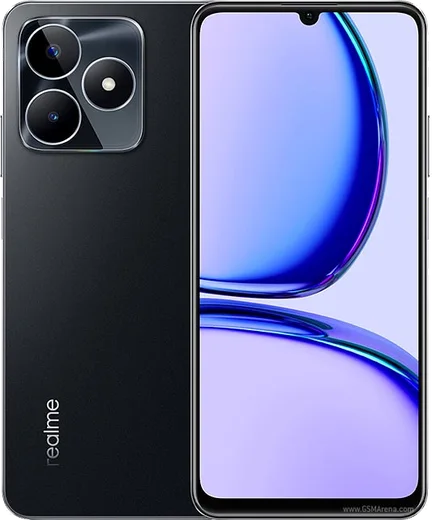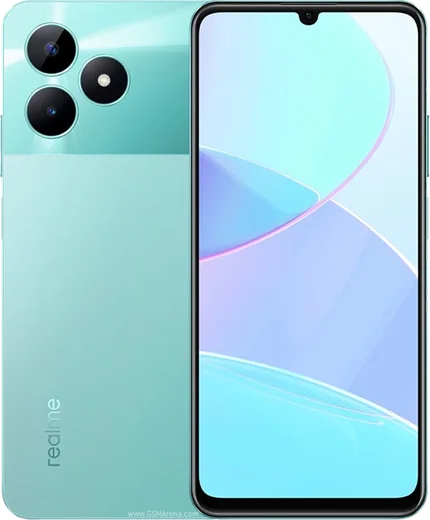
WhatsApp on Realme C53
Realme Android

WhatsApp for Realme C53

Unisoc T612, 6.74-inch 90Hz display, 108MP camera

WhatsApp Messenger 4.7 · 64.2M reviews Free · Android · ~40 MB · by WhatsApp LLC
Download WhatsApp

Ask a question / report a problem

You can ask any question about WhatsApp support on the Realme C53 — leave it below and we'll help.

Ask a question

Can the Realme C53 run WhatsApp?

Fully supported
  • Operating systemAndroid
  • ProcessorUnisoc T612
  • WhatsApp versionLatest supported

Latest known WhatsApp problems on Realme C53

1

WhatsApp keeps crashing on my Realme C53 — how do I fix it?

On your C53, open Settings > Apps > App management > WhatsApp > Storage usage and tap Clear cache (avoid Clear data, which wipes local chat data). If it still crashes, update WhatsApp from the Play Store, and check Settings > Battery and make sure WhatsApp's background activity isn't being restricted by power saving. If the problem persists, back up your chats to Google Drive and do a clean reinstall — that usually clears crashes caused by a corrupted install. See how others solved this on Reddit
2

My Realme C53 screen goes black during calls — what's going on?

This is the proximity sensor doing its job: it blanks the screen when it senses the phone is near your face during a call so you don't tap with your cheek. On the C53, clean the small sensor area near the earpiece (a screen protector covering it is a common culprit), then test it in Settings by searching for the hardware diagnostic. If the screen stays black after a call ends, lock and unlock the phone, or restart it to reset the sensor. See how others solved this on Reddit
3

Someone logged into my WhatsApp/Telegram after getting my verification code — how do I secure my Realme C53?

Never share an SMS verification code — anyone who has it can register your number on their own device. In WhatsApp go to Settings > Account > Two-step verification and turn on a PIN, then open Settings > Linked devices and log out any device you don't recognize. Telegram has the same protections under Settings > Privacy and Security > Two-Step Verification and Active Sessions; enabling these blocks code-phishing takeovers. See how others solved this on Reddit
4

Can I send WhatsApp messages automatically from my Realme C53?

Regular WhatsApp has no built-in scheduler. For automatic replies, install the official WhatsApp Business app from the Play Store, which supports greeting and away messages. To start a chat without saving a contact, use a click-to-chat link in the form wa.me/. For true scheduled sending you'd need a third-party automation app — be cautious, since unofficial tools that automate regular WhatsApp can get your number banned. See how others solved this on Reddit
5

How can I root my Realme C53, and will it affect WhatsApp?

Rooting the C53 means unlocking the bootloader (Realme gates this behind its Deep Testing application process), then patching the stock boot image with Magisk and flashing it via fastboot — a process that wipes your data and voids the warranty. Be aware that root can trip Play Integrity and WhatsApp's checks and break features that rely on Google Play services, so back up your chats to Google Drive first. For most users it isn't worth the risk just to run WhatsApp. See how others solved this on Reddit

Ask a question / report a problem

You can ask any question about WhatsApp support on the Realme C53 — leave it below and we'll help.

Ask a question

Watch: setting up WhatsApp

Prefer to watch? This short walkthrough shows the whole installation and number-verification flow.

How to install WhatsApp on Realme C53 — video walkthrough

How to install WhatsApp on Realme C53

1

Choose how to download

On your Realme C53 you can get the official app two ways: from the Google Play Store — the easiest option, since it keeps WhatsApp updated automatically — or directly from the official website. You can download an APK file, by clicking a link “Download WhatsApp directly”.

2

Open WhatsApp

Launch WhatsApp from your home screen or app drawer and accept the Terms of Service to start setup.

3

Verify your phone number

Enter your phone number. If your Realme C53 uses dual SIM, pick the line you want WhatsApp tied to, then enter the 6-digit code it sends by SMS — it usually fills in automatically.

4

Restore chats and finish setup

Restore your chat history from Google Drive (use the same Google account), add your name and photo, and tap Allow for notifications so messages and calls arrive reliably.

Stay safe: only ever install WhatsApp from the official Android source. The Download button above already points there — modified copies (GB/Plus/Aero WhatsApp) can get your number banned.

Comments (8)

No registration needed. No email required.
M
marc_miaFeb 22, 2026

tbh the C53 guide was spot on

J
jay.bNov 30, 2025

whatsapp works fine on my Realme C53 👍

W
whyyyyySep 19, 2025

Update cheers for the clear instructions cheers

L
lou_ytJul 8, 2025

So great stuff, much appreciated

G
greg20Mar 29, 2025

hey should i remove the old version before this anyone

AppWhatsOfficialApr 3, 2025

Good question, you can keep the old one. Installing the newest build simply updates it and your chats stay put.

A
amy_realNov 24, 2024

Omg HELP it just wont work on my C53 🙏

AppWhatsOfficialNov 27, 2024

You are almost there! Tap Download, allow the install, open WhatsApp and confirm your number. Reply here if you get stuck.

J
jay87Sep 5, 2024

por fin excelente guía, funcionó en mi realme c53

T
theo5Aug 9, 2024

Will this really work on my realme c53 thanks

AppWhatsOfficialAug 15, 2024

Hi! Yes, WhatsApp supports the your phone. Just make sure your phone is on an up to date version of its operating system for the best experience. Enjoy WhatsApp on your your phone!