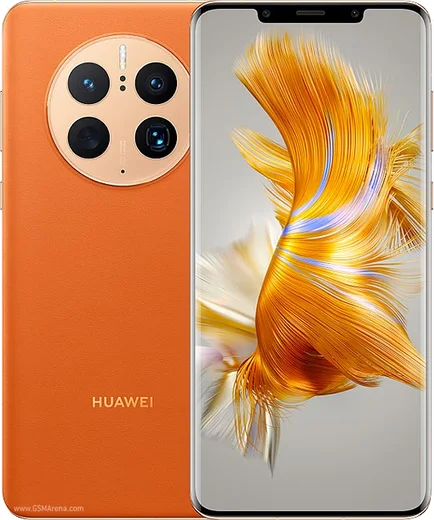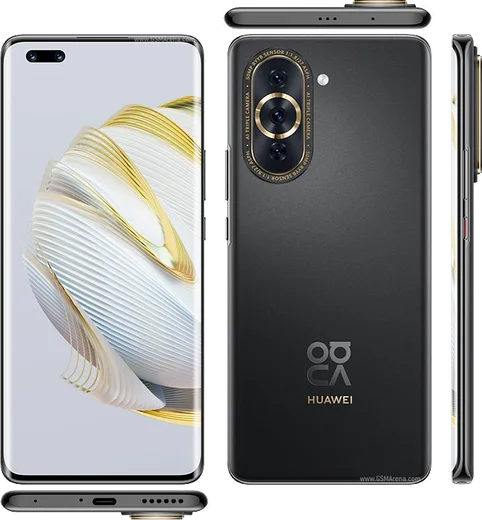
WhatsApp on Huawei Mate 50 Pro
Huawei HarmonyOS

WhatsApp for Huawei Mate 50 Pro

SD8+ Gen 1 4G, 6.74-inch 120Hz OLED, F1.4-F4.0 aperture

WhatsApp Messenger 4.7 · 64.2M reviews Free · HarmonyOS · ~40 MB · by WhatsApp LLC
Download WhatsApp

Ask a question / report a problem

You can ask any question about WhatsApp support on the Huawei Mate 50 Pro — leave it below and we'll help.

Ask a question

Can the Huawei Mate 50 Pro run WhatsApp?

Fully supported
  • Operating systemHarmonyOS
  • ProcessorSD8+ Gen 1 4G
  • WhatsApp versionLatest supported

Latest known WhatsApp problems on Huawei Mate 50 Pro

1

How do I install WhatsApp on my Huawei Mate 50 Pro without Google Play?

The Mate 50 Pro ships without Google Mobile Services, and WhatsApp is not published as an official listing in Huawei AppGallery, so most people install it through Petal Search: open Petal Search, search "WhatsApp", and download the APK it surfaces (this usually comes from a third-party mirror such as APKPure rather than directly from Meta). When prompted, allow installs from that source. To be safer, you can instead grab the APK straight from WhatsApp's own site (whatsapp.com/android) and sideload it, which guarantees the genuine signed build. See how others solved this on Reddit
2

WhatsApp flags my app as unofficial and threatens a ban on my Mate 50 Pro - what do I do?

This warning appears when WhatsApp was sideloaded from a mirror whose APK signature it doesn't fully trust, or when an outdated build is installed. Uninstall it completely, then reinstall the latest version - ideally the official APK from whatsapp.com/android, or via Petal Search. Never install a modified client like GBWhatsApp or WhatsApp Plus, since those genuinely trigger temporary or permanent bans. See how others solved this on Reddit
3

WhatsApp stopped working after a HarmonyOS update on my Mate 50 Pro - how do I fix it?

After a system update, first clear only the cache via Settings > Apps > Apps > WhatsApp > Storage > Clear cache (do not use Clear data, which wipes your account state), then reboot. If it still won't open or connect, uninstall and sideload the latest WhatsApp APK so the build matches the updated system framework. See how others solved this on Reddit
4

WhatsApp notifications don't arrive on my Mate 50 Pro unless the app is open - how do I fix it?

HarmonyOS aggressively closes background apps to save battery. Go to Settings > Battery > App launch, find WhatsApp, turn off automatic management, and manually enable Auto-launch, Secondary launch, and Run in background. Then open Settings > Notifications > WhatsApp and allow all notification categories so messages come through while the app is closed. See how others solved this on Reddit
5

Should I buy a Mate 50 Pro if I rely on WhatsApp daily?

WhatsApp runs fine on the Mate 50 Pro once it's installed via Petal Search or sideloaded, and core messaging, voice, and video calls all work without Google services. The trade-offs to plan for: you must adjust battery and launch settings so notifications stay reliable, and you cannot back up chats to Google Drive, so you'll rely on a local backup instead. Many users run it day to day without issues once it's set up. See how others solved this on Reddit
6

How do I back up and transfer my WhatsApp chats on a Mate 50 Pro without Google Drive?

Since there's no Google Drive backup on HarmonyOS, open WhatsApp > Settings > Chats > Chat backup to write a local backup to internal storage; on modern WhatsApp this lands under Internal storage > Android/media/com.whatsapp/WhatsApp in the Databases folder. To move chats to a new phone, copy that whole com.whatsapp/WhatsApp folder across using Huawei Phone Clone or a USB cable, install WhatsApp on the new device, verify the same number, and choose Restore when prompted. See how others solved this on Reddit

Ask a question / report a problem

You can ask any question about WhatsApp support on the Huawei Mate 50 Pro — leave it below and we'll help.

Ask a question

Watch: setting up WhatsApp

Prefer to watch? This short walkthrough shows the whole installation and number-verification flow.

How to install WhatsApp on Huawei Mate 50 Pro — video walkthrough

How to install WhatsApp on Huawei Mate 50 Pro

1

Open Huawei AppGallery

On your Huawei Mate 50 Pro, tap the AppGallery icon — Huawei's own app store. Newer Huawei phones ship without Google Play, so AppGallery is where you get WhatsApp.

2

Search for WhatsApp

Search WhatsApp Messenger in AppGallery and confirm it's published by WhatsApp LLC. If it isn't offered in your region, use Petal Search to download the official app.

3

Install the app

Tap Install. AppGallery downloads and installs WhatsApp; if prompted, allow installing the app so it can finish.

4

Verify your phone number

Open WhatsApp, accept the terms, and enter your phone number. On a dual-SIM Huawei Mate 50 Pro, pick the line you want WhatsApp tied to, then enter the 6-digit code it sends by SMS.

5

Allow notifications and background activity

Add your name and photo, tap Allow for notifications, then open Settings > Battery and let WhatsApp auto-launch and run in the background so messages arrive on time on HarmonyOS.

Stay safe: only ever install WhatsApp from the official HarmonyOS source. The Download button above already points there — modified copies (GB/Plus/Aero WhatsApp) can get your number banned.

Comments (11)

No registration needed. No email required.
L
leo_xJun 8, 2026

someone omggg i cant install it someone heeelp 😩

AppWhatsOfficialJun 10, 2026

No panic needed. The Download button takes you to the official app, then just install and verify your number.

K
kai19Mar 10, 2026

had whatsapp on my mate 50 pro in no time thx

T
tom_priDec 20, 2025

all good on my 50pro now 🔥

K
kev21Dec 16, 2025

no problems installing on my Huawei Mate 50 Pro 💯

P
priya_omaDec 15, 2025

Worked even on my old phone

A
anonJul 24, 2025

well running whatsapp on my 50pro like new lol

J
joe.cMay 7, 2025

so perfect steps for the huawei mate 50 pro

F
finn_samMar 27, 2025

wow installé sans souci

K
kate.hMar 4, 2025

Finally i tried 3 other guides before this one thx

S
sara.eJan 18, 2025

Endlich ohne probleme installiert

S
speedySep 20, 2024

even my grandma could do this