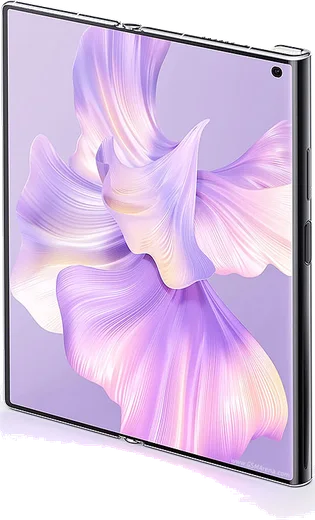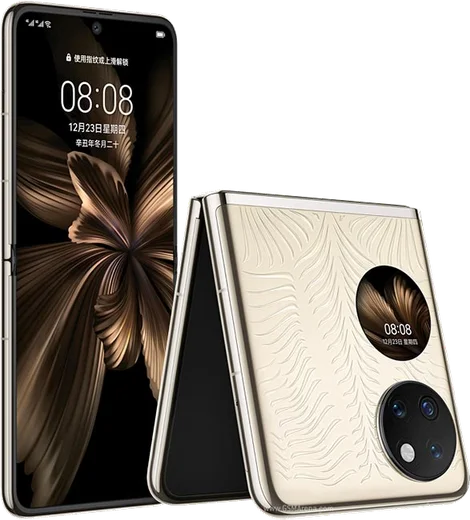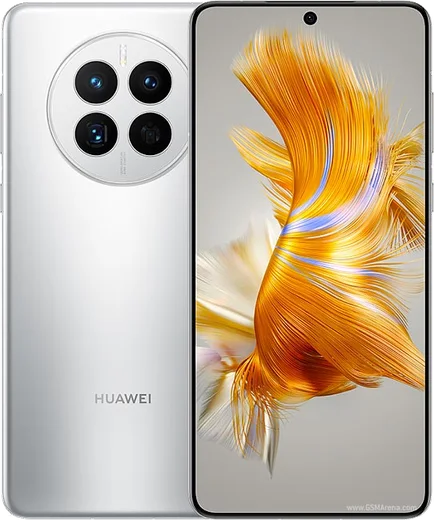
WhatsApp on Huawei Mate Xs 2
Huawei HarmonyOS

WhatsApp for Huawei Mate Xs 2

Snapdragon 888 4G, 7.8-inch outward-folding OLED

WhatsApp Messenger 4.7 · 64.2M reviews Free · HarmonyOS · ~40 MB · by WhatsApp LLC
Download WhatsApp

Ask a question / report a problem

You can ask any question about WhatsApp support on the Huawei Mate Xs 2 — leave it below and we'll help.

Ask a question

Can the Huawei Mate Xs 2 run WhatsApp?

Fully supported
  • Operating systemHarmonyOS
  • ProcessorSnapdragon 888 4G
  • WhatsApp versionLatest supported

Latest known WhatsApp problems on Huawei Mate Xs 2

1

How do I install WhatsApp on the Huawei Mate Xs 2 without Google Play?

The Mate Xs 2 runs HarmonyOS with no Google services, so install WhatsApp from Huawei's AppGallery, which now lists the official WhatsApp directly. If you can't find it there, download the official APK from whatsapp.com using the built-in browser, then approve the install when HarmonyOS prompts you about an external source. Avoid third-party APK mirrors so you stay on the genuine, up-to-date version. See how others solved this on Reddit
2

WhatsApp stopped working on my Huawei Mate Xs 2 after I installed it, why?

This often happens when WhatsApp was sideloaded through a Google Play Services workaround (such as GSpace, GBox, or a microG-style helper) that has since broken login or message sync. Uninstall that helper, then install the standalone WhatsApp from AppGallery or the official whatsapp.com APK, which runs natively on HarmonyOS without Google. After reinstalling, re-verify your number and restore from a local backup if prompted. See how others solved this on Reddit
3

Why don't WhatsApp notifications come through on my Mate Xs 2 unless the app is open?

HarmonyOS aggressively closes background apps to save power, which drops WhatsApp's push connection when the screen is off. Go to Settings > Battery > App launch, find WhatsApp, turn off "Manage automatically," then enable Auto-launch, Secondary launch, and Run in background. Also confirm notifications are switched on under Settings > Notifications > WhatsApp. See how others solved this on Reddit
4

Is the Huawei Mate Xs 2 usable day to day without Google apps?

Yes, most essentials work fine: WhatsApp, Telegram, Spotify, and many banking apps are on AppGallery or installable as APKs, and Petal Maps covers navigation in place of Google Maps. The main gaps are apps that hard-depend on Google Play Services (some games, Google's own apps, and a few that use Google login), so check your must-have apps before relying on it. For the foldable itself, the daily experience is smooth once your key apps are set up. See how others solved this on Reddit
5

How do I move my WhatsApp chats to the Mate Xs 2 when there's no Google Drive backup?

HarmonyOS has no Google Drive, so the cloud restore option won't appear; use a local backup transfer instead. On your old phone, open WhatsApp > Settings > Chats > Chat backup to write a local backup, then copy the WhatsApp folder (Internal storage/Android/media/com.whatsapp/WhatsApp) to the Mate Xs 2 via Huawei Phone Clone or a cable. Install WhatsApp on the Mate Xs 2 and verify your number, and it will detect the local backup and offer to restore. See how others solved this on Reddit
6

I just got the Mate Xs 2 and some apps won't install or open, what should I do?

For apps missing from AppGallery, use the built-in Petal Search or a trusted source like APKPure to sideload the official version, allowing installs from that source when prompted. If an app installs but crashes on launch, it likely needs Google Play Services that HarmonyOS doesn't have, so look for a Huawei or web-based alternative instead of fighting it. Keep AppGallery updated so newly added official apps show up. See how others solved this on Reddit

Ask a question / report a problem

You can ask any question about WhatsApp support on the Huawei Mate Xs 2 — leave it below and we'll help.

Ask a question

Watch: setting up WhatsApp

Prefer to watch? This short walkthrough shows the whole installation and number-verification flow.

How to install WhatsApp on Huawei Mate Xs 2 — video walkthrough

How to install WhatsApp on Huawei Mate Xs 2

1

Open Huawei AppGallery

On your Huawei Mate Xs 2, tap the AppGallery icon — Huawei's own app store. Newer Huawei phones ship without Google Play, so AppGallery is where you get WhatsApp.

2

Search for WhatsApp

Search WhatsApp Messenger in AppGallery and confirm it's published by WhatsApp LLC. If it isn't offered in your region, use Petal Search to download the official app.

3

Install the app

Tap Install. AppGallery downloads and installs WhatsApp; if prompted, allow installing the app so it can finish.

4

Verify your phone number

Open WhatsApp, accept the terms, and enter your phone number. On a dual-SIM Huawei Mate Xs 2, pick the line you want WhatsApp tied to, then enter the 6-digit code it sends by SMS.

5

Allow notifications and background activity

Add your name and photo, tap Allow for notifications, then open Settings > Battery and let WhatsApp auto-launch and run in the background so messages arrive on time on HarmonyOS.

Stay safe: only ever install WhatsApp from the official HarmonyOS source. The Download button above already points there — modified copies (GB/Plus/Aero WhatsApp) can get your number banned.

Comments (10)

No registration needed. No email required.
A
ash21Apr 11, 2026

guys whatsapp works fine on my xs2 thanks again

J
joe63Mar 16, 2026

Does this cost money ?

AppWhatsOfficialMar 18, 2026

Good question, no payment needed at all. WhatsApp is free, you just need an internet connection. Hope that helps!

R
raj_xMar 9, 2026

whatsapp works fine on my xs 2 :)

P
phoneaddictJun 15, 2025

Uff todo bien, mil gracias

B
big_rajJun 7, 2025

Someone help meee i pressed everything and nothing 😭 😩

AppWhatsOfficialJun 8, 2025

Breathe! Follow the steps above one by one, tap Download first, and you will be chatting in no time. You got this!

T
tan56Feb 23, 2025

No problems installing on my mate xs 2 :)

M
ms_peteJan 3, 2025

Muy fácil, lo hice en 2 minutos 🎉

O
oldschoolDec 8, 2024

got it working on my xs 2 first try 💯

N
nightowlNov 30, 2024

so super easy to follow :)

S
sol_robAug 24, 2024

so did this on my xs 2 and it just worked