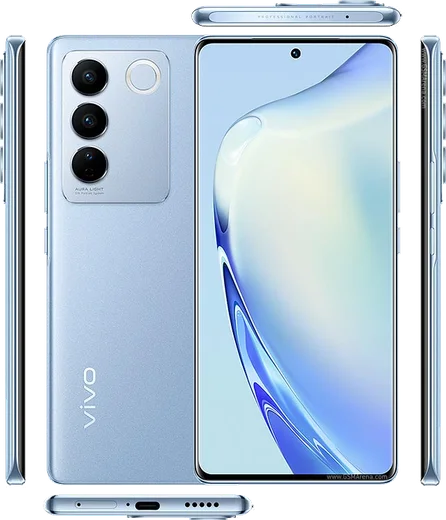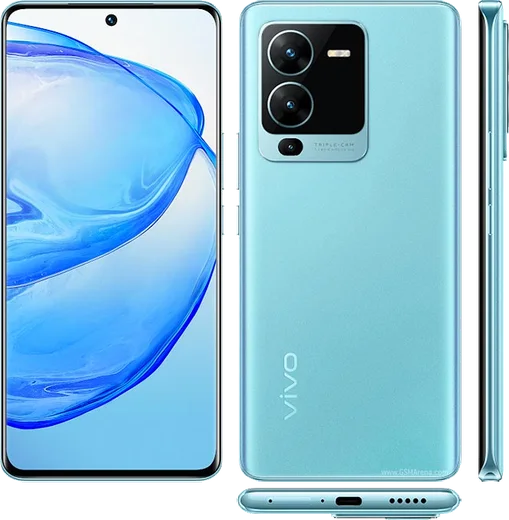
WhatsApp on Vivo X80
Vivo Android

WhatsApp for Vivo X80

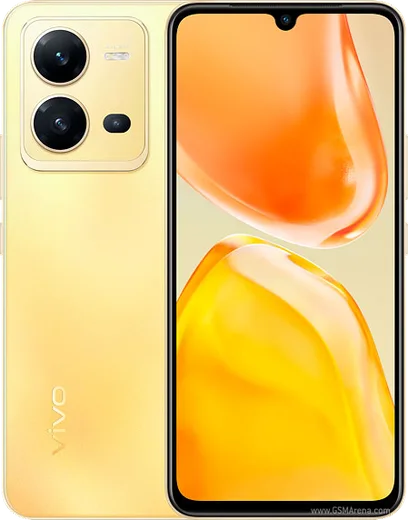
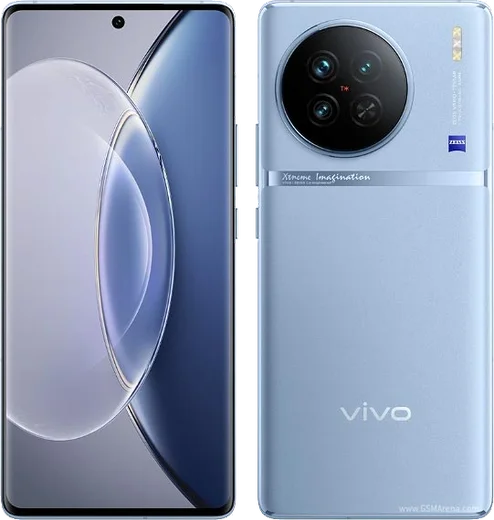
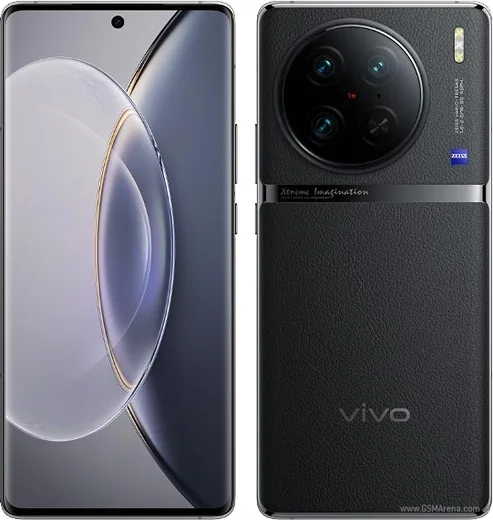
Dimensity 9000, 6.78-inch AMOLED, 80W charging, Zeiss optics

WhatsApp Messenger 4.7 · 64.2M reviews Free · Android · ~40 MB · by WhatsApp LLC
Download WhatsApp

Ask a question / report a problem

You can ask any question about WhatsApp support on the Vivo X80 — leave it below and we'll help.

Ask a question

Can the Vivo X80 run WhatsApp?

Fully supported
  • Operating systemAndroid
  • ProcessorDimensity 9000
  • WhatsApp versionLatest supported

Latest known WhatsApp problems on Vivo X80

1

Why does WhatsApp keep crashing or freezing on my Vivo X80 Pro?

Vivo's aggressive background management on Funtouch OS is the usual culprit. Go to Settings > Battery > High background power consumption (on some builds it's just 'Background power consumption') and allow WhatsApp to run freely. Then open Settings > Apps & permissions > App manager > WhatsApp and clear the cache under Storage. Finally, update WhatsApp to the latest version from the Google Play Store, since older builds crash more often. See how others solved this on Reddit
2

WhatsApp calls don't ring or come through on my Vivo X80 - how do I fix it?

This is almost always Funtouch OS killing WhatsApp in the background. Go to Settings > Battery > High background power consumption and set WhatsApp to allow background running. Then open Settings > Apps & permissions > Autostart (Autostart manager) and enable autostart for WhatsApp so it can wake for incoming calls. Finally, in Settings > Notifications & status bar > WhatsApp, confirm call notifications and lock screen notifications are turned on. See how others solved this on Reddit
3

How do I transfer my WhatsApp chats from my old iPhone to the Vivo X80?

Use WhatsApp's official 'Move to Android' transfer over a cable. On the X80 during initial setup, when prompted, connect your iPhone with a USB-C to Lightning cable and follow the on-screen 'Transfer chats' steps. An iCloud WhatsApp backup cannot be restored directly on Android, so this cable method is the only supported way to keep your full history. Keep both phones charged, and verify WhatsApp on the X80 with the same phone number. See how others solved this on Reddit
4

I can't see WhatsApp message previews when the app is locked on my Vivo X80 - any fix?

If you locked WhatsApp with Vivo's App lock, notification content is hidden by design. Go to Settings > Security & privacy > App lock, tap WhatsApp, and enable 'Show notification content' for it. Alternatively, use WhatsApp's own built-in lock under WhatsApp > Settings > Privacy > App lock, which still shows previews. Either way, confirm previews are enabled in Settings > Notifications & status bar > WhatsApp. See how others solved this on Reddit
5

Why don't WhatsApp notifications show on the Always-On Display of my Vivo X80?

Funtouch OS typically shows only a notification icon or dot on the Always-On Display rather than full message content. Enable icon hints under Settings > Always-On Display (or Dynamic effects) > Notifications and toggle on WhatsApp. For alerts to arrive reliably, also keep WhatsApp's autostart and background running enabled. If you want full message previews, rely on the lock screen notification settings under Settings > Notifications & status bar rather than the AOD. See how others solved this on Reddit

Ask a question / report a problem

You can ask any question about WhatsApp support on the Vivo X80 — leave it below and we'll help.

Ask a question

Watch: setting up WhatsApp

Prefer to watch? This short walkthrough shows the whole installation and number-verification flow.

How to install WhatsApp on Vivo X80 — video walkthrough

How to install WhatsApp on Vivo X80

1

Choose how to download

On your Vivo X80 you can get the official app two ways: from the Google Play Store — the easiest option, since it keeps WhatsApp updated automatically — or directly from the official website. You can download an APK file, by clicking a link “Download WhatsApp directly”.

2

Open WhatsApp

Launch WhatsApp from your home screen or app drawer and accept the Terms of Service to start setup.

3

Verify your phone number

Enter your phone number. If your Vivo X80 uses dual SIM, pick the line you want WhatsApp tied to, then enter the 6-digit code it sends by SMS — it usually fills in automatically.

4

Restore chats and finish setup

Restore your chat history from Google Drive (use the same Google account), add your name and photo, and tap Allow for notifications so messages and calls arrive reliably.

Stay safe: only ever install WhatsApp from the official Android source. The Download button above already points there — modified copies (GB/Plus/Aero WhatsApp) can get your number banned.

Comments (8)

No registration needed. No email required.
N
nick.hApr 21, 2026

Hé trop facile, mon Vivo X80 est prêt

H
helpmeeeMar 25, 2026

Ngl the download was a bit slow but it worked 🎉

V
val.bFeb 17, 2026

Ugh pleeeease i really need whatsapp on my vivo x80 today pls

AppWhatsOfficialFeb 19, 2026

You are almost there! Tap Download, allow the install, open WhatsApp and confirm your number. You will be set up on your phone in no time.

K
kev.uFeb 4, 2026

How do i restore my old messages ?

AppWhatsOfficialFeb 7, 2026

Sure, if you made a backup before, sign in with the same number and tap Restore when asked. WhatsApp pulls your chats from the cloud backup.

V
val_leoSep 2, 2025

Yo cheers for the clear instructions

K
kai.jMay 25, 2025

yo finally got whatsapp running on my Vivo X80 :)

T
the_real_jessNov 30, 2024

Update installed whatsapp on my vivo x80 with no issues cheers

S
saaaaamAug 27, 2024

omg im not techy and i still managed ✌️

AppWhatsOfficialAug 30, 2024

Thanks for sharing!