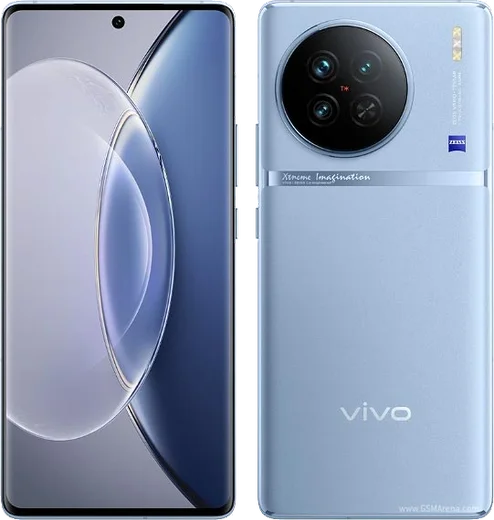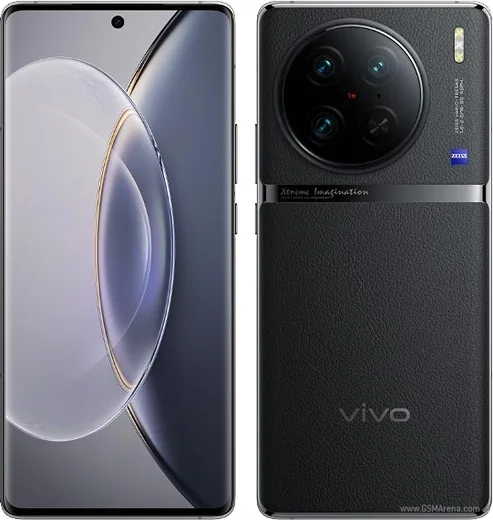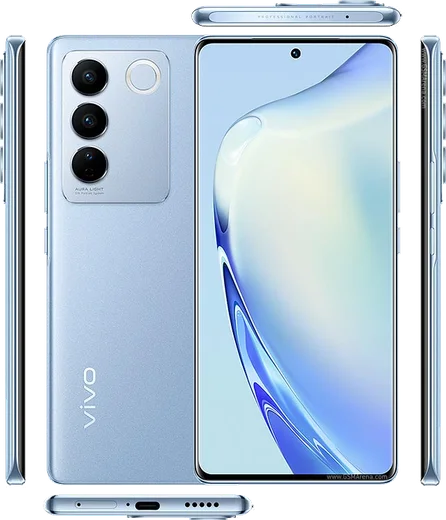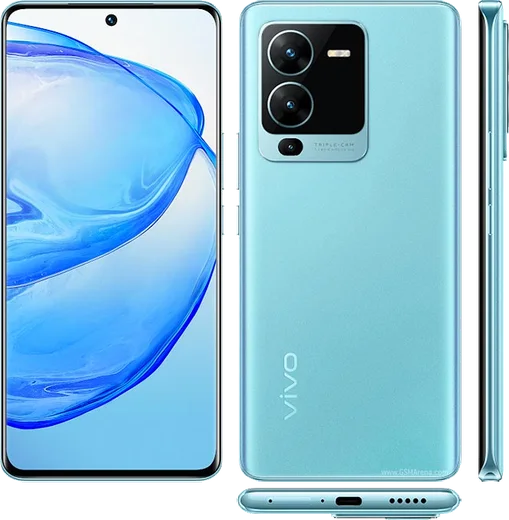
WhatsApp on Vivo X90
Vivo Android

WhatsApp for Vivo X90

Dimensity 9200, 6.78-inch AMOLED, 4810mAh, 120W charging

WhatsApp Messenger 4.7 · 64.2M reviews Free · Android · ~40 MB · by WhatsApp LLC
Download WhatsApp

Ask a question / report a problem

You can ask any question about WhatsApp support on the Vivo X90 — leave it below and we'll help.

Ask a question

Can the Vivo X90 run WhatsApp?

Fully supported
  • Operating systemAndroid
  • ProcessorDimensity 9200
  • WhatsApp versionLatest supported

Latest known WhatsApp problems on Vivo X90

1

Why are WhatsApp notifications delayed or not showing on my Vivo X90?

OriginOS/Funtouch aggressively kills background apps to save battery, which delays or silences WhatsApp. Open Settings > Battery > High background power consumption and allow WhatsApp, then go to Settings > Apps & permissions > Autostart and enable WhatsApp so it can run after a restart. Finally, open the Recent apps screen, swipe down on the WhatsApp card (or tap the lock icon) to lock it in memory so the system stops clearing it. See how others solved this on Reddit
2

How do I fix WhatsApp notifications after an OriginOS update broke them on my Vivo X90?

OriginOS updates often reset autostart and background permissions, so re-enable them. Open Settings > Apps & permissions > Autostart and turn WhatsApp on, then go to Settings > Notification & status bar > Manage notifications > WhatsApp and confirm Allow notifications is on with the Messages and Calls channels enabled. Finally allow WhatsApp under Settings > Battery > High background power consumption so it isn't throttled again. See how others solved this on Reddit
3

Why don't WhatsApp messages pop up as floating banners on my Vivo X90?

Floating (heads-up) banners are controlled per channel in OriginOS. Open Settings > Notification & status bar > Manage notifications > WhatsApp > Messages and enable Banner/Floating notifications and Lock screen notifications. If banners still don't appear, make sure WhatsApp's autostart and background activity are allowed so the notification channel stays active, and check that Do Not Disturb isn't on. See how others solved this on Reddit
4

Why aren't WhatsApp call notifications showing on my Vivo X90 after a software update?

Incoming-call alerts rely on the separate Calls channel plus the permission that lets WhatsApp draw a full-screen call over the lock screen, both of which updates can disable. Enable Settings > Notification & status bar > Manage notifications > WhatsApp > Calls, then grant Settings > Apps & permissions > App manager > WhatsApp > Permissions > Display over other apps (this powers the full-screen incoming-call screen). Re-enable WhatsApp under Autostart and allow it in High background power consumption so the call screen can launch while the phone is locked. See how others solved this on Reddit
5

Why won't WhatsApp send the SMS verification code to my Vivo X90?

The code arrives by SMS, so first confirm your number and country code are correct and that you have signal, then wait out the full timer before retrying. Check that the sender isn't blocked in the Messages app and that on a dual-SIM phone the code isn't going to the other SIM. If SMS keeps failing, tap the Call me option to receive the code by voice, and disable any VPN before trying again. See how others solved this on Reddit
6

Why does my second WhatsApp account get no notifications on my Vivo X90?

OriginOS throttles the background work for a second WhatsApp account (or a cloned/dual app) the same way it does the main one. First confirm notifications are enabled inside WhatsApp under Settings > Notifications for both accounts. Then allow WhatsApp (and the App Clone version, if you used Vivo's dual-app feature) under Settings > Battery > High background power consumption and enable it in Autostart. Locking the app in Recent apps and turning off Do Not Disturb helps the secondary account ring reliably. See how others solved this on Reddit

Ask a question / report a problem

You can ask any question about WhatsApp support on the Vivo X90 — leave it below and we'll help.

Ask a question

Watch: setting up WhatsApp

Prefer to watch? This short walkthrough shows the whole installation and number-verification flow.

How to install WhatsApp on Vivo X90 — video walkthrough

How to install WhatsApp on Vivo X90

1

Choose how to download

On your Vivo X90 you can get the official app two ways: from the Google Play Store — the easiest option, since it keeps WhatsApp updated automatically — or directly from the official website. You can download an APK file, by clicking a link “Download WhatsApp directly”.

2

Open WhatsApp

Launch WhatsApp from your home screen or app drawer and accept the Terms of Service to start setup.

3

Verify your phone number

Enter your phone number. If your Vivo X90 uses dual SIM, pick the line you want WhatsApp tied to, then enter the 6-digit code it sends by SMS — it usually fills in automatically.

4

Restore chats and finish setup

Restore your chat history from Google Drive (use the same Google account), add your name and photo, and tap Allow for notifications so messages and calls arrive reliably.

Stay safe: only ever install WhatsApp from the official Android source. The Download button above already points there — modified copies (GB/Plus/Aero WhatsApp) can get your number banned.

Comments (6)

No registration needed. No email required.
S
sam_rajDec 7, 2025

Ngl the X90 steps actually work unlike other sites 😍

N
newbieApr 16, 2025

Wow ohne probleme auf meinem Vivo X90 installiert

S
speedyMar 6, 2025

Smooth install on the vivo x90 💯

AppWhatsOfficialMar 8, 2025

Thanks for the feedback!

D
deni.sOct 11, 2024

Update worked perfect on my vivo x90

M
marc2000Aug 13, 2024

hey anyone pls i cant download it heeeelp me pls

AppWhatsOfficialAug 16, 2024

You are almost there! Tap Download, allow the install, open WhatsApp and confirm your number. You will be set up on your phone in no time.

R
ray21Aug 7, 2024

man my whatsapp had stopped working but this fixed it cheers