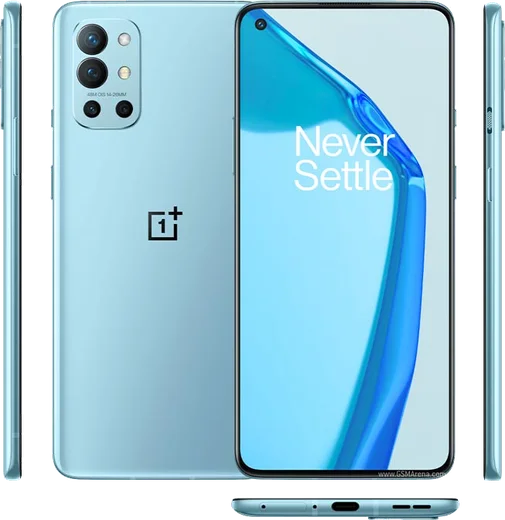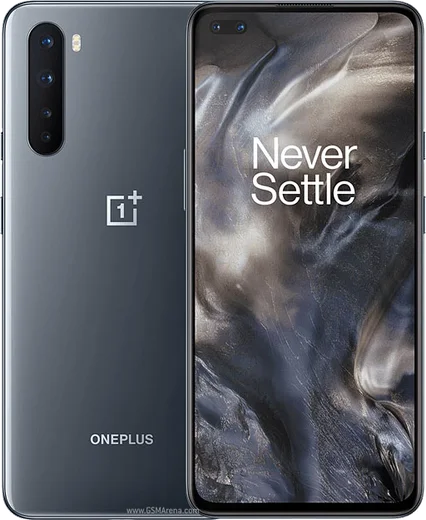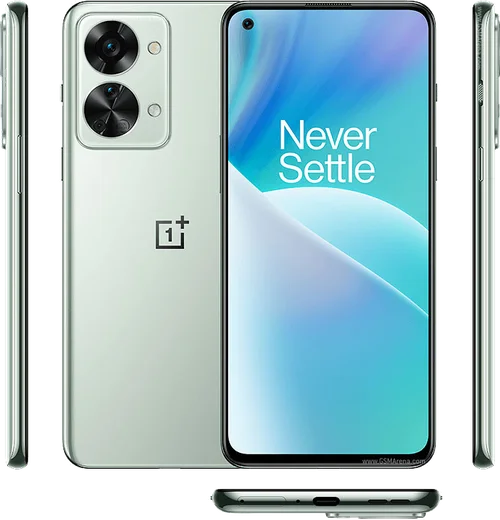
WhatsApp on OnePlus 9R
OnePlus Android

WhatsApp for OnePlus 9R

Snapdragon 870, 6.55-inch 120Hz AMOLED

WhatsApp Messenger 4.7 · 64.2M reviews Free · Android · ~40 MB · by WhatsApp LLC
Download WhatsApp

Ask a question / report a problem

You can ask any question about WhatsApp support on the OnePlus 9R — leave it below and we'll help.

Ask a question

Can the OnePlus 9R run WhatsApp?

Fully supported
  • Operating systemAndroid
  • ProcessorSnapdragon 870
  • WhatsApp versionLatest supported

Latest known WhatsApp problems on OnePlus 9R

1

WhatsApp keeps crashing on my OnePlus 9R after a system update — how do I fix it?

This usually comes from a corrupted cache or a WebView/WhatsApp version mismatch left over from the update. Go to Settings > Apps > WhatsApp > Storage and tap Clear cache (not Clear data), then open the Play Store and update both WhatsApp and Android System WebView. If it still force-closes, uninstall and reinstall WhatsApp — your chats restore from the local/Google Drive backup during setup. See how others solved this on Reddit
2

WhatsApp notifications on my OnePlus 9R arrive late or only show up when I open the app — how do I make them reliable?

OxygenOS aggressively sleeps background apps, which throttles WhatsApp's push notifications. Go to Settings > Apps > WhatsApp > App battery usage and set it to Unrestricted (Don't restrict), then under Settings > Battery turn off any deep/advanced optimization for WhatsApp. Finally confirm WhatsApp's own Settings > Notifications are on and that the notification channel isn't muted under Settings > Apps > WhatsApp > Notifications. See how others solved this on Reddit
3

WhatsApp calls don't wake or light up my OnePlus 9R screen when one comes in — what's wrong?

This is OxygenOS battery optimization blocking WhatsApp's full-screen incoming-call alert. Go to Settings > Apps > WhatsApp > App battery usage and choose Unrestricted, then enable Settings > Apps > WhatsApp > Display over other apps (Appear on top). Also make sure WhatsApp's notifications are allowed under Settings > Apps > WhatsApp > Notifications, since a blocked call channel stops the screen from waking. See how others solved this on Reddit
4

Videos I send over WhatsApp from my OnePlus 9R come out blurry and low quality — can I improve this?

WhatsApp compresses every video to save data, but you can reduce the damage. In WhatsApp go to Settings > Storage and data > Media upload quality and switch it to HD (Best quality) instead of Standard. For clips you really want to keep sharp, send them as a document via the attach (paperclip) > Document option, which skips compression entirely though it still counts toward WhatsApp's file-size limit. See how others solved this on Reddit
5

I'm switching to my OnePlus 9R and it can't receive the WhatsApp transfer or find my backup — how do I restore my chats?

For a cross-device transfer both phones must be on the same Wi-Fi and you scan the QR code during setup; if that fails, fall back to a Google Drive restore. Make sure the OnePlus 9R is signed into the same Google account that holds the backup and that WhatsApp uses the same phone number, then reinstall WhatsApp and tap Restore when prompted. If the backup still isn't detected, open Drive > Backups to confirm it exists, and check WhatsApp > Settings > Chats > Chat backup is tied to that account. See how others solved this on Reddit
6

WhatsApp randomly stops working or won't connect on my OnePlus — what should I check first?

Start by confirming WhatsApp is updated from the Play Store and that the OnePlus 9R has a stable connection (toggle Airplane mode or switch between Wi-Fi and mobile data to reset the link). Then clear the app cache via Settings > Apps > WhatsApp > Storage > Clear cache and set Settings > Apps > WhatsApp > App battery usage to Unrestricted. If messages still won't send or receive, verify that Settings > System > Date & time is set to Automatic, since a wrong clock breaks WhatsApp's connection. See how others solved this on Reddit

Ask a question / report a problem

You can ask any question about WhatsApp support on the OnePlus 9R — leave it below and we'll help.

Ask a question

Watch: setting up WhatsApp

Prefer to watch? This short walkthrough shows the whole installation and number-verification flow.

How to install WhatsApp on OnePlus 9R — video walkthrough

How to install WhatsApp on OnePlus 9R

1

Choose how to download

On your OnePlus 9R you can get the official app two ways: from the Google Play Store — the easiest option, since it keeps WhatsApp updated automatically — or directly from the official website. You can download an APK file, by clicking a link “Download WhatsApp directly”.

2

Open WhatsApp

Launch WhatsApp from your home screen or app drawer and accept the Terms of Service to start setup.

3

Verify your phone number

Enter your phone number. If your OnePlus 9R uses dual SIM, pick the line you want WhatsApp tied to, then enter the 6-digit code it sends by SMS — it usually fills in automatically.

4

Restore chats and finish setup

Restore your chat history from Google Drive (use the same Google account), add your name and photo, and tap Allow for notifications so messages and calls arrive reliably.

Stay safe: only ever install WhatsApp from the official Android source. The Download button above already points there — modified copies (GB/Plus/Aero WhatsApp) can get your number banned.

Comments (8)

No registration needed. No email required.
N
newbieMay 30, 2026

Alles läuft auf meinem 9r, vielen dank

G
guest_userMay 8, 2026

whatsapp is working on my 9r now ❤️

T
tan00Apr 27, 2026

Update installed whatsapp on my 9R with no issues cheers

M
mia_sarFeb 27, 2026

Guys this is the only one that worked for me 👍

N
noah_ashOct 13, 2025

Ngl no registration needed, love that

R
raj.ySep 27, 2025

guys easy install on my 9r 🙏

K
kate_yukJul 16, 2025

Yo running whatsapp on my oneplus 9r like new thanks again

X
xX_mikeSep 15, 2024

Ugh cant do this alone HELP how do i download

AppWhatsOfficialSep 19, 2024

Breathe! Follow the steps above one by one, tap Download first, and you will be chatting in no time. You got this!