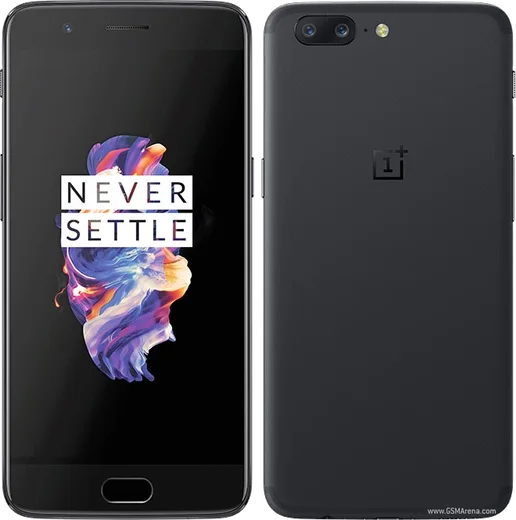
WhatsApp on OnePlus 5
OnePlus Android

WhatsApp for OnePlus 5

Snapdragon 835, 5.5-inch 1080p, dual camera

WhatsApp Messenger 4.7 · 64.2M reviews Free · Android · ~40 MB · by WhatsApp LLC
Download WhatsApp

Ask a question / report a problem

You can ask any question about WhatsApp support on the OnePlus 5 — leave it below and we'll help.

Ask a question

Can the OnePlus 5 run WhatsApp?

Fully supported
  • Operating systemAndroid
  • ProcessorSnapdragon 835
  • WhatsApp versionLatest supported

Latest known WhatsApp problems on OnePlus 5

1

Why does WhatsApp show a white or blank screen when I open it on my OnePlus 5?

This usually happens after an Android System WebView or WhatsApp update that didn't install cleanly. Open the Play Store, search for Android System WebView and tap Update, then do the same for WhatsApp. If the blank screen remains, go to Settings > Apps > WhatsApp > Storage and tap Clear cache (not Clear data, which deletes your local chats). Restart the phone after both updates to restore the normal interface. See how others solved this on Reddit
2

I'm not getting WhatsApp notifications when my OnePlus 5 screen is locked or idle

OxygenOS aggressively closes background apps to save battery, which drops WhatsApp's connection. Go to Settings > Battery > Battery optimization, find WhatsApp and set it to Don't optimize. Then open Settings > Apps > WhatsApp > Battery and enable Allow background activity (on older OxygenOS, also enable Auto-launch under Settings > Apps > App management). Finally, open the Recent Apps screen, tap WhatsApp's icon and choose Lock so the system stops clearing it from memory. See how others solved this on Reddit
3

WhatsApp calls don't ring or show a full-screen incoming call popup on my OnePlus 5

OxygenOS won't show the full-screen call interface unless WhatsApp can draw over the screen. Go to Settings > Apps > Special app access > Display over other apps and allow it for WhatsApp. Then open Settings > Apps > WhatsApp > Notifications and make sure the Calls notification category is on with sound and pop-on-screen enabled. Also confirm WhatsApp is exempt from battery optimization so the call connection isn't killed in the background. See how others solved this on Reddit
4

WhatsApp keeps lagging, freezing or not loading messages properly on my OnePlus 5

Built-up cache and a stale connection are the usual cause on older OxygenOS builds. Clear the app cache via Settings > Apps > WhatsApp > Storage > Clear cache, confirm WhatsApp is updated in the Play Store, and make sure it's exempt from battery optimization so it isn't throttled in the background. If chats still won't sync, toggle Airplane mode off and on, or switch between Wi-Fi and mobile data to force a fresh reconnect. See how others solved this on Reddit
5

WhatsApp notifications still come through while I'm gaming on my OnePlus 5

Game Space on OxygenOS only mutes notifications when it's configured to. Open Settings > Game Space (or Utilities > Game Space), open its notification settings and choose Block notifications or Text-only so banners and sounds are suppressed during play. For a stronger block, enable Do Not Disturb before launching a game, which silences WhatsApp entirely unless you've added specific contacts as exceptions. See how others solved this on Reddit
6

WhatsApp is stuck on the registration or verification screen and won't activate on my OnePlus 5

This usually means SMS or phone permissions are blocked, so the verification code can't be read. Go to Settings > Apps > WhatsApp > Permissions and enable SMS and Phone, then make sure WhatsApp can run in the background and isn't being killed by battery optimization. If the code still doesn't arrive automatically, tap Resend SMS and type it in manually, or reinstall the latest WhatsApp from the Play Store before re-registering. See how others solved this on Reddit

Ask a question / report a problem

You can ask any question about WhatsApp support on the OnePlus 5 — leave it below and we'll help.

Ask a question

Watch: setting up WhatsApp

Prefer to watch? This short walkthrough shows the whole installation and number-verification flow.

How to install WhatsApp on OnePlus 5 — video walkthrough

How to install WhatsApp on OnePlus 5

1

Choose how to download

On your OnePlus 5 you can get the official app two ways: from the Google Play Store — the easiest option, since it keeps WhatsApp updated automatically — or directly from the official website. You can download an APK file, by clicking a link “Download WhatsApp directly”.

2

Open WhatsApp

Launch WhatsApp from your home screen or app drawer and accept the Terms of Service to start setup.

3

Verify your phone number

Enter your phone number. If your OnePlus 5 uses dual SIM, pick the line you want WhatsApp tied to, then enter the 6-digit code it sends by SMS — it usually fills in automatically.

4

Restore chats and finish setup

Restore your chat history from Google Drive (use the same Google account), add your name and photo, and tap Allow for notifications so messages and calls arrive reliably.

Stay safe: only ever install WhatsApp from the official Android source. The Download button above already points there — modified copies (GB/Plus/Aero WhatsApp) can get your number banned.

Comments (5)

No registration needed. No email required.
M
maxx_benJan 28, 2026

wow por fin pude instalar whatsapp en mi 5

Z
zoe94Nov 18, 2025

Guys works like a charm on the OnePlus 5 thanks again

E
ella07Nov 11, 2025

Ok so took me 5 min total

I
ivan_kaiMar 15, 2025

omg whyyy is this so hard pls help me get whatsapp 😭😭

AppWhatsOfficialMar 17, 2025

Take a breath, we got you. Press Download above, then Install, then verify your number. That is all it takes. Reply here if you get stuck.

B
big_saraOct 11, 2024

Wow saved me so much time 😍

AppWhatsOfficialOct 13, 2024

Thanks for the feedback!