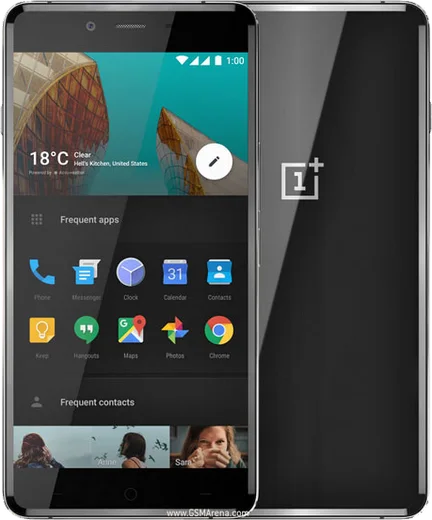
OnePlus Android

WhatsApp for OnePlus 2

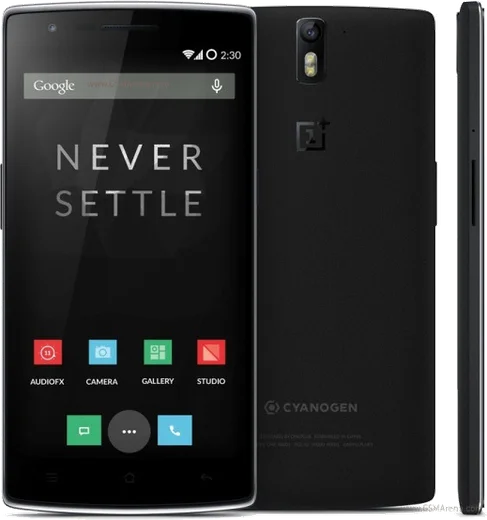
Snapdragon 810, 5.5-inch 1080p, USB-C

WhatsApp Messenger 4.7 · 64.2M reviews Free · Android · ~40 MB · by WhatsApp LLC
Download WhatsApp

Ask a question / report a problem

You can ask any question about WhatsApp support on the OnePlus 2 — leave it below and we'll help.

Ask a question

Can the OnePlus 2 run WhatsApp?

Support ending soon
  • Operating systemAndroid
  • ProcessorSnapdragon 810
  • WhatsApp versionLatest supported

Latest known WhatsApp problems on OnePlus 2

1

How do I run two WhatsApp accounts on the OnePlus 2 by cloning the app?

OnePlus's built-in clone feature is called Parallel Apps (found on newer OxygenOS builds under Settings > Apps > Parallel Apps) — toggle WhatsApp on to create a second cloned copy, then register your second number on the clone. Note the original OnePlus 2 shipped on very old OxygenOS and may not include Parallel Apps; if you don't see it, the simplest alternative is to install WhatsApp Business from the Play Store and use it for your second number. See how others solved this on Reddit
2

Can I run a second WhatsApp Business account alongside regular WhatsApp on my OnePlus 2?

Yes — WhatsApp and WhatsApp Business are separate apps, so install WhatsApp Business from the Play Store and register your second number on it directly, with no cloning needed. If you instead want two of the same app (two regular WhatsApp accounts) and your OxygenOS build supports it, use Parallel Apps under Settings > Apps > Parallel Apps to clone WhatsApp. See how others solved this on Reddit
3

I flashed LineageOS on my OnePlus 2 — can I still use dual WhatsApp accounts?

LineageOS doesn't include OnePlus's Parallel Apps cloning, so that built-in option disappears after flashing a custom ROM. Instead, install WhatsApp Business from the Play Store for your second number, or set up an Android work profile with a tool like Shelter and add a second copy of WhatsApp inside it. See how others solved this on Reddit
4

My OnePlus 2 has two SIM cards — how does WhatsApp decide which number to use?

WhatsApp registers to one specific phone number, not to a SIM slot, so once you're verified it doesn't matter which SIM is active for sending or receiving messages. During setup just enter the number you want WhatsApp tied to and let it read the verification SMS on that SIM; to use both numbers, register one in the main WhatsApp and the other in a second app (WhatsApp Business, or a Parallel Apps clone if your build supports it). See how others solved this on Reddit
5

WhatsApp keeps crashing or missing notifications on my OnePlus phone — how do I fix it?

Most OnePlus WhatsApp glitches come from aggressive battery optimization killing the app in the background. Go to Settings > Apps > WhatsApp > Battery (or App battery usage) and set it to Don't optimize / No restrictions, and turn off any Advanced/Deep optimization or Sleep standby option in Settings > Battery. If it still misbehaves, clear the app cache under Settings > Apps > WhatsApp > Storage (this won't delete chats), then update WhatsApp from the Play Store. See how others solved this on Reddit
6

WhatsApp won't load the registration screen on my OnePlus after an Android update — what now?

After a major Android upgrade WhatsApp can hang before verification, usually from a corrupted install state or cache — clear it via Settings > Apps > WhatsApp > Storage > Clear cache, then reboot. If the registration screen still won't load, uninstall and reinstall the latest WhatsApp from the Play Store, and confirm the SIM you're registering can receive the SMS verification code. See how others solved this on Reddit

Ask a question / report a problem

You can ask any question about WhatsApp support on the OnePlus 2 — leave it below and we'll help.

Ask a question

Watch: setting up WhatsApp

Prefer to watch? This short walkthrough shows the whole installation and number-verification flow.

How to install WhatsApp on OnePlus 2 — video walkthrough

How to install WhatsApp on OnePlus 2

1

Choose how to download

On your OnePlus 2 you can get the official app two ways: from the Google Play Store — the easiest option, since it keeps WhatsApp updated automatically — or directly from the official website. You can download an APK file, by clicking a link “Download WhatsApp directly”.

2

Open WhatsApp

Launch WhatsApp from your home screen or app drawer and accept the Terms of Service to start setup.

3

Verify your phone number

Enter your phone number. If your OnePlus 2 uses dual SIM, pick the line you want WhatsApp tied to, then enter the 6-digit code it sends by SMS — it usually fills in automatically.

4

Restore chats and finish setup

Restore your chat history from Google Drive (use the same Google account), add your name and photo, and tap Allow for notifications so messages and calls arrive reliably.

Stay safe: only ever install WhatsApp from the official Android source. The Download button above already points there — modified copies (GB/Plus/Aero WhatsApp) can get your number banned.

Comments (5)

No registration needed. No email required.
R
randomuserApr 2, 2026

pleeeease i really need whatsapp on my OnePlus 2 today

AppWhatsOfficialApr 6, 2026

Relax, it is simpler than it looks. Press Download, install, then verify with the SMS code. You got this! Reply here if you get stuck.

L
leo.rJul 17, 2025

finally got whatsapp running on my OnePlus 2 😍

T
tom_rayDec 12, 2024

Well im not techy and i still managed

C
chris_proDec 1, 2024

finalmente ottima guida, ha funzionato sul mio 2

N
noah_solAug 3, 2024

Ok so this actually works unlike others cheers