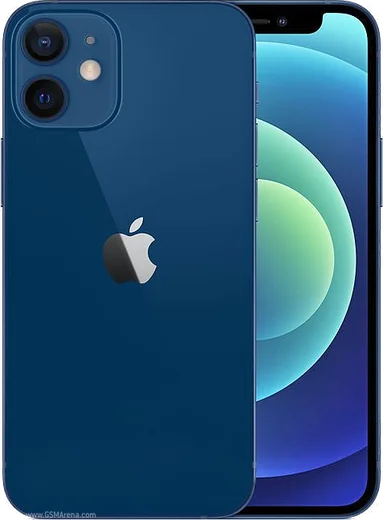
WhatsApp on iPhone 11
Apple iOS

WhatsApp for iPhone 11

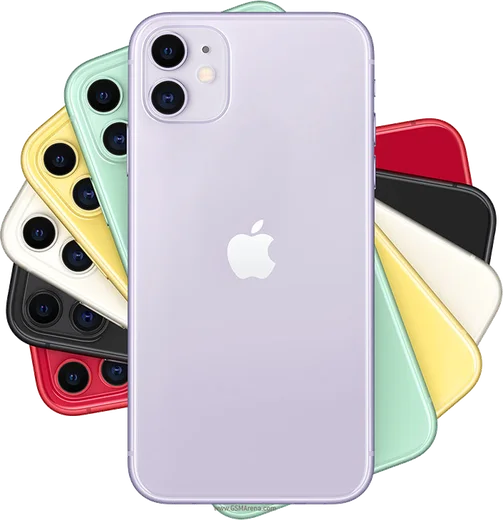
Apple A13 Bionic, 6.1-inch Liquid Retina, dual cameras

WhatsApp Messenger 4.7 · 64.2M reviews Free · iOS · ~40 MB · by WhatsApp LLC
Download WhatsApp

Ask a question / report a problem

You can ask any question about WhatsApp support on the iPhone 11 — leave it below and we'll help.

Ask a question

Can the iPhone 11 run WhatsApp?

Fully supported
  • Operating systemiOS
  • ProcessorApple A13 Bionic
  • WhatsApp versionLatest supported

Latest known WhatsApp problems on iPhone 11

1

Will WhatsApp stop working on my iPhone 11?

No, your iPhone 11 is safe. WhatsApp is only dropping support for very old iOS versions (around iOS 15 and earlier on older phones), and the iPhone 11 runs current iOS (it supports iOS 26), well above WhatsApp's minimum. Just keep it updated under Settings > General > Software Update and WhatsApp will keep working normally. See how others solved this on Reddit
2

WhatsApp says it requires a newer iOS version on my iPhone 11 — how do I fix it?

WhatsApp enforces a minimum iOS version, so the fix is to update your phone. Go to Settings > General > Software Update and install the latest available iOS — the iPhone 11 supports current versions up to iOS 26 — then open the App Store and update WhatsApp itself. After both updates the version warning will disappear. If the update stalls, make sure you have enough free storage and a stable Wi-Fi connection. See how others solved this on Reddit
3

WhatsApp keeps crashing randomly on my iPhone 11 — what should I do?

Random crashes are usually fixed by updating the app and freeing up resources. Update WhatsApp in the App Store, then restart the phone (hold the side and a volume button until the power-off slider appears). If it persists, free up space in Settings > General > iPhone Storage and offload-and-reinstall WhatsApp — your chats stay safe as long as you have a backup enabled in WhatsApp > Settings > Chats > Chat Backup before you reinstall. See how others solved this on Reddit
4

Why don't I get WhatsApp messages on my iPhone 11 until I open the app?

This is a notifications and background-refresh issue. Go to Settings > Notifications > WhatsApp and turn on Allow Notifications plus Lock Screen and Banners, then enable Settings > General > Background App Refresh and confirm WhatsApp is toggled on in that list (set the mode at the top to Wi-Fi & Cellular Data). Also turn off Low Power Mode in Settings > Battery and check that a Focus or Do Not Disturb isn't silencing WhatsApp. See how others solved this on Reddit
5

How do I move my WhatsApp chat history from my iPhone 11 to an Android phone?

Use WhatsApp's official Move to Android tool, and keep both phones plugged in on the same Wi-Fi. Reset or start the new Android phone so it's on its first-time setup screen, then follow the prompts until it shows a QR code. On your iPhone 11, open WhatsApp > Settings > Chats > Move Chats to Android, scan that QR code with the camera, and keep both phones connected until the transfer finishes. A wired connection between the phones is recommended for speed — use the cable that came with your iPhone, with an adapter if it doesn't fit the Android. This only works during the Android's initial setup, and you must use the same phone number on the new device. See how others solved this on Reddit

Ask a question / report a problem

You can ask any question about WhatsApp support on the iPhone 11 — leave it below and we'll help.

Ask a question

Watch: setting up WhatsApp

Prefer to watch? This short walkthrough shows the whole installation and number-verification flow.

How to install WhatsApp on iPhone 11 — video walkthrough

How to install WhatsApp on iPhone 11

1

Open the App Store

Unlock your iPhone 11 and tap the blue App Store icon on the Home Screen. WhatsApp is not preinstalled on any iPhone, so you install it from here.

2

Search for WhatsApp Messenger

Tap the Search tab at the bottom right, type WhatsApp Messenger, and confirm the publisher shows as WhatsApp Inc. so you don't download a copycat app.

3

Download and install

Tap Get, then authenticate with Face ID or Touch ID (or your Apple Account password). The app downloads to your Home Screen in a few seconds.

4

Verify your phone number

Open WhatsApp, accept the terms, and enter your phone number. If your iPhone 11 uses dual SIM, pick the line you want WhatsApp tied to, then enter the 6-digit code it sends by SMS — it usually fills in automatically.

5

Restore chats and finish setup

Sign in to iCloud with the same Apple Account to restore an existing chat backup, add your name and photo, and tap Allow for notifications so messages and calls arrive reliably.

Stay safe: only ever install WhatsApp from the official iOS source. The Download button above already points there — modified copies (GB/Plus/Aero WhatsApp) can get your number banned.

Comments (10)

No registration needed. No email required.
I
ivan.fJun 12, 2026

Sorry but can i use the same number on two phones thanks

AppWhatsOfficialJun 16, 2026

No worries, you can link extra devices from Settings, that lets the same number work on another phone.

S
stuckkkJun 12, 2026

Franchement très simple, fait en 2 minutes

M
maxx17May 14, 2026

Tbh this worked great on my iPhone 11 :)

L
lina.nOct 22, 2025

Wow worked perfect on my 11

B
ben_nicSep 15, 2025

ehi ottima guida grazie

I
ivan1990Jul 25, 2025

Omg clear and to the point 🙏

N
noobmasterJun 26, 2025

Honestly verified my number on the 11 with no trouble thanks again

AppWhatsOfficialJun 27, 2025

Thanks for sharing!

S
sooo_confusedMar 8, 2025

thank u, whatsapp installed on my iphone 11 ❤️

T
theuserOct 14, 2024

Finally whatsapp running great on my iPhone 11 ✌️

T
theuserOct 8, 2024

whyyy is this so hard pls help me get whatsapp

AppWhatsOfficialOct 12, 2024

Relax, it is simpler than it looks. Press Download, install, then verify with the SMS code. You got this!