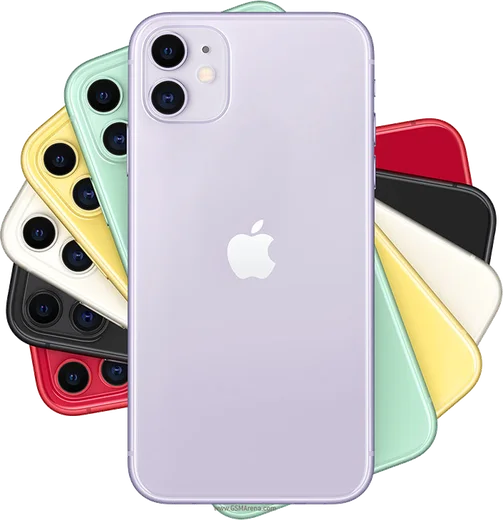
Apple iOS

WhatsApp for iPhone 11 Pro

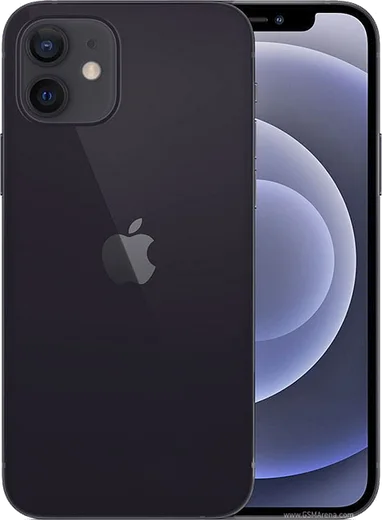
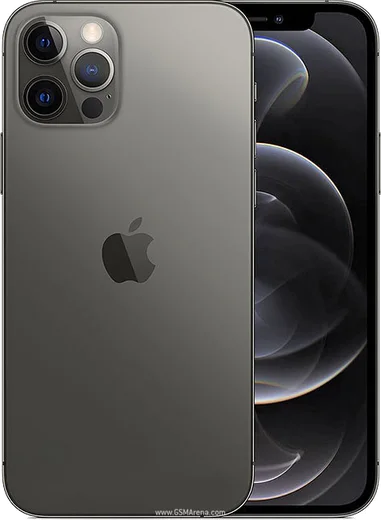
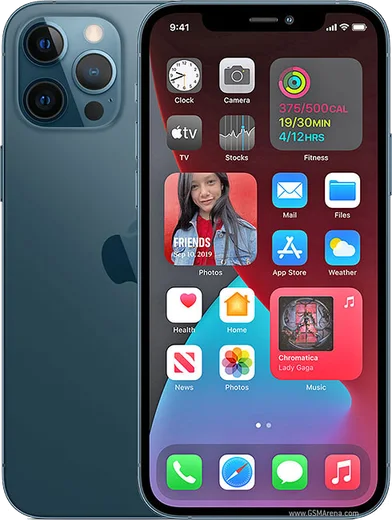
Apple A13 Bionic, 5.8-inch OLED, triple cameras

WhatsApp Messenger 4.7 · 64.2M reviews Free · iOS · ~40 MB · by WhatsApp LLC
Download WhatsApp

Ask a question / report a problem

You can ask any question about WhatsApp support on the iPhone 11 Pro — leave it below and we'll help.

Ask a question

Can the iPhone 11 Pro run WhatsApp?

Fully supported
  • Operating systemiOS
  • OS versioniOS 13 → 26
  • ProcessorApple A13 Bionic
  • RAM4 GB

Latest known WhatsApp problems on iPhone 11 Pro

1

Will WhatsApp stop working on my iPhone 11 Pro?

Your iPhone 11 Pro is safe. WhatsApp's end-of-support cutoffs apply to much older models stuck on iOS 15.0 or earlier, but the 11 Pro runs iOS 18 and later, so it stays well above the minimum requirement. Just open Settings > General > Software Update to install the latest iOS, then update WhatsApp from the App Store to stay fully supported. See how others solved this on Reddit
2

WhatsApp keeps crashing on my iPhone 11 Pro after the iOS 18 update

First force-close WhatsApp by swiping it away in the App Switcher, then open the App Store and check for a WhatsApp update, since post-iOS-18 launch crashes are usually fixed in a patched build. If it still crashes, restart the iPhone, and as a last resort delete and reinstall WhatsApp. Set up a backup first under WhatsApp > Settings > Chats > Chat Backup so your chats restore from iCloud after reinstalling. See how others solved this on Reddit
3

WhatsApp isn't receiving messages on my iPhone 11 Pro unless I open the app

This is almost always a background or notification setting. Go to Settings > WhatsApp and turn on Background App Refresh, then in Settings > Notifications > WhatsApp enable Allow Notifications with Sounds and Banners. Also make sure Low Power Mode is off (Settings > Battery), since it limits background activity and can delay message delivery until you open the app. See how others solved this on Reddit
4

How do I fix WhatsApp taking up so much storage on my iPhone 11 Pro?

Open WhatsApp > Settings > Storage and Data > Manage Storage to see which chats and large files are using the most space, then delete bulky videos, GIFs and forwarded media right from there. To stop it filling back up, turn off WhatsApp > Settings > Chats > Save to Camera Roll, and set Storage and Data > Media Auto-Download to Wi-Fi or off. See how others solved this on Reddit
5

How do I move my WhatsApp chat history from my iPhone 11 Pro to an Android phone?

Use WhatsApp's official Move to Android transfer during the new phone's first-time setup: connect the two phones with a USB-C to Lightning cable, then scan the on-screen QR code with your iPhone to copy your chats. Make sure both phones run the latest WhatsApp and stay connected throughout. Note that an iCloud backup cannot be restored onto Android, so the cable method is the only way to bring your history across. See how others solved this on Reddit

Ask a question / report a problem

You can ask any question about WhatsApp support on the iPhone 11 Pro — leave it below and we'll help.

Ask a question

Watch: setting up WhatsApp

Prefer to watch? This short walkthrough shows the whole installation and number-verification flow.

How to install WhatsApp on iPhone 11 Pro — video walkthrough

How to install WhatsApp on iPhone 11 Pro

1

Open the App Store

Unlock your iPhone 11 Pro and tap the blue App Store icon on the Home Screen. WhatsApp is not preinstalled on any iPhone, so you install it from here.

2

Search for WhatsApp Messenger

Tap the Search tab at the bottom right, type WhatsApp Messenger, and confirm the publisher shows as WhatsApp Inc. so you don't download a copycat app.

3

Download and install

Tap Get, then authenticate with Face ID or Touch ID (or your Apple Account password). The app downloads to your Home Screen in a few seconds.

4

Verify your phone number

Open WhatsApp, accept the terms, and enter your phone number. If your iPhone 11 Pro uses dual SIM, pick the line you want WhatsApp tied to, then enter the 6-digit code it sends by SMS — it usually fills in automatically.

5

Restore chats and finish setup

Sign in to iCloud with the same Apple Account to restore an existing chat backup, add your name and photo, and tap Allow for notifications so messages and calls arrive reliably.

Stay safe: only ever install WhatsApp from the official iOS source. The Download button above already points there — modified copies (GB/Plus/Aero WhatsApp) can get your number banned.

Comments (11)

No registration needed. No email required.
V
val_yukJun 5, 2026

Guys the download was a bit slow but it worked 💯

K
kev88May 2, 2026

someone cant do this alone HELP how do i download

AppWhatsOfficialMay 6, 2026

No panic needed. The Download button takes you to the official app, then just install and verify your number.

C
coolcatJan 31, 2026

echt beste seite, sofort geklappt 😍

D
deni_tomAug 18, 2025

couldnt install whatsapp on my iphone 11 Pro until i found this :)

D
deni.cAug 3, 2025

my iPhone 11 Pro was being difficult but this sorted it lol

C
coolcatFeb 2, 2025

Honestly downloaded and installed on my 11 pro thanks again

T
theo1990Jan 11, 2025

good job whoever made this 🔥

A
ash92Jan 6, 2025

update all good on my iphone 11pro now

M
maxx20Dec 13, 2024

wow restarted the phone and then it installed

M
ms_deniAug 17, 2024

Enfin enfin whatsapp installé

A
alex1Aug 11, 2024

Honestly did this on my iPhone 11 Pro and it just worked :)