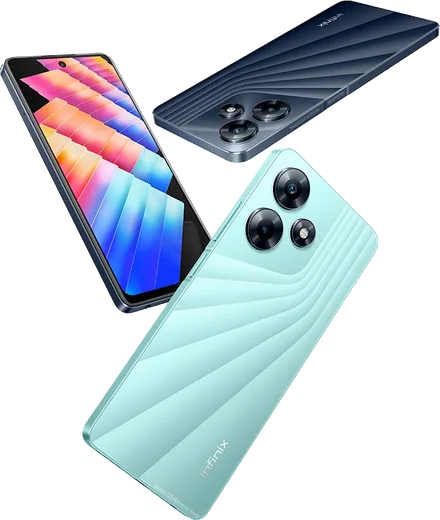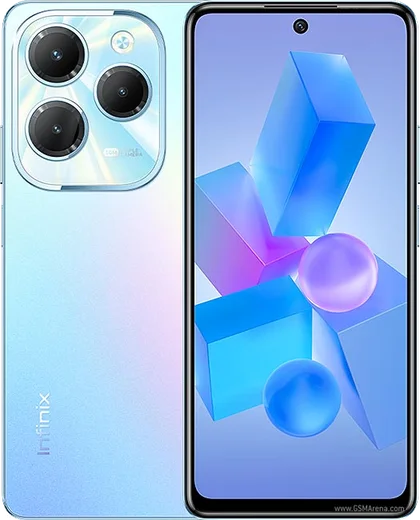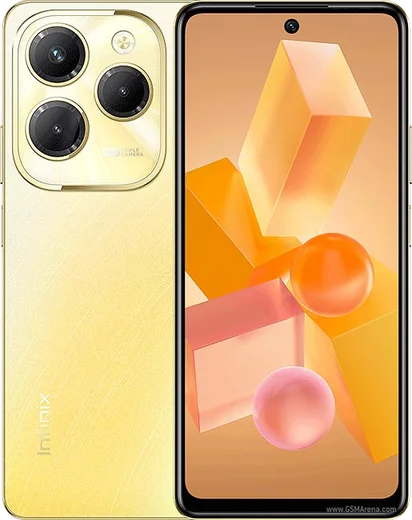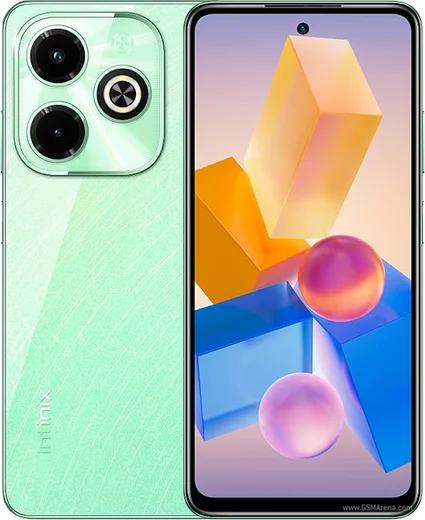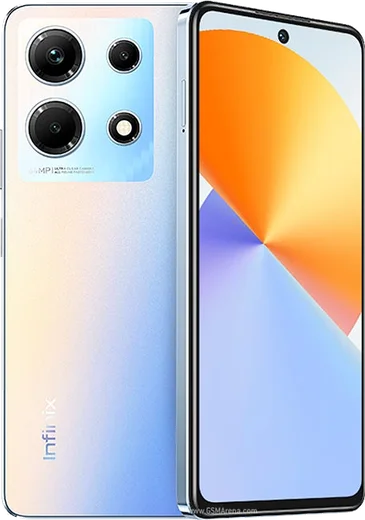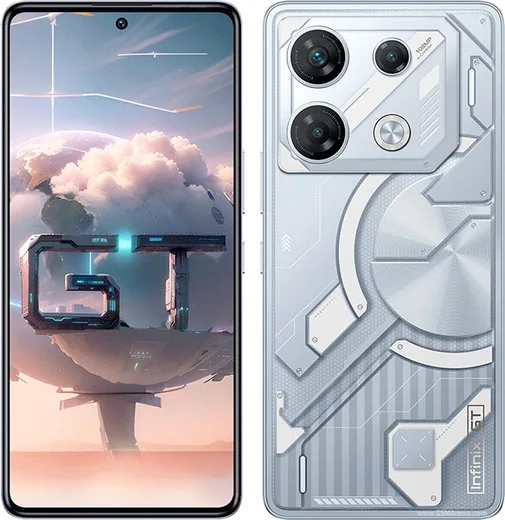
Infinix Android

WhatsApp for Infinix Note 30 5G

Dimensity 6080, 6.78-inch 120Hz IPS LCD

WhatsApp Messenger 4.7 · 64.2M reviews Free · Android · ~40 MB · by WhatsApp LLC
Download WhatsApp

Ask a question / report a problem

You can ask any question about WhatsApp support on the Infinix Note 30 5G — leave it below and we'll help.

Ask a question

Can the Infinix Note 30 5G run WhatsApp?

Fully supported
  • Operating systemAndroid
  • ProcessorDimensity 6080
  • WhatsApp versionLatest supported

Latest known WhatsApp problems on Infinix Note 30 5G

1

WhatsApp calls don't show up on the lock screen on my Infinix Note 30 5G — how do I fix it?

This is XOS battery management killing WhatsApp in the background. Go to Settings > Apps > WhatsApp > App battery usage and set it to No restrictions, then open Phone Master (or Settings > Battery) and remove WhatsApp from the auto-kill / sleeping apps list. Also enable Settings > Apps > Special app access > Display over other apps for WhatsApp so incoming call screens can wake the display. See how others solved this on Reddit
2

WhatsApp call and message notifications arrive late on my Infinix Note 30 5G — why?

Aggressive power saving on XOS delays the push connection until you open the app. Fix it under Settings > Apps > WhatsApp > App battery usage > No restrictions, then turn off Settings > Battery > Power saving (and Ultra power saving) and disable any "freeze background apps" toggle in Phone Master. Finally confirm Settings > Apps > WhatsApp > Notifications has all channels (messages and calls) switched on with the high-priority/pop-on-screen option enabled. See how others solved this on Reddit
3

WhatsApp video calls lag or freeze on my Infinix Note 30 5G — how can I make them smoother?

Video-call lag is usually a weak connection plus background throttling. Switch to a stable 5G/Wi-Fi network, then go to Settings > Apps > WhatsApp > App battery usage > No restrictions and close heavy background apps from the recents screen before calling. Keeping WhatsApp updated from the Play Store and clearing its cache under Settings > Apps > WhatsApp > Storage also helps stutter during long calls. See how others solved this on Reddit
4

My Infinix Note 30 5G feels laggy and full of bloatware after a while — is there anything I can do?

XOS ships with preloaded apps and system components that can push recommendations and slow things down over time. Open Settings > Apps, then uninstall or disable apps you don't use, and turn off content recommendations inside Phone Master and the bundled app store (Palm Store / App Store) to stop background ad pushes. Clearing cache via Settings > Storage and keeping fewer always-syncing accounts active keeps day-to-day performance more responsive. See how others solved this on Reddit
5

How do I keep WhatsApp running in the background on my Infinix Note 30 5G so I stop missing messages?

XOS freezes idle apps to save battery, which disconnects WhatsApp's push service. Open the recents screen, hold or swipe down on the WhatsApp card and tap the lock icon so it isn't cleared, then set Settings > Apps > WhatsApp > App battery usage to No restrictions. Also enable Autostart for WhatsApp in Phone Master so it reconnects after a reboot. See how others solved this on Reddit

Ask a question / report a problem

You can ask any question about WhatsApp support on the Infinix Note 30 5G — leave it below and we'll help.

Ask a question

Watch: setting up WhatsApp

Prefer to watch? This short walkthrough shows the whole installation and number-verification flow.

How to install WhatsApp on Infinix Note 30 5G — video walkthrough

How to install WhatsApp on Infinix Note 30 5G

1

Choose how to download

On your Infinix Note 30 5G you can get the official app two ways: from the Google Play Store — the easiest option, since it keeps WhatsApp updated automatically — or directly from the official website. You can download an APK file, by clicking a link “Download WhatsApp directly”.

2

Open WhatsApp

Launch WhatsApp from your home screen or app drawer and accept the Terms of Service to start setup.

3

Verify your phone number

Enter your phone number. If your Infinix Note 30 5G uses dual SIM, pick the line you want WhatsApp tied to, then enter the 6-digit code it sends by SMS — it usually fills in automatically.

4

Restore chats and finish setup

Restore your chat history from Google Drive (use the same Google account), add your name and photo, and tap Allow for notifications so messages and calls arrive reliably.

Stay safe: only ever install WhatsApp from the official Android source. The Download button above already points there — modified copies (GB/Plus/Aero WhatsApp) can get your number banned.

Comments (11)

No registration needed. No email required.
E
eeeeeemmmmmaaaaaMar 12, 2026

Guys wasnt expecting it to be this easy :)

R
randomuserNov 13, 2025

hey i NEED this app pleaseeee how do i do it :(

AppWhatsOfficialNov 16, 2025

We are here to help. Hit Download, follow the steps on this page, and if the code is slow just request it again. You will be set up on your phone in no time.

G
guest_userNov 8, 2025

will this really work on my note 30 5g

AppWhatsOfficialNov 9, 2025

Sure, the your phone works great with WhatsApp. Keep your system software current and you are good to go. Enjoy WhatsApp on your your phone!

A
alex90Aug 19, 2025

set up whatsapp on my dads Infinix Note 30 5G no problem

M
mike_katJul 28, 2025

tbh good job whoever made this

T
theuserJul 16, 2025

Well my Note 30 5G was being difficult but this sorted it 🎉

T
tom_ytMay 26, 2025

Ngl finally got whatsapp running on my Note 30 5G 🔥

S
sam_officialFeb 26, 2025

Ehi ottima guida grazie

J
justmeOct 15, 2024

update finally a guide that makes sense

Z
zoe_realAug 2, 2024

yo installed on my note305g, super simple 👌

P
priya.kJul 11, 2024

Finalmente whatsapp installato