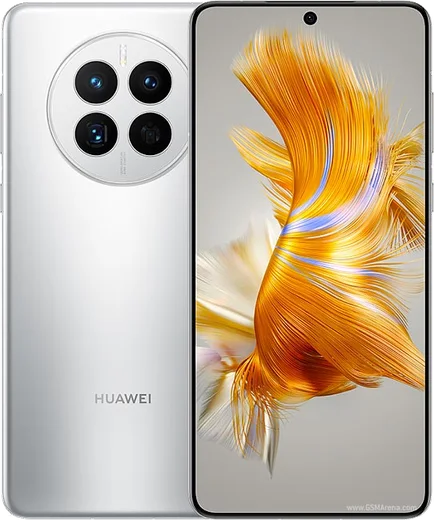
WhatsApp on Huawei P50
Huawei HarmonyOS

WhatsApp for Huawei P50

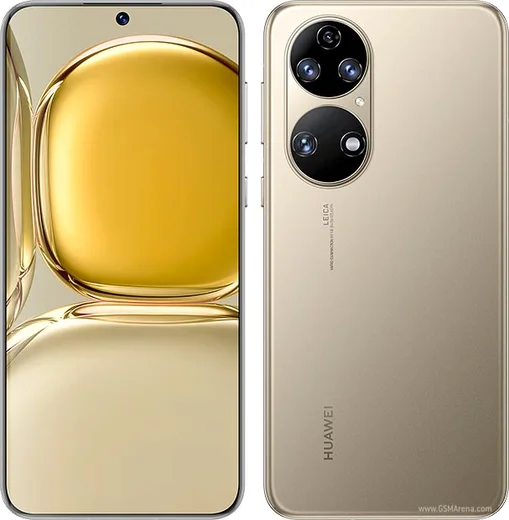
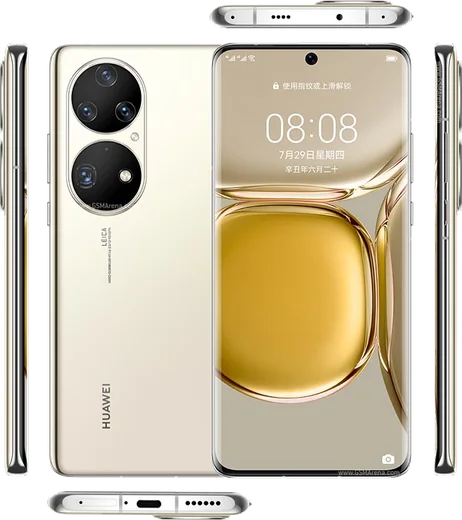
Snapdragon 888 4G, 6.5-inch 90Hz OLED, dual-matrix camera

WhatsApp Messenger 4.7 · 64.2M reviews Free · HarmonyOS · ~40 MB · by WhatsApp LLC
Download WhatsApp

Ask a question / report a problem

You can ask any question about WhatsApp support on the Huawei P50 — leave it below and we'll help.

Ask a question

Can the Huawei P50 run WhatsApp?

Fully supported
  • Operating systemHarmonyOS
  • ProcessorSnapdragon 888 4G
  • WhatsApp versionLatest supported

Latest known WhatsApp problems on Huawei P50

1

How do I install WhatsApp on my Huawei P50 when it isn't in AppGallery?

WhatsApp generally isn't listed in Huawei AppGallery because the P50 has no Google services, so you sideload it. On the phone open whatsapp.com/android in the browser, download the official APK, then tap the downloaded file to install it, allowing installs from your browser/Files when prompted. Some regions show a WhatsApp listing in AppGallery that just redirects to this same official download, so either route ends at the official APK. See how others solved this on Reddit
2

Is WhatsApp still working on the Huawei P50 in 2026, or did it stop?

Yes, WhatsApp still works on the P50. It does not need Google Play Services for messaging or calls, so it runs fine on HarmonyOS once sideloaded. Keep it current by reinstalling the latest APK from whatsapp.com/android every so often, since outdated builds are the usual cause of WhatsApp suddenly refusing to connect. See how others solved this on Reddit
3

Why does WhatsApp keep getting killed in the background on my Huawei P50 so messages arrive late?

HarmonyOS aggressively closes background apps to save battery, which delays notifications. Go to Settings > Battery > App launch, find WhatsApp, switch it from 'Manage automatically' to 'Manage manually', and enable Auto-launch, Secondary launch, and Run in background. Then open the recent-apps screen, swipe down on the WhatsApp card, and tap the lock icon so the system stops closing it. See how others solved this on Reddit
4

WhatsApp says my app is unofficial or unsupported on my Huawei P50 — how do I fix it?

This happens when WhatsApp was installed from an unofficial mirror or a stale APK the servers no longer trust. Uninstall the current version, then reinstall WhatsApp only from the official whatsapp.com/android link, and sign back in. Installing the genuine, current build clears the unofficial-app flag. See how others solved this on Reddit
5

My WhatsApp camera photos and videos look really dark on my Huawei P50 — what's wrong?

WhatsApp's in-app camera doesn't use Huawei's full image processing, so shots come out underexposed in low light. Instead of shooting inside WhatsApp, take the photo or video with the native Huawei Camera app, then in the chat tap the attachment (paperclip) icon, choose Gallery, and send the properly exposed file from there. See how others solved this on Reddit
6

I can't use WhatsApp on my Huawei P50 after setup — it won't verify or connect. What should I check?

First confirm you installed the genuine app from whatsapp.com/android, then open Settings > System & updates > Date & time and make sure date, time, and time zone are set automatically, since a wrong clock blocks SMS verification. Next, under Settings > Apps > Apps > WhatsApp > Permissions, grant Phone, SMS, Contacts, and Notifications, and in Settings > Battery > App launch set WhatsApp to manual management so the verification code and connection can get through. See how others solved this on Reddit

Ask a question / report a problem

You can ask any question about WhatsApp support on the Huawei P50 — leave it below and we'll help.

Ask a question

Watch: setting up WhatsApp

Prefer to watch? This short walkthrough shows the whole installation and number-verification flow.

How to install WhatsApp on Huawei P50 — video walkthrough

How to install WhatsApp on Huawei P50

1

Open Huawei AppGallery

On your Huawei P50, tap the AppGallery icon — Huawei's own app store. Newer Huawei phones ship without Google Play, so AppGallery is where you get WhatsApp.

2

Search for WhatsApp

Search WhatsApp Messenger in AppGallery and confirm it's published by WhatsApp LLC. If it isn't offered in your region, use Petal Search to download the official app.

3

Install the app

Tap Install. AppGallery downloads and installs WhatsApp; if prompted, allow installing the app so it can finish.

4

Verify your phone number

Open WhatsApp, accept the terms, and enter your phone number. On a dual-SIM Huawei P50, pick the line you want WhatsApp tied to, then enter the 6-digit code it sends by SMS.

5

Allow notifications and background activity

Add your name and photo, tap Allow for notifications, then open Settings > Battery and let WhatsApp auto-launch and run in the background so messages arrive on time on HarmonyOS.

Stay safe: only ever install WhatsApp from the official HarmonyOS source. The Download button above already points there — modified copies (GB/Plus/Aero WhatsApp) can get your number banned.

Comments (6)

No registration needed. No email required.
T
tan_ytSep 20, 2025

guys my whole family is waiting pls help me install it pls

AppWhatsOfficialSep 23, 2025

Hey, no need to stress! Tap the green Download button at the top, follow the steps, and you will have WhatsApp in a minute. You will be set up on your phone in no time.

M
maxx7Sep 4, 2025

Bookmarking this site for sure 👌

AppWhatsOfficialSep 6, 2025

Nice one, enjoy WhatsApp!

J
just_jessMay 28, 2025

How do i restore my old messages pls

AppWhatsOfficialMay 31, 2025

Sure, yes, as long as you had a backup. Use the same number and choose Restore during setup to bring your messages back. Enjoy WhatsApp on your your phone!

S
sara23Jan 13, 2025

well worked perfect on my P50 thanks again

A
ash.aSep 28, 2024

well the video helped me understand 🔥

P
pablo.cSep 25, 2024

uff todo bien en mi huawei p50, mil gracias 👍