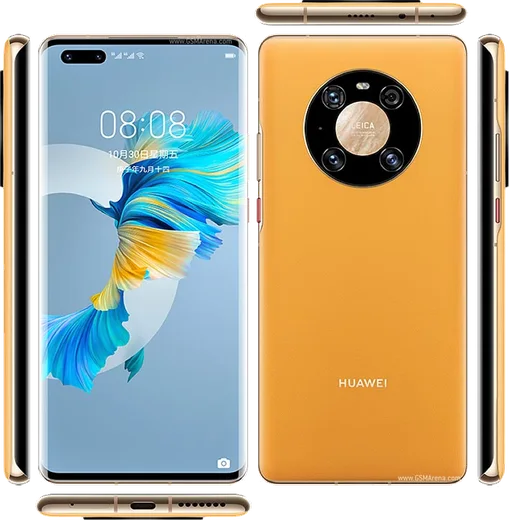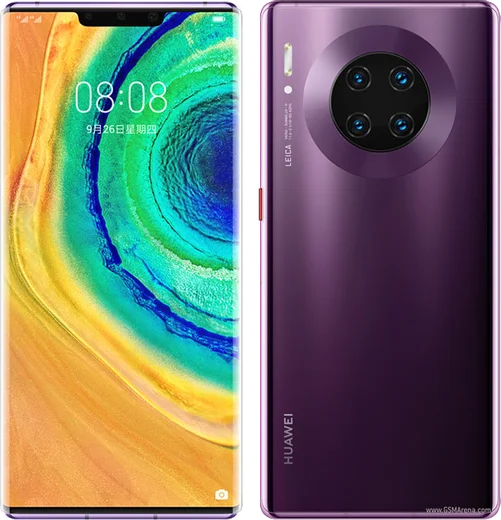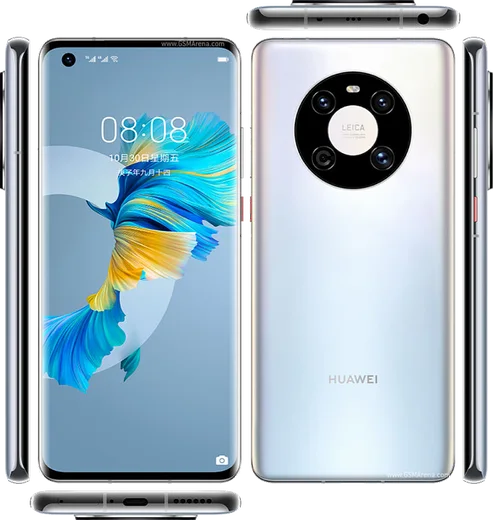
WhatsApp on Huawei Mate 40 Pro
Huawei HarmonyOS

WhatsApp for Huawei Mate 40 Pro

Kirin 9000 5G, 6.76-inch 90Hz curved OLED, 50MP camera

WhatsApp Messenger 4.7 · 64.2M reviews Free · HarmonyOS · ~40 MB · by WhatsApp LLC
Download WhatsApp

Ask a question / report a problem

You can ask any question about WhatsApp support on the Huawei Mate 40 Pro — leave it below and we'll help.

Ask a question

Can the Huawei Mate 40 Pro run WhatsApp?

Fully supported
  • Operating systemHarmonyOS
  • ProcessorKirin 9000 5G
  • WhatsApp versionLatest supported

Latest known WhatsApp problems on Huawei Mate 40 Pro

1

How do I install WhatsApp on the Huawei Mate 40 Pro without Google Play?

The Mate 40 Pro runs HarmonyOS with no Google Play, so first open AppGallery and search for WhatsApp Messenger; if it is listed, install it directly. If AppGallery only shows a 'quick app' or a redirect, download the official APK from whatsapp.com/android, then when you open the file your phone will prompt you to allow installs from that source (Settings > Security > More settings > Install unknown apps) and you can finish the install. Only use the genuine WhatsApp from whatsapp.com or AppGallery, never a modded build, to avoid account bans. See how others solved this on Reddit
2

WhatsApp notifications don't come through on my Huawei Mate 40 Pro unless I open the app

HarmonyOS aggressively closes background apps, which kills WhatsApp push notifications. Go to Settings > Battery > App launch, find WhatsApp and turn off 'Manage automatically', then in the pop-up enable 'Auto-launch', 'Secondary launch' and 'Run in background'. Next open Settings > Notifications, make sure WhatsApp notifications are allowed, and check Settings > Apps > Apps > WhatsApp > Battery is set to allow background activity so messages arrive in real time. See how others solved this on Reddit
3

Can I back up my WhatsApp chats on the Mate 40 Pro without Google Drive?

Because the Mate 40 Pro has no Google Play Services, the Google Drive backup option inside WhatsApp won't work. Use the local backup instead: WhatsApp keeps an automatic nightly copy in internal storage under Android/media/com.whatsapp/WhatsApp/Databases, and you can force one now via WhatsApp > Settings > Chats > Chat backup > Back up. To move it, copy the whole WhatsApp folder to a PC or use Huawei Phone Clone before switching phones, then restore by placing that folder on the new device before reinstalling WhatsApp. See how others solved this on Reddit
4

Is it still safe to keep using WhatsApp on the Huawei Mate 40 Pro after a few years with no Google services?

WhatsApp itself stays fully supported and still receives updates through AppGallery or sideloaded APKs, so messaging, calls and end-to-end encryption work normally on the Mate 40 Pro. The main risk is running an outdated build if you sideloaded the APK, so check whatsapp.com/android periodically or enable AppGallery auto-updates. Also keep the phone on the latest HarmonyOS via Settings > System & updates > Software update for general security fixes. See how others solved this on Reddit
5

WhatsApp won't update or keeps warning my version is too old on the Mate 40 Pro

If you installed WhatsApp from an APK it can't auto-update and will eventually warn the version is too old. First open AppGallery and check whether WhatsApp Messenger is now listed there for one-tap updates; if not, download the newest APK from whatsapp.com/android and install it over the existing app, which keeps your chats. Avoid third-party APK mirrors, since outdated or tampered builds can stop connecting entirely. See how others solved this on Reddit
6

WhatsApp photos look low quality even though the Mate 40 Pro has a great camera

WhatsApp's in-app camera is low resolution and it heavily compresses shared images. For best results, shoot with the normal Camera app and attach from the gallery, and in WhatsApp > Settings > Storage and data > Media upload quality choose 'HD' instead of 'Standard'. If you need the full original file with no compression, send it via the document/file (paperclip > Document) option rather than the photo gallery. See how others solved this on Reddit

Ask a question / report a problem

You can ask any question about WhatsApp support on the Huawei Mate 40 Pro — leave it below and we'll help.

Ask a question

Watch: setting up WhatsApp

Prefer to watch? This short walkthrough shows the whole installation and number-verification flow.

How to install WhatsApp on Huawei Mate 40 Pro — video walkthrough

How to install WhatsApp on Huawei Mate 40 Pro

1

Open Huawei AppGallery

On your Huawei Mate 40 Pro, tap the AppGallery icon — Huawei's own app store. Newer Huawei phones ship without Google Play, so AppGallery is where you get WhatsApp.

2

Search for WhatsApp

Search WhatsApp Messenger in AppGallery and confirm it's published by WhatsApp LLC. If it isn't offered in your region, use Petal Search to download the official app.

3

Install the app

Tap Install. AppGallery downloads and installs WhatsApp; if prompted, allow installing the app so it can finish.

4

Verify your phone number

Open WhatsApp, accept the terms, and enter your phone number. On a dual-SIM Huawei Mate 40 Pro, pick the line you want WhatsApp tied to, then enter the 6-digit code it sends by SMS.

5

Allow notifications and background activity

Add your name and photo, tap Allow for notifications, then open Settings > Battery and let WhatsApp auto-launch and run in the background so messages arrive on time on HarmonyOS.

Stay safe: only ever install WhatsApp from the official HarmonyOS source. The Download button above already points there — modified copies (GB/Plus/Aero WhatsApp) can get your number banned.

Comments (6)

No registration needed. No email required.
G
guest_userJun 14, 2026

Man worked even on my old phone

S
sol2000Sep 11, 2025

Installiert und läuft auf meinem huawei mate 40 pro

N
noobmasterApr 12, 2025

guys works like a charm on the mate 40 pro

M
mia.hMar 19, 2025

someone my whole family is waiting pls help me install it pls

AppWhatsOfficialMar 23, 2025

You are almost there! Tap Download, allow the install, open WhatsApp and confirm your number. You got this!

K
kai_beaNov 9, 2024

Hey is this legit and safe ?

AppWhatsOfficialNov 13, 2024

Happy to help, yes, it is completely safe. The Download button takes you to the official app on the store, we never host modified versions.

G
greg.eSep 10, 2024

Can i hide when i was last online

AppWhatsOfficialSep 15, 2024

Hi! In Privacy settings you can set Last Seen and Online to Nobody, so no one sees when you are active.