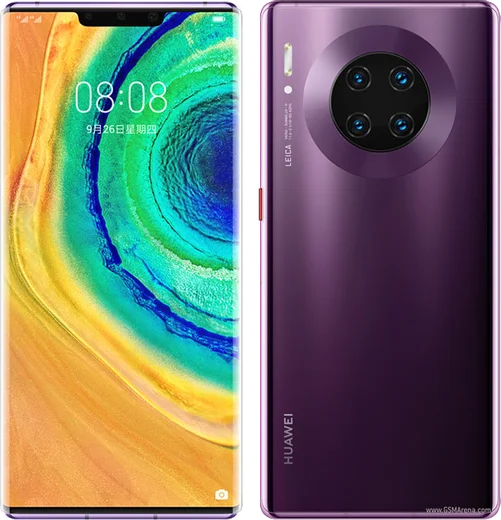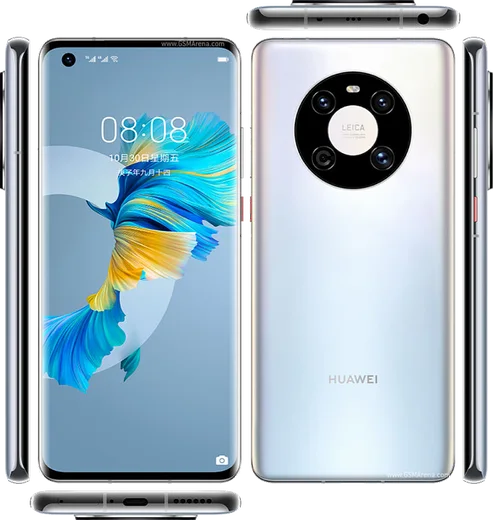
WhatsApp on Huawei P40
Huawei HarmonyOS

WhatsApp for Huawei P40

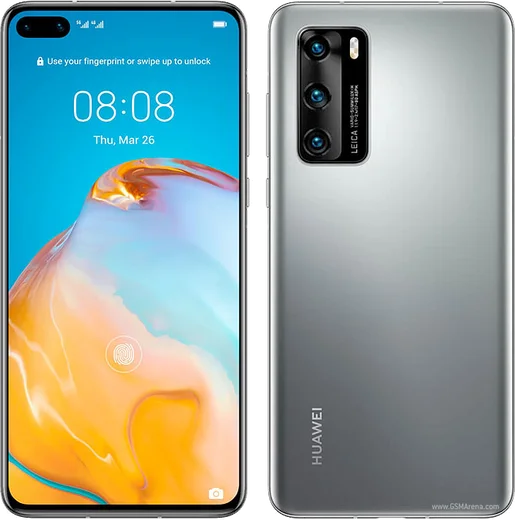
Kirin 990 5G, 6.1-inch OLED, AppGallery (no Google)

WhatsApp Messenger 4.7 · 64.2M reviews Free · HarmonyOS · ~40 MB · by WhatsApp LLC
Download WhatsApp

Ask a question / report a problem

You can ask any question about WhatsApp support on the Huawei P40 — leave it below and we'll help.

Ask a question

Can the Huawei P40 run WhatsApp?

Fully supported
  • Operating systemHarmonyOS
  • ProcessorKirin 990 5G
  • WhatsApp versionLatest supported

Latest known WhatsApp problems on Huawei P40

1

How do I install WhatsApp on the Huawei P40 without Google Play?

The P40 ships with EMUI/HarmonyOS and no Google Play, so open the pre-installed AppGallery and search for WhatsApp Messenger first. If it is not listed in your region, use Huawei's Petal Search, which locates and fetches the official WhatsApp APK and installs it for you; avoid random APK mirror sites. After installing, open Settings > Apps > Apps > WhatsApp > Permissions and grant Contacts, Storage, Phone and Notifications so number verification and chats work. See how others solved this on Reddit
2

WhatsApp says my version is out of date but there's no update available on my Huawei P40 - what do I do?

Because there's no Google Play, AppGallery and Petal Search often lag behind the current WhatsApp release, which triggers the "this version is too old" lockout. Pull to refresh the WhatsApp listing in AppGallery and Petal Search first; if neither offers a newer build, download the latest official APK directly from whatsapp.com/android and install it over your existing app. Installing over the same app keeps your chats, so you won't lose messages. See how others solved this on Reddit
3

Why do WhatsApp message notifications arrive late or only when I open the app on my Huawei P40?

With no Google Play Services for push, EMUI's aggressive battery manager freezes WhatsApp in the background, so notifications stall until you open it. Go to Settings > Battery > App launch, find WhatsApp, switch it from Automatic to Manage manually, and turn on Auto-launch, Secondary launch and Run in background. This lets WhatsApp wake itself for incoming messages. See how others solved this on Reddit
4

How do I restore my old WhatsApp chat backup on a Huawei P40 when there's no Google Drive?

Google Drive backup won't work without Google services, so WhatsApp on the P40 restores from a local backup file instead. Copy your old phone's WhatsApp folder (Internal storage > Android > media > com.whatsapp > WhatsApp, including the Databases and Media folders) onto the P40 at the exact same path using a cable or Huawei Phone Clone. When you reinstall and verify the same phone number, WhatsApp detects the local database and offers to restore it. See how others solved this on Reddit
5

Is WhatsApp reliable enough for daily use on a Huawei P40 in 2026?

Yes, calls and messaging work fine once it's installed and exempted from battery optimization, but expect to update it manually since AppGallery and Petal Search trail the official release. Keep WhatsApp set to Manage manually under Settings > Battery > App launch, and re-check that background permission after major EMUI updates, which can reset it. The main ongoing chore is grabbing a fresh APK from whatsapp.com/android every few weeks so you never hit the outdated-version block. See how others solved this on Reddit
6

WhatsApp keeps crashing or won't open on my Huawei P40 - how can I fix it?

Crashes on the P40 usually come from an outdated or corrupted install, or a background permission lost after an update. First clear the cache via Settings > Apps > Apps > WhatsApp > Storage > Clear cache (not Clear data, which wipes chats), then reboot. If it still crashes, reinstall the latest official APK from whatsapp.com/android and confirm Auto-launch is enabled in Settings > Battery > App launch so EMUI isn't killing it on startup. See how others solved this on Reddit

Ask a question / report a problem

You can ask any question about WhatsApp support on the Huawei P40 — leave it below and we'll help.

Ask a question

Watch: setting up WhatsApp

Prefer to watch? This short walkthrough shows the whole installation and number-verification flow.

How to install WhatsApp on Huawei P40 — video walkthrough

How to install WhatsApp on Huawei P40

1

Open Huawei AppGallery

On your Huawei P40, tap the AppGallery icon — Huawei's own app store. Newer Huawei phones ship without Google Play, so AppGallery is where you get WhatsApp.

2

Search for WhatsApp

Search WhatsApp Messenger in AppGallery and confirm it's published by WhatsApp LLC. If it isn't offered in your region, use Petal Search to download the official app.

3

Install the app

Tap Install. AppGallery downloads and installs WhatsApp; if prompted, allow installing the app so it can finish.

4

Verify your phone number

Open WhatsApp, accept the terms, and enter your phone number. On a dual-SIM Huawei P40, pick the line you want WhatsApp tied to, then enter the 6-digit code it sends by SMS.

5

Allow notifications and background activity

Add your name and photo, tap Allow for notifications, then open Settings > Battery and let WhatsApp auto-launch and run in the background so messages arrive on time on HarmonyOS.

Stay safe: only ever install WhatsApp from the official HarmonyOS source. The Download button above already points there — modified copies (GB/Plus/Aero WhatsApp) can get your number banned.

Comments (5)

No registration needed. No email required.
V
val.oFeb 7, 2026

Well best site for this honestly 🙏

AppWhatsOfficialFeb 9, 2026

Perfect, enjoy chatting!

M
mr_pabloNov 29, 2025

hey cant do this alone HELP how do i download 😭😭

AppWhatsOfficialDec 1, 2025

Relax, it is simpler than it looks. Press Download, install, then verify with the SMS code. You got this! It is easier than it looks, promise.

K
kai62Jul 6, 2025

yo thank u, whatsapp installed on my P40 lol

J
justmeDec 28, 2024

Guys did it on my P40 in like 2 minutes cheers

S
stuckkkJul 16, 2024

ehi facilissimo, fatto in 2 minuti sul mio p40 👍