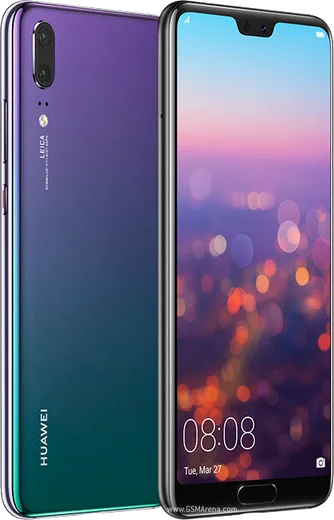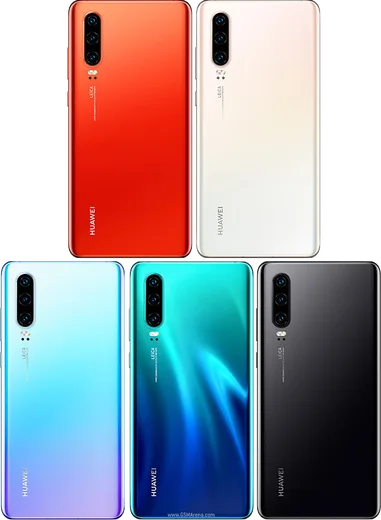
WhatsApp on Huawei P20
Huawei HarmonyOS

WhatsApp for Huawei P20

Kirin 970, 5.8-inch FHD+ LCD, Leica dual camera

WhatsApp Messenger 4.7 · 64.2M reviews Free · HarmonyOS · ~40 MB · by WhatsApp LLC
Download WhatsApp

Ask a question / report a problem

You can ask any question about WhatsApp support on the Huawei P20 — leave it below and we'll help.

Ask a question

Can the Huawei P20 run WhatsApp?

Fully supported
  • Operating systemHarmonyOS
  • ProcessorKirin 970
  • WhatsApp versionLatest supported

Latest known WhatsApp problems on Huawei P20

1

WhatsApp notifications not working on my Huawei P20 - how do I fix it?

EMUI's aggressive battery management is almost always the cause. Go to Settings > Battery > App launch, find WhatsApp, turn off 'Manage automatically' and enable all three toggles (Auto-launch, Secondary launch, Run in background). Then open Settings > Notifications > WhatsApp and confirm notifications, banners and sound are on. Finally, exclude WhatsApp from any Power Saving / Ultra Power Saving mode so it isn't frozen in the background. See how others solved this on Reddit
2

WhatsApp voice notes show no waveform on my Huawei P20 - what's wrong?

This is a known WhatsApp rendering glitch on Huawei devices; the audio usually still plays even when the waveform appears flat. First update WhatsApp to the latest version, then clear its cache via Settings > Apps > WhatsApp > Storage > Clear cache and restart the phone. If it persists, force-stopping WhatsApp (Settings > Apps > WhatsApp > Force stop) and reopening the chat typically restores the waveform. See how others solved this on Reddit
3

WhatsApp suddenly stopped working / won't open on my Huawei P20 - how do I get it back?

On a P20 without Google Play Services, an outdated WhatsApp build will eventually stop connecting once Meta drops support for old versions. Update WhatsApp by downloading the official APK from whatsapp.com/android (or via AppGallery if it's listed), then clear the cache under Settings > Apps > WhatsApp > Storage. Make a chat backup first (WhatsApp > Settings > Chats > Chat backup) so you don't lose history if you need to reinstall. See how others solved this on Reddit
4

Can I use WhatsApp with both SIMs in my Huawei P20 dual SIM, especially while traveling?

WhatsApp ties to one phone number, so it registers to whichever SIM number you verify; the second SIM can still handle calls and data, but only one WhatsApp account runs per app instance. To use WhatsApp on both numbers, enable App Twin under Settings > Apps > App Twin to run a second WhatsApp for the other SIM. While abroad, WhatsApp keeps working over Wi-Fi or mobile data even if your original SIM has no signal. See how others solved this on Reddit
5

How do I back up or copy my WhatsApp chats from my Huawei P20?

Since the P20 lacks Google Play Services, the Google Drive backup may not appear, so use the local backup instead: go to WhatsApp > Settings > Chats > Chat backup to create a local file, saved under Internal storage > WhatsApp > Databases. Copy that Databases folder (plus the Media folder) to a PC or new phone via USB, and WhatsApp restores it on first launch when registered to the same number. Huawei's Phone Clone app can also transfer WhatsApp data directly between two Huawei devices. See how others solved this on Reddit
6

WhatsApp message preview shows white font on a white background on my Huawei P20 - how do I fix it?

This contrast bug usually comes from system dark mode clashing with WhatsApp's preview/notification theme. Set WhatsApp's own theme explicitly under WhatsApp > Settings > Chats > Theme (pick Light or Dark instead of 'System default'), and check the phone's dark mode under Settings > Display & brightness. Updating WhatsApp to the latest version usually fixes the white-on-white text for good. See how others solved this on Reddit

Ask a question / report a problem

You can ask any question about WhatsApp support on the Huawei P20 — leave it below and we'll help.

Ask a question

Watch: setting up WhatsApp

Prefer to watch? This short walkthrough shows the whole installation and number-verification flow.

How to install WhatsApp on Huawei P20 — video walkthrough

How to install WhatsApp on Huawei P20

1

Open Huawei AppGallery

On your Huawei P20, tap the AppGallery icon — Huawei's own app store. Newer Huawei phones ship without Google Play, so AppGallery is where you get WhatsApp.

2

Search for WhatsApp

Search WhatsApp Messenger in AppGallery and confirm it's published by WhatsApp LLC. If it isn't offered in your region, use Petal Search to download the official app.

3

Install the app

Tap Install. AppGallery downloads and installs WhatsApp; if prompted, allow installing the app so it can finish.

4

Verify your phone number

Open WhatsApp, accept the terms, and enter your phone number. On a dual-SIM Huawei P20, pick the line you want WhatsApp tied to, then enter the 6-digit code it sends by SMS.

5

Allow notifications and background activity

Add your name and photo, tap Allow for notifications, then open Settings > Battery and let WhatsApp auto-launch and run in the background so messages arrive on time on HarmonyOS.

Stay safe: only ever install WhatsApp from the official HarmonyOS source. The Download button above already points there — modified copies (GB/Plus/Aero WhatsApp) can get your number banned.

Comments (3)

No registration needed. No email required.
G
gabe_valApr 13, 2026

Por fin excelente guía, funcionó en mi P20

X
xX_saraSep 16, 2024

someone PLEASE i need whatsapp on my p20 its urgent 😭😭

AppWhatsOfficialSep 19, 2024

You are almost there! Tap Download, allow the install, open WhatsApp and confirm your number. It is easier than it looks, promise.

I
im_mikeAug 2, 2024

Well did it without any help, very simple lol