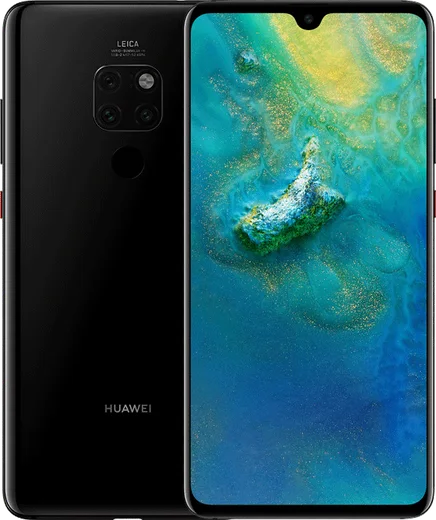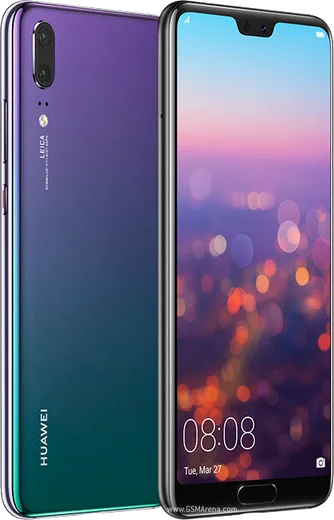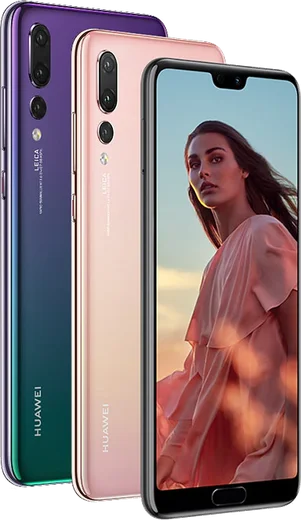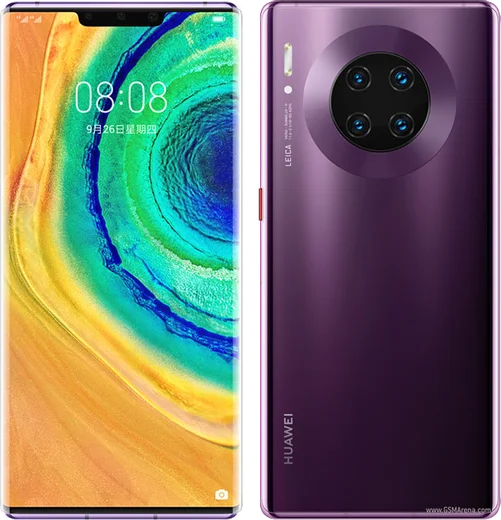
WhatsApp on Huawei Mate 20
Huawei HarmonyOS

WhatsApp for Huawei Mate 20

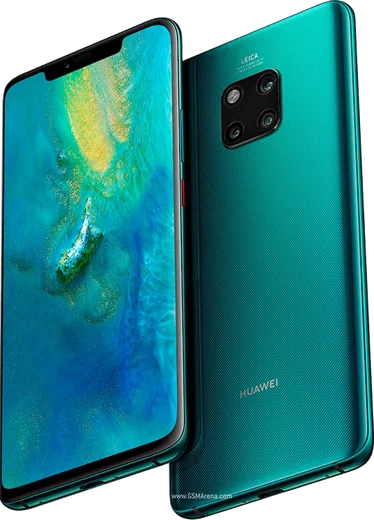
Kirin 980, 6.53-inch LCD, Leica triple camera

WhatsApp Messenger 4.7 · 64.2M reviews Free · HarmonyOS · ~40 MB · by WhatsApp LLC
Download WhatsApp

Ask a question / report a problem

You can ask any question about WhatsApp support on the Huawei Mate 20 — leave it below and we'll help.

Ask a question

Can the Huawei Mate 20 run WhatsApp?

Fully supported
  • Operating systemHarmonyOS
  • ProcessorKirin 980
  • WhatsApp versionLatest supported

Latest known WhatsApp problems on Huawei Mate 20

1

Does WhatsApp work on the Huawei Mate 20 without Google services?

WhatsApp itself does not need Google Mobile Services to run. The Mate 20 originally shipped with GMS, so if the Play Store works, install WhatsApp from there. If your device has no working Google services (for example after a wipe or on an updated HarmonyOS build), download the official APK from whatsapp.com/android and sideload it. Before installing, allow your browser or file manager to install apps under Settings > Security (Install unknown apps / install external sources). WhatsApp will run normally without Google Play. See how others solved this on Reddit
2

How do I transfer WhatsApp chats from my Huawei Mate 20 Pro to an iPhone?

Use WhatsApp's built-in 'Move to iOS' transfer. Update WhatsApp on the Huawei to the latest version first, then on the new iPhone install Apple's 'Move to iOS' app and start the transfer during iPhone setup. Connect both phones to power and the same Wi-Fi and follow the on-screen prompts. If the transfer fails, fall back to exporting a chat individually from inside the chat via the three-dot menu > More > Export chat, which emails the messages (and optionally media). See how others solved this on Reddit
3

Why does WhatsApp suddenly stop working or fail to verify on my Huawei Mate 20?

WhatsApp drops support for old app versions, so an outdated install will stop connecting. Update it via the Play Store, or if Play is unavailable download the current APK from whatsapp.com/android and install over the old one. Also set the clock to automatic under Settings > System & updates > Date & time, since a wrong date or time can block the SMS verification code from being accepted. See how others solved this on Reddit
4

My WhatsApp backup won't complete on the Huawei Mate 20 Pro, how do I fix it?

WhatsApp's cloud backup uses Google Drive, which needs working Google Play services and the Google Drive app both installed and signed into the same Google account. Open WhatsApp > Settings > Chats > Chat backup and confirm a Google account is selected. If the backup hangs, retry on Wi-Fi and clear the cache for Google Play services and Google Drive. If your phone has no working Google services, Google Drive backup won't work at all; use a local backup instead, which WhatsApp writes automatically each night to the WhatsApp/Databases folder in internal storage. See how others solved this on Reddit
5

How do I move my WhatsApp data from the Huawei Mate 20 to a different brand of phone?

If the new phone has Google services, back up in WhatsApp > Settings > Chats > Chat backup, then sign into the same phone number and Google account on the new phone so WhatsApp offers to restore during setup. If the accounts differ or the new phone has no Google services, use a local backup: copy the WhatsApp/Databases folder (and the Media folder) from internal storage to the new phone via USB or a computer, install WhatsApp, then restore the local backup when prompted. See how others solved this on Reddit
6

Why won't WhatsApp notifications show up on my Huawei Mate 20 until I open the app?

This is almost always aggressive battery management closing WhatsApp in the background. Open Settings > Battery > App launch, find WhatsApp, turn off 'Manage automatically' and enable Auto-launch, Secondary launch and Run in background. Then confirm notifications are allowed under Settings > Notifications > WhatsApp, and lock WhatsApp in the recent-apps view so it isn't cleared. The Always On Display only shows simple notification icons, not full WhatsApp content. See how others solved this on Reddit

Ask a question / report a problem

You can ask any question about WhatsApp support on the Huawei Mate 20 — leave it below and we'll help.

Ask a question

Watch: setting up WhatsApp

Prefer to watch? This short walkthrough shows the whole installation and number-verification flow.

How to install WhatsApp on Huawei Mate 20 — video walkthrough

How to install WhatsApp on Huawei Mate 20

1

Open Huawei AppGallery

On your Huawei Mate 20, tap the AppGallery icon — Huawei's own app store. Newer Huawei phones ship without Google Play, so AppGallery is where you get WhatsApp.

2

Search for WhatsApp

Search WhatsApp Messenger in AppGallery and confirm it's published by WhatsApp LLC. If it isn't offered in your region, use Petal Search to download the official app.

3

Install the app

Tap Install. AppGallery downloads and installs WhatsApp; if prompted, allow installing the app so it can finish.

4

Verify your phone number

Open WhatsApp, accept the terms, and enter your phone number. On a dual-SIM Huawei Mate 20, pick the line you want WhatsApp tied to, then enter the 6-digit code it sends by SMS.

5

Allow notifications and background activity

Add your name and photo, tap Allow for notifications, then open Settings > Battery and let WhatsApp auto-launch and run in the background so messages arrive on time on HarmonyOS.

Stay safe: only ever install WhatsApp from the official HarmonyOS source. The Download button above already points there — modified copies (GB/Plus/Aero WhatsApp) can get your number banned.

Comments (4)

No registration needed. No email required.
C
coolcatDec 30, 2025

Well thank u, whatsapp installed on my mate 20 ✌️

Y
yuki07Nov 21, 2025

honestly set up whatsapp on my dads huawei mate 20 no problem 👍

B
big_gabeSep 27, 2025

Merci, mon Mate 20 a whatsapp maintenant 😍

E
ella.aAug 21, 2024

Guys PLEASE i need whatsapp on my huawei mate 20 its urgent

AppWhatsOfficialAug 23, 2024

Breathe! Follow the steps above one by one, tap Download first, and you will be chatting in no time. You got this!