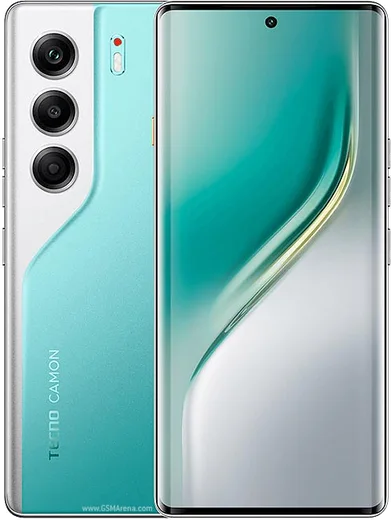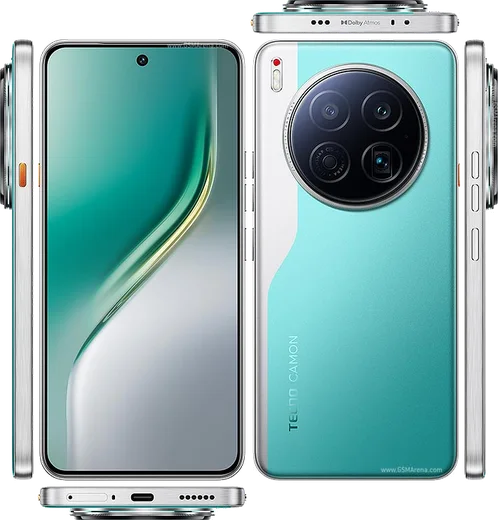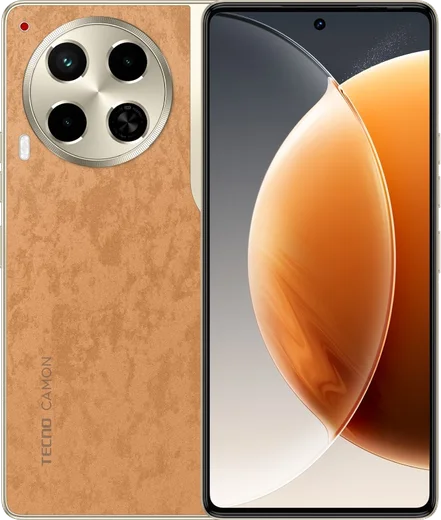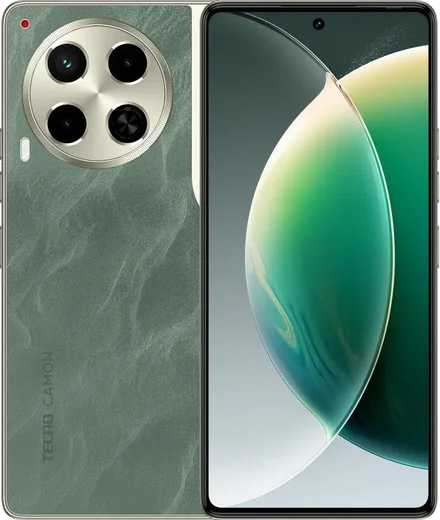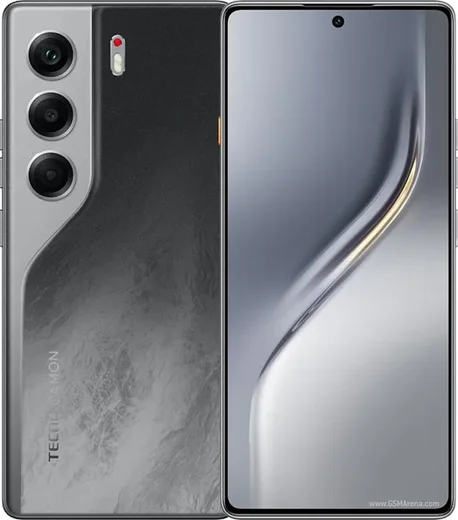
WhatsApp on Tecno Camon 40 Pro 5G
Tecno Android

WhatsApp for Tecno Camon 40 Pro 5G

Dimensity 7300 Ultimate, 6.78-inch 144Hz AMOLED

WhatsApp Messenger 4.7 · 64.2M reviews Free · Android · ~40 MB · by WhatsApp LLC
Download WhatsApp

Ask a question / report a problem

You can ask any question about WhatsApp support on the Tecno Camon 40 Pro 5G — leave it below and we'll help.

Ask a question

Can the Tecno Camon 40 Pro 5G run WhatsApp?

Fully supported
  • Operating systemAndroid
  • ProcessorDimensity 7300 Ultimate
  • WhatsApp versionLatest supported

Latest known WhatsApp problems on Tecno Camon 40 Pro 5G

1

Why is my Tecno Camon 40 Pro 5G front camera blurry in low-light selfies?

In dim light the front camera uses a slower shutter speed, so any hand or face movement turns into motion blur. Open the Camera app and tap the flash icon to force the front screen-flash on, then hold the phone steady for an extra second after pressing the shutter. If it persists, turn off Beauty and HDR modes for selfies and avoid back-lit scenes, since those force even longer exposures. See how others solved this on Reddit
2

WhatsApp and other notifications are delayed on my Tecno Camon 40 Pro 5G, how do I fix it?

HiOS aggressive battery management freezes background apps, which delays alerts. Go to Settings > Apps > App management > WhatsApp > Battery and set it to No restrictions, then in Settings > Battery turn off Power saving and Ultra power saving. Finally open Settings > Apps > App management > WhatsApp > Notifications and confirm alerts are allowed so messages arrive on time. See how others solved this on Reddit
3

Why can't I send messages in Messenger on my Tecno Camon 40 Pro 5G?

This is usually a stuck connection or a restricted background-data permission rather than an app fault. Go to Settings > Apps > App management > Messenger > Data usage and enable both Background data and Unrestricted data usage, then toggle Airplane mode on and off to refresh the connection. If messages still hang, clear the app cache under Settings > Apps > App management > Messenger > Storage and restart the phone. See how others solved this on Reddit
4

WhatsApp voice and video calls drop or won't connect on my Tecno Camon 40 Pro 5G, what should I do?

Call failures on HiOS usually come from microphone or background permissions being revoked, often after an update. Open Settings > Apps > App management > WhatsApp > Permissions and make sure Microphone, Camera and Phone are all allowed, then set the app to No restrictions under its Battery menu. Also enable Display over other apps so incoming-call screens appear properly, and update WhatsApp from the Play Store to the latest version. See how others solved this on Reddit
5

My Tecno Camon 40 Pro 5G started acting buggy after a software update, how do I fix it?

Post-update glitches are usually leftover cache files conflicting with the new HiOS build. Go to Settings > Apps > App management and clear the cache for the misbehaving apps, then restart the phone in Safe mode (hold the power button, then long-press Power off) to confirm a third-party app isn't the cause. If problems continue, check Settings > System > System update for a follow-up patch, or back up your data and do a factory reset as a last resort. See how others solved this on Reddit

Ask a question / report a problem

You can ask any question about WhatsApp support on the Tecno Camon 40 Pro 5G — leave it below and we'll help.

Ask a question

Watch: setting up WhatsApp

Prefer to watch? This short walkthrough shows the whole installation and number-verification flow.

How to install WhatsApp on Tecno Camon 40 Pro 5G — video walkthrough

How to install WhatsApp on Tecno Camon 40 Pro 5G

1

Choose how to download

On your Tecno Camon 40 Pro 5G you can get the official app two ways: from the Google Play Store — the easiest option, since it keeps WhatsApp updated automatically — or directly from the official website. You can download an APK file, by clicking a link “Download WhatsApp directly”.

2

Open WhatsApp

Launch WhatsApp from your home screen or app drawer and accept the Terms of Service to start setup.

3

Verify your phone number

Enter your phone number. If your Tecno Camon 40 Pro 5G uses dual SIM, pick the line you want WhatsApp tied to, then enter the 6-digit code it sends by SMS — it usually fills in automatically.

4

Restore chats and finish setup

Restore your chat history from Google Drive (use the same Google account), add your name and photo, and tap Allow for notifications so messages and calls arrive reliably.

Stay safe: only ever install WhatsApp from the official Android source. The Download button above already points there — modified copies (GB/Plus/Aero WhatsApp) can get your number banned.

Comments (11)

No registration needed. No email required.
S
sara41Jun 7, 2026

yo best site for this honestly 👍

K
kate.dMar 6, 2026

well smooth install on the 40 pro 5g cheers

H
helpmeeeNov 16, 2025

got my Tecno Camon 40 Pro 5G sorted thanks to you 😍

S
sam_finSep 18, 2025

Funcionó perfecto, gracias 🙏

M
maxx_xJun 26, 2025

Ok so restarted the phone and then it installed

L
lil_mikeJun 2, 2025

ugh omggg i cant install it someone heeelp pls

AppWhatsOfficialJun 4, 2025

Relax, it is simpler than it looks. Press Download, install, then verify with the SMS code. You got this! You will be set up on your phone in no time.

M
ms_nickFeb 27, 2025

wow finally got whatsapp running on my tecno camon 40 pro 5g :)

M
mr_beaFeb 20, 2025

Ey excelente guía, gracias

M
ms_gregAug 23, 2024

i tried 3 other guides before this one thx

P
pete_kaiAug 18, 2024

Yo had whatsapp on my camon 40pro5g in no time

D
dan1990Jul 18, 2024

Got my 40pro5g sorted thanks to you