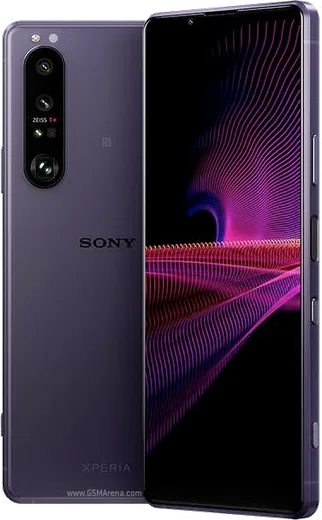
Sony Xperia Android

WhatsApp for Xperia 5 III

Snapdragon 888, 120Hz OLED, variable telephoto

WhatsApp Messenger 4.7 · 64.2M reviews Free · Android · ~40 MB · by WhatsApp LLC
Download WhatsApp

Ask a question / report a problem

You can ask any question about WhatsApp support on the Xperia 5 III — leave it below and we'll help.

Ask a question

Can the Xperia 5 III run WhatsApp?

Fully supported
  • Operating systemAndroid
  • ProcessorSnapdragon 888
  • WhatsApp versionLatest supported

Latest known WhatsApp problems on Xperia 5 III

1

Why is WhatsApp call microphone quality so bad on my Xperia 5 III?

First make sure WhatsApp actually has mic access: open Settings > Apps > WhatsApp > Permissions and confirm Microphone is set to Allow. If callers still report muffled or distorted audio, clear WhatsApp's cache under Settings > Apps > WhatsApp > Storage > Clear cache (this does not delete chats). Finally, check that the bottom microphone pinhole next to the USB-C port isn't blocked by a tight case, and that no screen protector or film is covering it; even partial obstruction muffles your voice on calls and voice notes. See how others solved this on Reddit
2

Why do photos taken inside WhatsApp on my Xperia 5 III look so bad?

WhatsApp uses its own basic in-app camera rather than Sony's Photography Pro engine, so quality is far lower, and images are also compressed when sent. Instead of tapping the camera icon inside a chat, shoot with the stock Sony Camera app first, then attach the photo through the gallery/paperclip in WhatsApp. To reduce compression on what you send, open WhatsApp > Settings > Storage and data > Media upload quality and set it to Best quality (HD). See how others solved this on Reddit
3

WhatsApp notification sounds don't play properly on my Xperia 5 III, how do I fix it?

On the Xperia, battery optimization can silence or delay WhatsApp's audio when the app is in the background. Go to Settings > Apps > WhatsApp > Battery and set it to Unrestricted, then under Settings > Battery turn off STAMINA mode (or exclude WhatsApp from it). Finally open WhatsApp > Settings > Notifications and re-select a notification tone, since a blank or missing tone can make alerts arrive silently. See how others solved this on Reddit
4

How can I get better battery life on my Xperia 5 III when using WhatsApp all day?

The 4500mAh battery comfortably lasts a day, but the 120Hz display and constant background sync drain it faster than needed. Turn on Settings > Battery > STAMINA mode, and enable Battery Care under Settings > Battery to protect long-term capacity. Lowering the screen to 60Hz under Settings > Display > High refresh rate and setting WhatsApp media auto-download to Wi-Fi only (WhatsApp > Settings > Storage and data) both noticeably extend runtime. See how others solved this on Reddit
5

Is the Xperia 5 III still worth using for WhatsApp and daily messaging in 2025?

Yes. Its Snapdragon 888 and 8GB of RAM still run WhatsApp and current apps smoothly, though the phone's last major OS update was Android 13. To keep WhatsApp secure and working, update it regularly from the Google Play Store, since WhatsApp eventually drops support for very old Android versions. Keep a few GB of storage free and back up chats under WhatsApp > Settings > Chats > Chat backup to Google Drive. See how others solved this on Reddit

Ask a question / report a problem

You can ask any question about WhatsApp support on the Xperia 5 III — leave it below and we'll help.

Ask a question

Watch: setting up WhatsApp

Prefer to watch? This short walkthrough shows the whole installation and number-verification flow.

How to install WhatsApp on Xperia 5 III — video walkthrough

How to install WhatsApp on Xperia 5 III

1

Choose how to download

On your Xperia 5 III you can get the official app two ways: from the Google Play Store — the easiest option, since it keeps WhatsApp updated automatically — or directly from the official website. You can download an APK file, by clicking a link “Download WhatsApp directly”.

2

Open WhatsApp

Launch WhatsApp from your home screen or app drawer and accept the Terms of Service to start setup.

3

Verify your phone number

Enter your phone number. If your Xperia 5 III uses dual SIM, pick the line you want WhatsApp tied to, then enter the 6-digit code it sends by SMS — it usually fills in automatically.

4

Restore chats and finish setup

Restore your chat history from Google Drive (use the same Google account), add your name and photo, and tap Allow for notifications so messages and calls arrive reliably.

Stay safe: only ever install WhatsApp from the official Android source. The Download button above already points there — modified copies (GB/Plus/Aero WhatsApp) can get your number banned.

Comments (6)

No registration needed. No email required.
L
lina_kJun 27, 2025

guys thank u so much 🔥

AppWhatsOfficialJun 29, 2025

Perfect, enjoy chatting!

N
noah_benJun 8, 2025

perfect steps for the 5 iii ✌️

N
noobmasterApr 12, 2025

Whatsapp is working on my 5iii now

Z
zoe3Oct 23, 2024

ey funcionó perfecto en mi xperia 5 III 👍

B
ben_realAug 29, 2024

ngl easy install on my xperia 5 iii :)

M
maxx45Aug 7, 2024

stuck and so stressed how do i get whatsapp on Xperia 5 III

AppWhatsOfficialAug 9, 2024

Relax, it is simpler than it looks. Press Download, install, then verify with the SMS code. You got this! You will be set up on your phone in no time.