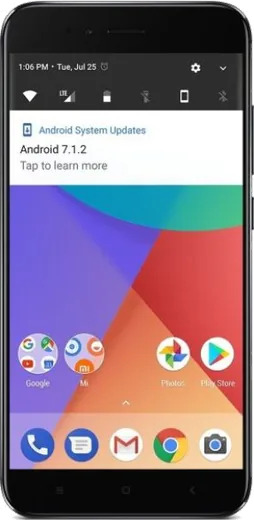
WhatsApp on Xiaomi Redmi Note 5 (Redmi 5 Plus)
Xiaomi Android

WhatsApp for Xiaomi Redmi Note 5 (Redmi 5 Plus)

Install the official WhatsApp on your Xiaomi Redmi Note 5 (Redmi 5 Plus) in a few simple steps.

WhatsApp Messenger 4.7 · 64.2M reviews Free · Android · ~40 MB · by WhatsApp LLC
Download WhatsApp

Ask a question / report a problem

You can ask any question about WhatsApp support on the Xiaomi Redmi Note 5 (Redmi 5 Plus) — leave it below and we'll help.

Ask a question

Can the Xiaomi Redmi Note 5 (Redmi 5 Plus) run WhatsApp?

Fully supported
  • Operating systemAndroid
  • WhatsApp versionLatest supported

Latest known WhatsApp problems on Xiaomi Redmi Note 5 (Redmi 5 Plus)

1

WhatsApp stopped working on my Redmi Note 5 after a MIUI update — how do I fix it?

MIUI's aggressive battery saver often breaks WhatsApp after a system update by killing it in the background. Go to Settings > Apps > Manage apps > WhatsApp, set Battery saver to No restrictions, and turn on Autostart, then reboot the phone. If messages still fail, open Settings > Apps > Manage apps > WhatsApp > Clear data > Clear cache (cache only, not all data), and confirm WhatsApp is updated from the Play Store. See how others solved this on Reddit
2

WhatsApp calls and notifications don't show on my Redmi Note 5 unless I open the app — how do I get them in real time?

MIUI freezes WhatsApp when the screen is locked, so notifications only arrive when you open it manually. In Settings > Apps > Manage apps > WhatsApp, enable Autostart and set Battery saver to No restrictions, then in Settings > Notifications & Control Center make sure WhatsApp notifications and Show on lock screen are both on. Also lock WhatsApp in the Recents screen (swipe down on its card and tap the padlock) so MIUI's memory cleaner won't close it. See how others solved this on Reddit
3

WhatsApp calls don't appear on my Redmi Note 5 lock screen — I miss them until later. How do I fix that?

On MIUI the incoming-call screen needs special permission to draw over the lock screen. Go to Settings > Apps > Manage apps > WhatsApp > Other permissions and enable Display pop-up windows while running in background and Show on lock screen. Keep WhatsApp's Autostart on and Battery saver set to No restrictions so the call screen can launch instantly. See how others solved this on Reddit
4

My Redmi Note 5 Pro reboots or shuts off whenever I make or receive a WhatsApp call — what causes this?

Sudden restarts during voice or video calls are most often caused by an aging or swollen battery that can't handle the power spike, though a buggy WhatsApp or MIUI build can also trigger it. First fully update WhatsApp and MIUI, then clear WhatsApp's cache via Settings > Apps > Manage apps > WhatsApp > Clear data > Clear cache. If it keeps crashing only during calls, the battery is the most likely culprit and should be replaced. See how others solved this on Reddit
5

WhatsApp keeps lagging or not syncing properly on my Xiaomi Redmi Note 5 — any reliable fixes?

Persistent sync and lag issues on Xiaomi phones almost always trace back to MIUI's background restrictions and a bloated cache. In Settings > Apps > Manage apps > WhatsApp, set Battery saver to No restrictions and enable Autostart, then lock WhatsApp in the Recents screen so it isn't killed; next clear its cache via Clear data > Clear cache. If it still misbehaves, back up your chats to Google Drive, then reinstall the latest version from the Play Store. See how others solved this on Reddit

Ask a question / report a problem

You can ask any question about WhatsApp support on the Xiaomi Redmi Note 5 (Redmi 5 Plus) — leave it below and we'll help.

Ask a question

Watch: setting up WhatsApp

Prefer to watch? This short walkthrough shows the whole installation and number-verification flow.

How to install WhatsApp on Xiaomi Redmi Note 5 (Redmi 5 Plus) — video walkthrough

How to install WhatsApp on Xiaomi Redmi Note 5 (Redmi 5 Plus)

1

Choose how to download

On your Xiaomi Redmi Note 5 (Redmi 5 Plus) you can get the official app two ways: from the Google Play Store — the easiest option, since it keeps WhatsApp updated automatically — or directly from the official website. You can download an APK file, by clicking a link “Download WhatsApp directly”.

2

Open WhatsApp

Launch WhatsApp from your home screen or app drawer and accept the Terms of Service to start setup.

3

Verify your phone number

Enter your phone number. If your Xiaomi Redmi Note 5 (Redmi 5 Plus) uses dual SIM, pick the line you want WhatsApp tied to, then enter the 6-digit code it sends by SMS — it usually fills in automatically.

4

Restore chats and finish setup

Restore your chat history from Google Drive (use the same Google account), add your name and photo, and tap Allow for notifications so messages and calls arrive reliably.

Stay safe: only ever install WhatsApp from the official Android source. The Download button above already points there — modified copies (GB/Plus/Aero WhatsApp) can get your number banned.

Comments (11)

No registration needed. No email required.
K
kai_kJun 28, 2026

installé sans souci

N
nina_kevJun 22, 2026

whatsapp running great on my redmi note 5 thanks again

A
alex.tJan 29, 2026

super guide merci 😍

V
val_officialOct 17, 2025

yo did it without any help, very simple ✌️

L
luca67Oct 5, 2025

omg worked perfect on my Redmi Note 5

L
lucy31Aug 12, 2025

Help meee i pressed everything and nothing 😭

AppWhatsOfficialAug 16, 2025

No panic needed. The Download button takes you to the official app, then just install and verify your number.

A
ash.qApr 15, 2025

guys easy install on my note 5 thx

K
kate90Apr 4, 2025

two thumbs up cheers

B
bea85Dec 14, 2024

got my redmi note 5 sorted thanks to you

K
kate_officialDec 3, 2024

running whatsapp on my xiaomi redmi note 5 like new cheers

X
xX_kevSep 7, 2024

ngl didnt work at first but second time was fine