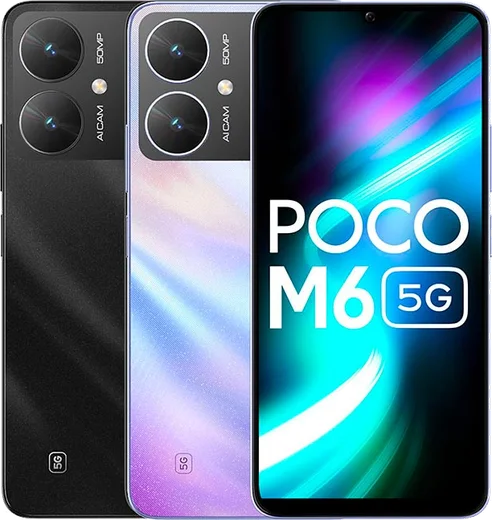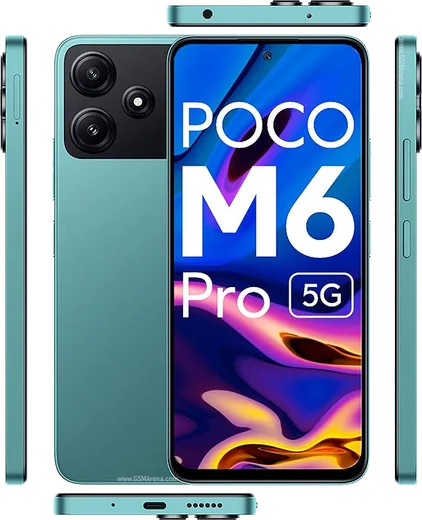
WhatsApp on Poco M6
Poco Android

WhatsApp for Poco M6

Dimensity 6100+, 6.74-inch 90Hz, 108MP camera

WhatsApp Messenger 4.7 · 64.2M reviews Free · Android · ~40 MB · by WhatsApp LLC
Download WhatsApp

Ask a question / report a problem

You can ask any question about WhatsApp support on the Poco M6 — leave it below and we'll help.

Ask a question

Can the Poco M6 run WhatsApp?

Fully supported
  • Operating systemAndroid
  • ProcessorDimensity 6100+
  • WhatsApp versionLatest supported

Latest known WhatsApp problems on Poco M6

1

WhatsApp photos not showing in my gallery on the Poco M6 — how do I fix it?

Open WhatsApp, go to Settings > Chats and turn on Media visibility so new downloads appear in your gallery. Then make sure WhatsApp has storage access under Settings > Apps > Manage apps > WhatsApp > Permissions > Files and media (set to Allow); on HyperOS you may also need to set WhatsApp's battery saver to No restrictions so it can write media in the background. If old photos still don't show, open the Gallery app and pull down to refresh, or clear the Gallery app's cache so it re-scans the WhatsApp Images folder. See how others solved this on Reddit
2

WhatsApp notifications don't show on my Poco M6 lock screen — what's wrong?

Go to Settings > Notifications & Control Center > App notifications > WhatsApp and enable notifications plus Lock screen notifications (set to Show content). Then open Settings > Apps > Manage apps > WhatsApp > Battery saver and choose No restrictions so HyperOS doesn't freeze WhatsApp in the background. It also helps to lock WhatsApp in Recents (open recent apps, hold its card and tap the lock icon) so the memory cleaner doesn't kill it. See how others solved this on Reddit
3

My new Poco M6 feels slow when using WhatsApp and switching apps — is it normal?

Open Settings > About phone and tap the HyperOS (or OS) version a few times to enable Developer options, then set Window, Transition and Animator scales to 0.5x for snappier navigation. Free up RAM by limiting background apps, and if Memory extension seems to cause stutter you can toggle it under Settings > Additional settings > Memory extension. Clearing WhatsApp's cache via Settings > Apps > Manage apps > WhatsApp > Clear data > Clear cache also helps if the app specifically lags. See how others solved this on Reddit
4

WhatsApp keeps closing or acting buggy after the HyperOS 2 update on my Poco — how do I stop it?

First update WhatsApp itself in the Play Store, since older versions misbehave on newer HyperOS builds. Then clear its cache under Settings > Apps > Manage apps > WhatsApp > Clear data > Clear cache and reboot the phone. If crashes continue, turn off aggressive battery optimization for WhatsApp (Settings > Apps > Manage apps > WhatsApp > Battery saver > No restrictions) so the system stops force-closing it. See how others solved this on Reddit
5

Images and GIFs I send from my keyboard don't arrive properly in WhatsApp on my Poco M6 — what should I do?

Inserting media straight from the keyboard's GIF/sticker panel can fail silently, so instead save the image first and attach it through WhatsApp's own paperclip > Gallery option. Check that your keyboard app has Files and media permission under Settings > Apps > Manage apps > [your keyboard] > Permissions. If it still fails, switch the default keyboard (Settings > Additional settings > Manage keyboards, or Languages & input) to Gboard, which handles GIF sharing to WhatsApp more reliably. See how others solved this on Reddit

Ask a question / report a problem

You can ask any question about WhatsApp support on the Poco M6 — leave it below and we'll help.

Ask a question

Watch: setting up WhatsApp

Prefer to watch? This short walkthrough shows the whole installation and number-verification flow.

How to install WhatsApp on Poco M6 — video walkthrough

How to install WhatsApp on Poco M6

1

Choose how to download

On your Poco M6 you can get the official app two ways: from the Google Play Store — the easiest option, since it keeps WhatsApp updated automatically — or directly from the official website. You can download an APK file, by clicking a link “Download WhatsApp directly”.

2

Open WhatsApp

Launch WhatsApp from your home screen or app drawer and accept the Terms of Service to start setup.

3

Verify your phone number

Enter your phone number. If your Poco M6 uses dual SIM, pick the line you want WhatsApp tied to, then enter the 6-digit code it sends by SMS — it usually fills in automatically.

4

Restore chats and finish setup

Restore your chat history from Google Drive (use the same Google account), add your name and photo, and tap Allow for notifications so messages and calls arrive reliably.

Stay safe: only ever install WhatsApp from the official Android source. The Download button above already points there — modified copies (GB/Plus/Aero WhatsApp) can get your number banned.

Comments (8)

No registration needed. No email required.
R
ray51Dec 26, 2025

Anyone? it says my number cant be verified anyone

AppWhatsOfficialDec 30, 2025

Hey there, if the SMS will not arrive, you can choose the call option to hear the code, just make sure your number is entered correctly. Enjoy WhatsApp on your your phone!

I
ivan.bDec 17, 2025

tbh respect, this helped alot cheers

L
lurkerNov 16, 2025

Hey i been trying since morning pleaseee how to install on m6 :(

AppWhatsOfficialNov 18, 2025

You are almost there! Tap Download, allow the install, open WhatsApp and confirm your number. It is easier than it looks, promise.

H
helpmeeeAug 4, 2025

hi stuck on a black screen after install pls

AppWhatsOfficialAug 10, 2025

No worries, try restarting your phone first. If it still wont open, clear the cache or reinstall the latest version from the official source.

R
rosa_benFeb 15, 2025

Even my grandma could do this

AppWhatsOfficialFeb 19, 2025

Glad we could help!

R
ray_realNov 7, 2024

well got it working on my Poco M6 first try 😍

D
droiduserNov 2, 2024

Got my Poco M6 sorted thanks to you 👌

T
theo92Aug 8, 2024

tout fonctionne sur mon poco m6, merci beaucoup 🙏