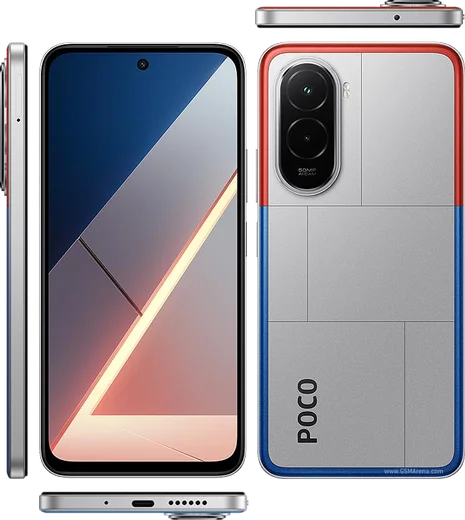
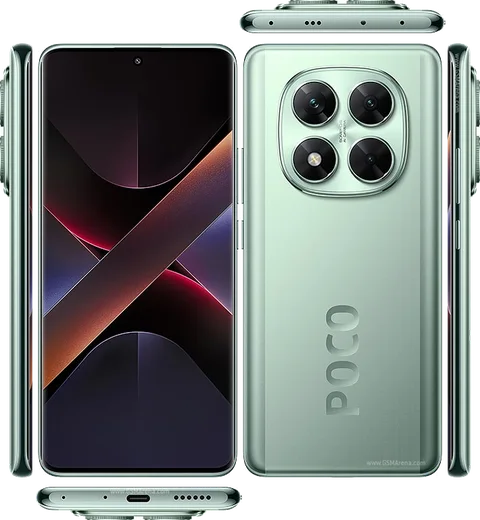
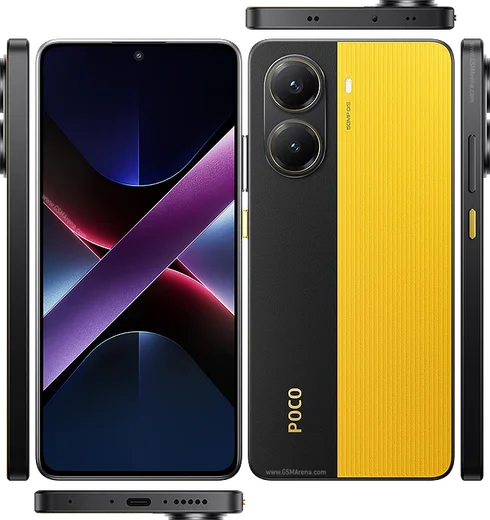
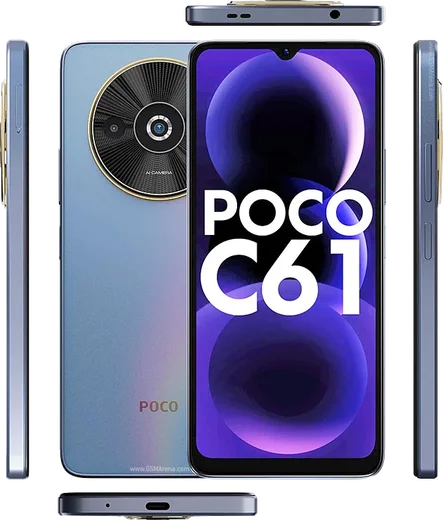
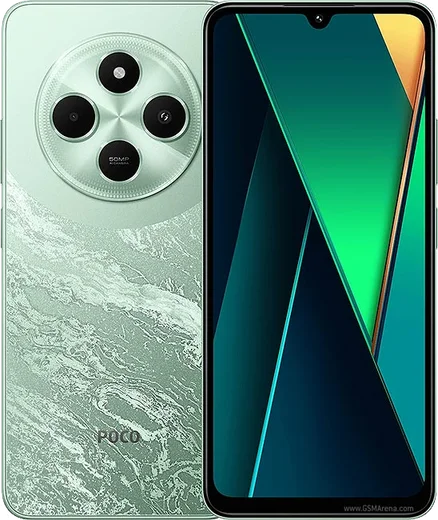
WhatsApp on Poco M7
Poco Android

WhatsApp for Poco M7

Snapdragon 4 Gen 2, 6.88-inch, 5160mAh

WhatsApp Messenger 4.7 · 64.2M reviews Free · Android · ~40 MB · by WhatsApp LLC
Download WhatsApp

Ask a question / report a problem

You can ask any question about WhatsApp support on the Poco M7 — leave it below and we'll help.

Ask a question

Can the Poco M7 run WhatsApp?

Fully supported
  • Operating systemAndroid
  • ProcessorSnapdragon 4 Gen 2
  • WhatsApp versionLatest supported

Latest known WhatsApp problems on Poco M7

1

WhatsApp keeps crashing or freezing on my Poco M7, how do I fix it?

Open Settings > Apps > Manage apps > WhatsApp > Clear data > Clear cache (clearing cache only wipes temporary files, not your chats), then restart the phone. If it still crashes, update WhatsApp from the Play Store and make sure HyperOS is current under Settings > About phone > System updates, since outdated builds are the usual cause. See how others solved this on Reddit
2

WhatsApp says 'file not supported' when I try to send a video or document on my Poco M7

This happens when the file format or codec isn't one WhatsApp accepts, so re-save the video as MP4 (H.264) or send the original through the Document attachment option instead of the Gallery to avoid re-compression. If it's a downloaded file, clear WhatsApp's cache under Settings > Apps > Manage apps > WhatsApp > Clear cache, then try sending it again. See how others solved this on Reddit
3

WhatsApp photos aren't showing up in my Poco M7 gallery

Go to Settings > Apps > Manage apps > WhatsApp > Permissions and grant Files and media (Photos and videos), then in WhatsApp tap the three dots > Settings > Chats and turn on Media visibility. If they still don't appear, check that a '.nomedia' file isn't hiding the WhatsApp Images folder and reboot so the gallery re-scans your storage. See how others solved this on Reddit
4

WhatsApp video calls freeze or lag on my Poco M7, any way to fix this?

Most freezing comes from battery restrictions or a weak connection, so open Settings > Apps > Manage apps > WhatsApp > Battery saver and set it to No restrictions so the call isn't throttled in the background. Also turn off any data saver, switch between Wi-Fi and mobile data to see which is more stable, and keep both WhatsApp and HyperOS updated. See how others solved this on Reddit
5

WhatsApp opens the selfie (front) camera when I answer a video call on my Poco M7

During the call just tap the camera-flip icon on the screen to switch to the rear camera; WhatsApp defaults to the front camera for video calls by design. If the flip button doesn't respond, update WhatsApp from the Play Store and confirm camera access is enabled under Settings > Apps > Manage apps > WhatsApp > Permissions. See how others solved this on Reddit
6

I can send WhatsApp messages on my Poco M7 but I'm not receiving any

This is almost always a background/battery block, so open Settings > Apps > Manage apps > WhatsApp > Battery saver and choose No restrictions, then enable Autostart for WhatsApp under Settings > Apps > Permissions > Autostart so it can sync while closed. Also make sure WhatsApp notifications are allowed under Settings > Apps > Manage apps > WhatsApp > Notifications. See how others solved this on Reddit

Ask a question / report a problem

You can ask any question about WhatsApp support on the Poco M7 — leave it below and we'll help.

Ask a question

Watch: setting up WhatsApp

Prefer to watch? This short walkthrough shows the whole installation and number-verification flow.

How to install WhatsApp on Poco M7 — video walkthrough

How to install WhatsApp on Poco M7

1

Choose how to download

On your Poco M7 you can get the official app two ways: from the Google Play Store — the easiest option, since it keeps WhatsApp updated automatically — or directly from the official website. You can download an APK file, by clicking a link “Download WhatsApp directly”.

2

Open WhatsApp

Launch WhatsApp from your home screen or app drawer and accept the Terms of Service to start setup.

3

Verify your phone number

Enter your phone number. If your Poco M7 uses dual SIM, pick the line you want WhatsApp tied to, then enter the 6-digit code it sends by SMS — it usually fills in automatically.

4

Restore chats and finish setup

Restore your chat history from Google Drive (use the same Google account), add your name and photo, and tap Allow for notifications so messages and calls arrive reliably.

Stay safe: only ever install WhatsApp from the official Android source. The Download button above already points there — modified copies (GB/Plus/Aero WhatsApp) can get your number banned.

Comments (8)

No registration needed. No email required.
C
chris.qDec 26, 2025

pls help is this gb whatsapp anyone

AppWhatsOfficialDec 29, 2025

No worries, this is the genuine WhatsApp. Avoid GB or Plus mods, they break the rules and risk a ban. Feel free to ask if you get stuck.

M
mr_kateSep 2, 2025

well saved me so much time

AppWhatsOfficialSep 3, 2025

Perfect, enjoy chatting!

I
ivan2000Jun 7, 2025

Instalado y funcionando en mi M7

L
lucy_proDec 25, 2024

downloaded and installed on my poco m7 thanks again

A
apploverDec 13, 2024

Ngl smooth install on the poco m7 :)

S
sara_xXOct 30, 2024

man the poco m7 guide was spot on 🙏

N
not_priyaOct 20, 2024

update downloaded and installed on my M7 🔥

S
sam07Jul 10, 2024

Hey cant do this alone HELP how do i download :(

AppWhatsOfficialJul 14, 2024

Hey, no need to stress! Tap the green Download button at the top, follow the steps, and you will have WhatsApp in a minute. Reply here if you get stuck.