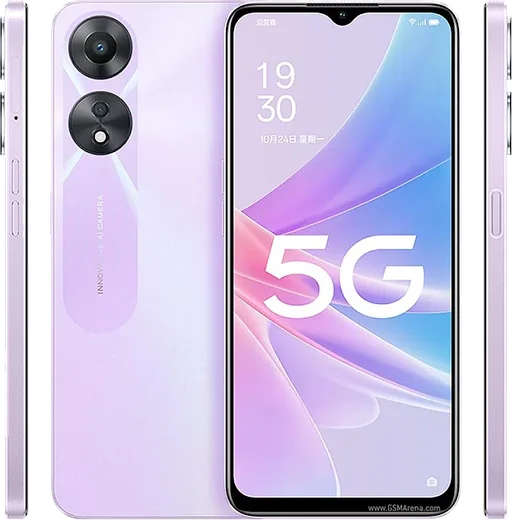
Oppo Android

WhatsApp for Oppo Find X5

Snapdragon 888, 6.55-inch 120Hz AMOLED, 80W charging

WhatsApp Messenger 4.7 · 64.2M reviews Free · Android · ~40 MB · by WhatsApp LLC
Download WhatsApp

Ask a question / report a problem

You can ask any question about WhatsApp support on the Oppo Find X5 — leave it below and we'll help.

Ask a question

Can the Oppo Find X5 run WhatsApp?

Fully supported
  • Operating systemAndroid
  • ProcessorSnapdragon 888
  • WhatsApp versionLatest supported

Latest known WhatsApp problems on Oppo Find X5

1

Why are my WhatsApp videos choppy or distorted when sent from my Oppo Find X5?

This is a known conflict between WhatsApp's re-compression and the Find X5's high-frame-rate recording. Open the Camera app, switch to Video, tap the settings gear and set resolution to 1080p at 30fps (instead of 60fps or 4K), since WhatsApp re-encodes high-fps clips poorly. As a workaround, send the clip as a file: in the chat tap the attach (paperclip/+) icon, choose Document, then pick the video so it skips WhatsApp's video re-compression. See how others solved this on Reddit
2

My WhatsApp video previews look glitchy on the Find X5 Pro — how do I fix it?

Make sure both ColorOS and WhatsApp are fully updated, as several stuttering-video bugs were patched in later builds. Go to Settings > Apps > App management > WhatsApp > Storage usage and clear the cache (not data), then reboot to rebuild the video thumbnails. If it persists, record in 1080p/30fps before sharing. See how others solved this on Reddit
3

My Oppo Find X5 gets really hot — is overheating normal and what can I do?

The Find X5 (Snapdragon 8 Gen 1 variant) is known to run warm under camera use, gaming, and fast charging. Remove thick cases while gaming or shooting 4K video, and avoid using the phone while it fast-charges. If it overheats even during normal browsing, update ColorOS and open Settings > Battery to check which app is consuming the most power and force-stop or restrict it. See how others solved this on Reddit
4

My Find X5 Pro battery drains way too fast — how can I improve it?

Go to Settings > Battery, enable Power Saving Mode and Optimized Night Charging, then review the per-app battery usage to spot apps draining in the background. In Settings > Battery, restrict background activity for heavy apps you don't need running constantly, and lower the screen to 60Hz (or Auto select) under Settings > Display & Brightness > Screen refresh rate. Turning off Always-On Display also reduces standby drain noticeably. See how others solved this on Reddit
5

I'm disappointed with software bugs and lag on my Find X5 Pro — is there a fix?

Many ColorOS stability complaints clear up after updating, so first go to Settings > Software Update and install the latest firmware. Then clear cached clutter under Settings > Storage. If lag or app reloading persists after updating, back up your data and do a factory reset via Settings > System settings > Back up and reset, since stale data carried over from earlier builds is a common cause. See how others solved this on Reddit
6

Are the Find X5 Pro's reliability and connectivity problems worth worrying about long term?

Long-term owners report most issues are software-side and fixable rather than hardware faults. Keep ColorOS current via Settings > Software Update, and for Wi-Fi or Bluetooth dropouts use Settings > System settings > Back up and reset > Reset network settings (Wi-Fi, mobile data & Bluetooth). If a specific app keeps failing, clear its cache under Settings > Apps > App management and confirm it isn't being restricted in the background. See how others solved this on Reddit

Ask a question / report a problem

You can ask any question about WhatsApp support on the Oppo Find X5 — leave it below and we'll help.

Ask a question

Watch: setting up WhatsApp

Prefer to watch? This short walkthrough shows the whole installation and number-verification flow.

How to install WhatsApp on Oppo Find X5 — video walkthrough

How to install WhatsApp on Oppo Find X5

1

Choose how to download

On your Oppo Find X5 you can get the official app two ways: from the Google Play Store — the easiest option, since it keeps WhatsApp updated automatically — or directly from the official website. You can download an APK file, by clicking a link “Download WhatsApp directly”.

2

Open WhatsApp

Launch WhatsApp from your home screen or app drawer and accept the Terms of Service to start setup.

3

Verify your phone number

Enter your phone number. If your Oppo Find X5 uses dual SIM, pick the line you want WhatsApp tied to, then enter the 6-digit code it sends by SMS — it usually fills in automatically.

4

Restore chats and finish setup

Restore your chat history from Google Drive (use the same Google account), add your name and photo, and tap Allow for notifications so messages and calls arrive reliably.

Stay safe: only ever install WhatsApp from the official Android source. The Download button above already points there — modified copies (GB/Plus/Aero WhatsApp) can get your number banned.

Comments (10)

No registration needed. No email required.
L
leo_xJun 10, 2026

yo the find x5 steps actually work unlike other sites 💯

O
omar89Jun 3, 2026

wow instalado sin problemas

E
ella_joeDec 27, 2025

finally smooth install on the Find X5 thanks again

L
luca_lucMay 29, 2025

So good job whoever made this :)

L
lurkerMay 16, 2025

Clear steps for the oppo find x5, cheers 💯

A
andy99May 1, 2025

man easy install on my Find X5 💯

I
im_amyFeb 17, 2025

Guys no contacts appear in the app thanks

AppWhatsOfficialFeb 19, 2025

Happy to help, contacts come from your phone address book. Save them with the country code and refresh the app to see them.

J
jess_officialJan 6, 2025

hey im so confused someone help meeee

AppWhatsOfficialJan 9, 2025

Take a breath, we got you. Press Download above, then Install, then verify your number. That is all it takes. Reply here if you get stuck.

M
mike40Nov 25, 2024

wow semplicissimo, tutto pronto

N
newphoneOct 5, 2024

So set up whatsapp on my dads oppo find x5 no problem