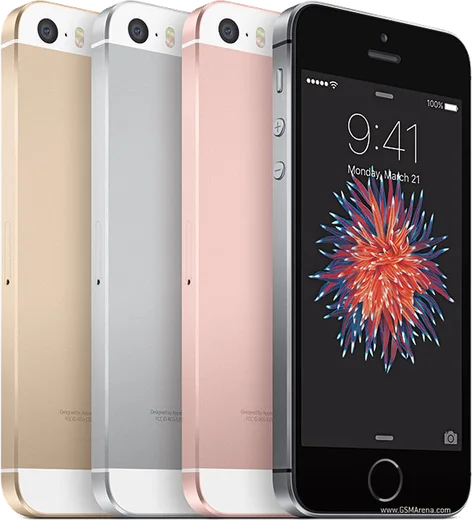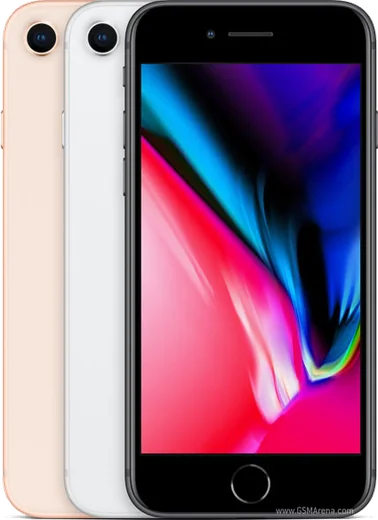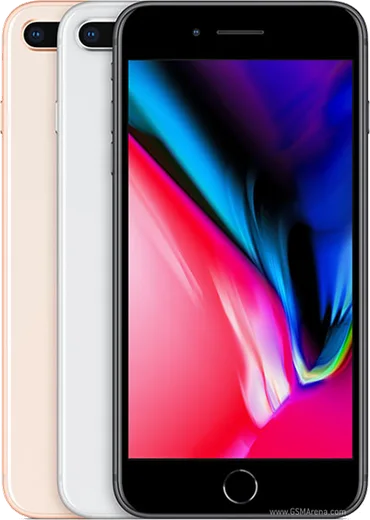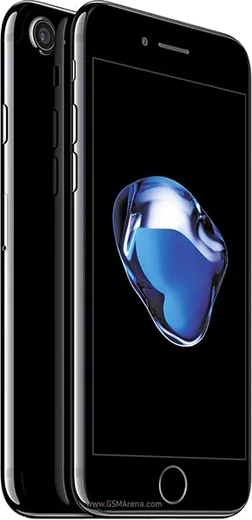
WhatsApp on iPhone SE (1st gen)
Apple iOS

WhatsApp for iPhone SE (1st gen)

Apple A9, compact 4-inch Retina display

WhatsApp Messenger 4.7 · 64.2M reviews Free · iOS · ~40 MB · by WhatsApp LLC
Download WhatsApp

Ask a question / report a problem

You can ask any question about WhatsApp support on the iPhone SE (1st gen) — leave it below and we'll help.

Ask a question

Can the iPhone SE (1st gen) run WhatsApp?

Fully supported
  • Operating systemiOS
  • ProcessorApple A9
  • WhatsApp versionLatest supported

Latest known WhatsApp problems on iPhone SE (1st gen)

1

WhatsApp notifications don't show on my iPhone SE unless I open the app — how do I fix it?

Go to Settings > Notifications > WhatsApp and make sure Allow Notifications, Lock Screen, Banners and Sounds are all turned on. Then open WhatsApp > Settings > Notifications and confirm notifications are enabled there too. Also check Settings > General > Background App Refresh is on for WhatsApp, and turn off Low Power Mode (Settings > Battery), since it throttles background activity on the older SE hardware. See how others solved this on Reddit
2

Why do WhatsApp messages on my iPhone SE arrive late, only when I open the app?

This is almost always Background App Refresh being disabled — go to Settings > General > Background App Refresh, make sure it's set to Wi-Fi & Cellular Data, and that WhatsApp is toggled on in the list below. Also turn off Low Power Mode in Settings > Battery, because on the 1st-gen SE that mode aggressively suspends apps and delays push delivery. See how others solved this on Reddit
3

How much longer will WhatsApp keep working on my original iPhone SE?

WhatsApp currently requires iOS 15.1 or later, and the 1st-gen iPhone SE can run iOS 15.8, so it still works for now but sits right at the minimum and could lose support in a future bump. To stay current as long as possible, install every available update via Settings > General > Software Update and keep WhatsApp updated in the App Store. See how others solved this on Reddit
4

WhatsApp notifications suddenly stopped completely on my iPhone SE and I can't get them back — what now?

First check that Do Not Disturb or a Focus isn't silencing them: open Control Center and make sure no Focus is active, then review Settings > Focus to confirm WhatsApp isn't being filtered out. If that's clean, toggle Allow Notifications off and back on in Settings > Notifications > WhatsApp, then force-quit and reopen the app or reboot the phone to re-register the push token. See how others solved this on Reddit
5

I get a WhatsApp banner but no sound or badge on my iPhone SE — how do I get the full alert?

Open Settings > Notifications > WhatsApp and enable Sounds and Badges, then set Banner Style to Persistent so alerts don't disappear instantly. Inside WhatsApp, go to Settings > Notifications and check that the message and group notification tones, plus In-App Notifications, are turned on. See how others solved this on Reddit
6

WhatsApp on my iPhone SE won't receive messages until I open the app — is there a permanent fix?

Make sure WhatsApp has unrestricted network and background access: enable Settings > General > Background App Refresh for WhatsApp, confirm Settings > WhatsApp > Cellular Data is on, and avoid third-party battery-saver tweaks. If it persists, reinstall WhatsApp (your chats restore from iCloud under WhatsApp > Settings > Chats > Chat Backup) so the app re-establishes a fresh push connection. See how others solved this on Reddit

Ask a question / report a problem

You can ask any question about WhatsApp support on the iPhone SE (1st gen) — leave it below and we'll help.

Ask a question

Watch: setting up WhatsApp

Prefer to watch? This short walkthrough shows the whole installation and number-verification flow.

How to install WhatsApp on iPhone SE (1st gen) — video walkthrough

How to install WhatsApp on iPhone SE (1st gen)

1

Open the App Store

Unlock your iPhone SE (1st gen) and tap the blue App Store icon on the Home Screen. WhatsApp is not preinstalled on any iPhone, so you install it from here.

2

Search for WhatsApp Messenger

Tap the Search tab at the bottom right, type WhatsApp Messenger, and confirm the publisher shows as WhatsApp Inc. so you don't download a copycat app.

3

Download and install

Tap Get, then authenticate with Face ID or Touch ID (or your Apple Account password). The app downloads to your Home Screen in a few seconds.

4

Verify your phone number

Open WhatsApp, accept the terms, and enter your phone number. If your iPhone SE (1st gen) uses dual SIM, pick the line you want WhatsApp tied to, then enter the 6-digit code it sends by SMS — it usually fills in automatically.

5

Restore chats and finish setup

Sign in to iCloud with the same Apple Account to restore an existing chat backup, add your name and photo, and tap Allow for notifications so messages and calls arrive reliably.

Stay safe: only ever install WhatsApp from the official iOS source. The Download button above already points there — modified copies (GB/Plus/Aero WhatsApp) can get your number banned.

Comments (10)

No registration needed. No email required.
D
deni.tFeb 15, 2026

perfect, exactly what i needed ❤️

T
the_real_marcFeb 15, 2026

my iPhone SE was being difficult but this sorted it cheers

AppWhatsOfficialFeb 19, 2026

Happy it helped you!

J
just_benSep 18, 2025

clear and to the point ❤️

J
just_deniAug 9, 2025

didnt work at first but second time was fine

X
xX_leoApr 17, 2025

tbh respect, this helped alot

D
droiduserMar 29, 2025

wow installed on my iPhone SE, super simple 👍

F
finn39Mar 4, 2025

Wow semplicissimo, il mio se è pronto grazie

N
nina72Dec 19, 2024

Whyyy is this so hard pls help me get whatsapp

AppWhatsOfficialDec 20, 2024

Take a breath, we got you. Press Download above, then Install, then verify your number. That is all it takes. You got this!

S
stuckkkNov 25, 2024

echt sehr einfach, in 2 minuten auf meinem iphone se erledigt

Z
zoe21Nov 13, 2024

Hey how do i set my profile picture anyone

AppWhatsOfficialNov 15, 2024

Thanks for asking, head to Settings, tap your name, then the camera icon to choose your profile photo.