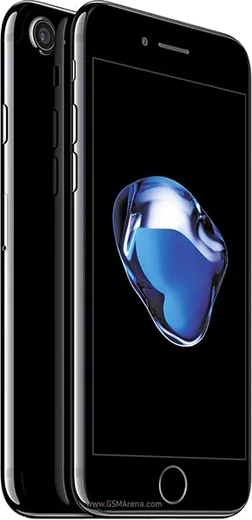
WhatsApp on iPhone 7
Apple iOS

WhatsApp for iPhone 7

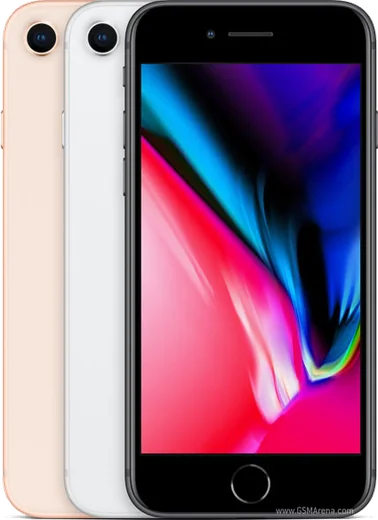
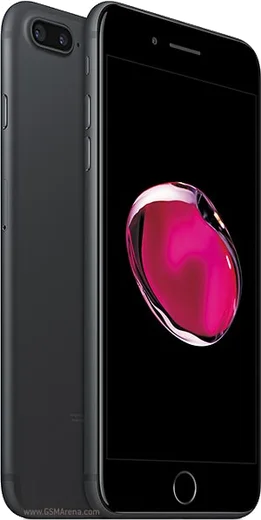
Apple A10 Fusion, 4.7-inch display, water resistant

WhatsApp Messenger 4.7 · 64.2M reviews Free · iOS · ~40 MB · by WhatsApp LLC
Download WhatsApp

Ask a question / report a problem

You can ask any question about WhatsApp support on the iPhone 7 — leave it below and we'll help.

Ask a question

Can the iPhone 7 run WhatsApp?

Fully supported
  • Operating systemiOS
  • ProcessorApple A10 Fusion
  • WhatsApp versionLatest supported

Latest known WhatsApp problems on iPhone 7

1

Why do WhatsApp notifications not show on my iPhone 7 until I open the app?

This usually means iOS background activity is restricted for WhatsApp, so messages only sync when you launch it. Go to Settings > WhatsApp and turn on Background App Refresh, then open Settings > Notifications > WhatsApp and confirm Allow Notifications, Lock Screen, Banners and Sounds are all enabled. Also make sure Low Power Mode (Settings > Battery) is off, since it throttles background fetching on the iPhone 7. See how others solved this on Reddit
2

My iPhone 7 isn't getting any WhatsApp notifications at all, how do I fix it?

Start by checking Settings > Notifications > WhatsApp and enabling Allow Notifications with Banners, Sounds and Badges; then inside WhatsApp go to Settings > Notifications and confirm message and group alerts are on with Show Previews enabled. Verify Focus or Do Not Disturb (Control Center) isn't silencing alerts and that WhatsApp isn't muted under a Focus filter. If it still fails, toggle Allow Notifications off and on, then restart the iPhone 7. See how others solved this on Reddit
3

WhatsApp notifications arrive late or delayed on my iPhone 7, what causes this?

Delayed alerts on the iPhone 7 are almost always caused by Low Power Mode or aggressive battery management cutting WhatsApp's background connection. Turn off Low Power Mode in Settings > Battery, enable Settings > WhatsApp > Background App Refresh, and make sure your Wi-Fi or cellular data stays connected when the screen locks. Updating to the latest iOS under Settings > General > Software Update and updating WhatsApp in the App Store can also fix delayed push delivery on older builds. See how others solved this on Reddit
4

I only receive some WhatsApp notifications on my iPhone 7 but miss others, how do I get all of them?

Missing only certain chats often points to per-chat muting or notification settings that override the global ones. Open the specific chat, tap the contact or group name, and check that Mute is set to Off; then in WhatsApp Settings > Notifications confirm both Messages and Groups have alerts enabled. Reinstalling WhatsApp from the App Store after backing up to iCloud can also clear a corrupted notification state that drops random alerts. See how others solved this on Reddit
5

WhatsApp is having general problems and acting buggy on my iPhone 7, what should I try?

Because the iPhone 7 tops out at an older iOS version, first update WhatsApp itself in the App Store and install any pending iOS updates under Settings > General > Software Update. If it still misbehaves, force-close WhatsApp from the app switcher, restart the phone, and confirm you have enough free storage in Settings > General > iPhone Storage. As a last resort, back up your chats to iCloud in WhatsApp > Settings > Chats > Chat Backup, then delete and reinstall the app. See how others solved this on Reddit

Ask a question / report a problem

You can ask any question about WhatsApp support on the iPhone 7 — leave it below and we'll help.

Ask a question

Watch: setting up WhatsApp

Prefer to watch? This short walkthrough shows the whole installation and number-verification flow.

How to install WhatsApp on iPhone 7 — video walkthrough

How to install WhatsApp on iPhone 7

1

Open the App Store

Unlock your iPhone 7 and tap the blue App Store icon on the Home Screen. WhatsApp is not preinstalled on any iPhone, so you install it from here.

2

Search for WhatsApp Messenger

Tap the Search tab at the bottom right, type WhatsApp Messenger, and confirm the publisher shows as WhatsApp Inc. so you don't download a copycat app.

3

Download and install

Tap Get, then authenticate with Face ID or Touch ID (or your Apple Account password). The app downloads to your Home Screen in a few seconds.

4

Verify your phone number

Open WhatsApp, accept the terms, and enter your phone number. If your iPhone 7 uses dual SIM, pick the line you want WhatsApp tied to, then enter the 6-digit code it sends by SMS — it usually fills in automatically.

5

Restore chats and finish setup

Sign in to iCloud with the same Apple Account to restore an existing chat backup, add your name and photo, and tap Allow for notifications so messages and calls arrive reliably.

Stay safe: only ever install WhatsApp from the official iOS source. The Download button above already points there — modified copies (GB/Plus/Aero WhatsApp) can get your number banned.

Comments (8)

No registration needed. No email required.
B
bea_theDec 11, 2025

i had to enable unknown sources but then it was fine 💯

G
guest_userNov 28, 2025

Yo simple and fast :)

B
ben33Nov 20, 2025

guys been at this for hours pls someone help me 😭

AppWhatsOfficialNov 23, 2025

Take a breath, we got you. Press Download above, then Install, then verify your number. That is all it takes. You will be set up on your phone in no time.

J
just_beaJul 26, 2025

Tbh this worked great on my iphone 7 🙏

A
ash.qMar 27, 2025

yo best guide for the 7 by far

T
tina_solJan 27, 2025

worked perfect on my iphone 7

K
kev21Dec 30, 2024

bookmarking this site for sure

G
gabe_ivaOct 8, 2024

Franchement a marché parfaitement sur mon 7