Huawei HarmonyOS

WhatsApp for Huawei P60

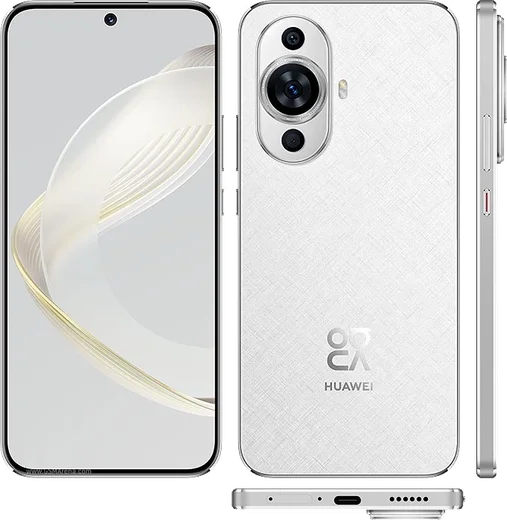
Snapdragon 8+ Gen 1 4G, 6.67-inch OLED, variable aperture

WhatsApp Messenger 4.7 · 64.2M reviews Free · HarmonyOS · ~40 MB · by WhatsApp LLC
Download WhatsApp

Ask a question / report a problem

You can ask any question about WhatsApp support on the Huawei P60 — leave it below and we'll help.

Ask a question

Can the Huawei P60 run WhatsApp?

Fully supported
  • Operating systemHarmonyOS
  • ProcessorSnapdragon 8+ Gen 1 4G
  • WhatsApp versionLatest supported

Latest known WhatsApp problems on Huawei P60

1

How do I install WhatsApp on my Huawei P60 without the Google Play Store?

Open Huawei AppGallery and search for WhatsApp; on most P60 units AppGallery lists it and either installs it directly or hands you the official package to download. If AppGallery skips it or it is missing in your region, open Huawei Browser, go to whatsapp.com/android and download the official APK, then approve the install prompt. This stays on the genuine WhatsApp build and avoids unofficial third-party stores, which is what triggers most later sign-in problems. See how others solved this on Reddit
2

WhatsApp says 'you don't have the official app' on my Huawei P60 - how do I fix it?

That message means the installed build is a cloned or repackaged version, often pulled in through a third-party installer or a wrapped AppGallery link. Uninstall the current WhatsApp (long-press the icon > Uninstall, or Settings > Apps > Apps > WhatsApp), then reinstall only from AppGallery or directly from whatsapp.com/android. Once the genuine com.whatsapp package signed by WhatsApp LLC is in place, the warning clears and your account works normally. See how others solved this on Reddit
3

WhatsApp stopped working on my Huawei P60 after a system update - what can I do?

After EMUI/HarmonyOS updates an older WhatsApp build can break, so first uninstall the current copy and reinstall the latest version from AppGallery or from whatsapp.com/android. Then open Settings > Battery > App launch, find WhatsApp, switch it from Manage automatically to Manage manually and enable all three toggles (Auto-launch, Secondary launch, Run in background) so the system stops killing it in the background. See how others solved this on Reddit
4

Does WhatsApp actually work on the Huawei P60 Pro without Google services?

Yes. WhatsApp does not need Google Mobile Services to run, so chats, calls and media all work once you install the official app from AppGallery or the whatsapp.com APK. The one thing Google services normally handle is push delivery, so if messages arrive late, set WhatsApp to Manage manually under Settings > Battery > App launch and keep it allowed to run in the background for timely alerts. See how others solved this on Reddit
5

I can't download WhatsApp at all on my Huawei P60 Pro - it won't appear or install. What now?

If AppGallery shows nothing or the download stalls, open Huawei Browser, go to whatsapp.com/android and download the official APK, then tap the downloaded file to install it. If the install is blocked, go to Settings > Security > More settings > Install apps from external sources and enable it for Huawei Browser (or Files), then tap the APK again. See how others solved this on Reddit
6

Why do my WhatsApp notifications arrive late or only when I open the app on my Huawei P60?

Without Google's push service, HarmonyOS aggressively suspends WhatsApp in the background, which delays notifications. Open Settings > Battery > App launch, set WhatsApp to Manage manually and turn on all three toggles, then check Settings > Notifications > WhatsApp to confirm alerts are allowed. This keeps WhatsApp's connection alive so messages come through in near real time. See how others solved this on Reddit

Ask a question / report a problem

You can ask any question about WhatsApp support on the Huawei P60 — leave it below and we'll help.

Ask a question

Watch: setting up WhatsApp

Prefer to watch? This short walkthrough shows the whole installation and number-verification flow.

How to install WhatsApp on Huawei P60 — video walkthrough

How to install WhatsApp on Huawei P60

1

Open Huawei AppGallery

On your Huawei P60, tap the AppGallery icon — Huawei's own app store. Newer Huawei phones ship without Google Play, so AppGallery is where you get WhatsApp.

2

Search for WhatsApp

Search WhatsApp Messenger in AppGallery and confirm it's published by WhatsApp LLC. If it isn't offered in your region, use Petal Search to download the official app.

3

Install the app

Tap Install. AppGallery downloads and installs WhatsApp; if prompted, allow installing the app so it can finish.

4

Verify your phone number

Open WhatsApp, accept the terms, and enter your phone number. On a dual-SIM Huawei P60, pick the line you want WhatsApp tied to, then enter the 6-digit code it sends by SMS.

5

Allow notifications and background activity

Add your name and photo, tap Allow for notifications, then open Settings > Battery and let WhatsApp auto-launch and run in the background so messages arrive on time on HarmonyOS.

Stay safe: only ever install WhatsApp from the official HarmonyOS source. The Download button above already points there — modified copies (GB/Plus/Aero WhatsApp) can get your number banned.

Comments (8)

No registration needed. No email required.
A
anonMay 25, 2026

Did it without any help, very simple 💯

L
luca2000Jan 11, 2026

did it on my p60 in like 2 minutes

Z
zoe07Aug 5, 2025

Guys i NEED this app pleaseeee how do i do it :(

AppWhatsOfficialAug 9, 2025

Take a breath, we got you. Press Download above, then Install, then verify your number. That is all it takes. You will be set up on your phone in no time.

K
kev_maxJul 26, 2025

wow gracias, mi p60 ya tiene whatsapp

T
techguyMay 1, 2025

Finally clear steps for the P60, cheers lol

AppWhatsOfficialMay 5, 2025

Happy it helped you!

M
marc9Feb 20, 2025

easy install on my Huawei P60

B
ben1990Nov 28, 2024

whatsapp works fine on my Huawei P60 ❤️

G
gabe_ytJul 17, 2024

update couldnt be easier :)