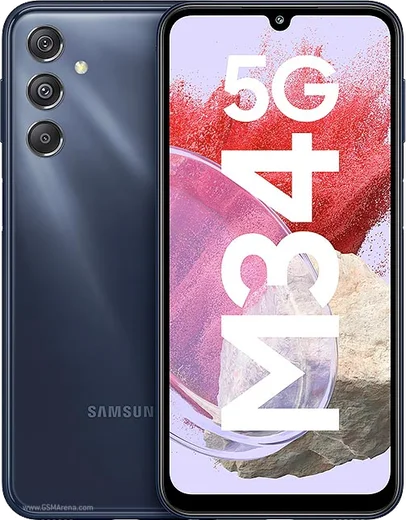
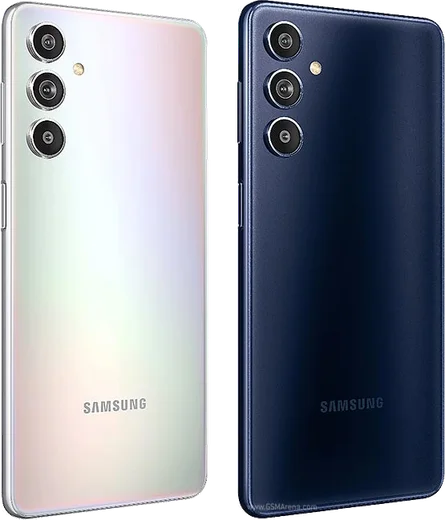
WhatsApp on Samsung Galaxy M34
Samsung Android

WhatsApp for Samsung Galaxy M34

Exynos 1280, 6.5-inch FHD+ 120Hz, 6000mAh

WhatsApp Messenger 4.7 · 64.2M reviews Free · Android · ~40 MB · by WhatsApp LLC
Download WhatsApp

Ask a question / report a problem

You can ask any question about WhatsApp support on the Samsung Galaxy M34 — leave it below and we'll help.

Ask a question

Can the Samsung Galaxy M34 run WhatsApp?

Fully supported
  • Operating systemAndroid
  • ProcessorExynos 1280
  • WhatsApp versionLatest supported

Latest known WhatsApp problems on Samsung Galaxy M34

1

WhatsApp voice notes and calls have no mic sound on my Galaxy M34 after the One UI 6 update

After a One UI update, WhatsApp's microphone permission can silently reset, so open Settings > Apps > WhatsApp > Permissions > Microphone and set it to Allow. If the mic still drops out, clear WhatsApp's cache under Settings > Apps > WhatsApp > Storage > Clear cache, reboot the phone, and make sure WhatsApp is updated to the latest version from the Play Store, since Samsung fixed several One UI 6 mic regressions in later patches (update under Settings > Software update). See how others solved this on Reddit
2

Why does WhatsApp keep running in the background on my Galaxy M34, and is it draining the battery?

WhatsApp has to stay active in the background to receive messages and calls in real time, so seeing it always running is normal and uses very little power on its own. One UI's battery manager is the bigger issue: if it sleeps WhatsApp you'll get delayed or missed notifications. Set Settings > Apps > WhatsApp > Battery to Unrestricted, and turn off Settings > Battery and device care > Background usage limits > Put unused apps to sleep (or add WhatsApp to Never sleeping apps) so it keeps working reliably. See how others solved this on Reddit
3

WhatsApp calls don't show up on the lock screen of my Galaxy M34

This usually happens when WhatsApp can't display over the lock screen or its call notifications are restricted. Open Settings > Apps > WhatsApp > Appear on top and enable it, then go to Settings > Apps > WhatsApp > Notifications and confirm the Calls notification category is on with sound. Also set Settings > Apps > WhatsApp > Battery to Unrestricted so incoming-call signals aren't blocked while the screen is off. See how others solved this on Reddit
4

WhatsApp is randomly filling up storage on my Galaxy M34 with gigabytes of files

WhatsApp auto-downloads photos and videos and keeps a growing media and database backup folder, which balloons over time. Open WhatsApp > Settings > Storage and data > Manage storage to find and delete large and forwarded media, then turn off auto-download in the same menu for mobile data, Wi-Fi and roaming. If WhatsApp's own cache is bloated, you can also clear it under Settings > Apps > WhatsApp > Storage > Clear cache (this does not delete your chats). See how others solved this on Reddit
5

Photos I deleted from WhatsApp keep reappearing on my Galaxy M34

Deleted WhatsApp images usually come back because they're still in Google Photos or get restored from a Google Drive chat backup. Open Google Photos, delete them there too and empty the Trash, and make sure you aren't restoring an old backup in WhatsApp > Settings > Chats > Chat backup. You can also use a file manager to clear the WhatsApp/Media/WhatsApp Images (and the Sent subfolder), since extra copies can persist there. See how others solved this on Reddit

Ask a question / report a problem

You can ask any question about WhatsApp support on the Samsung Galaxy M34 — leave it below and we'll help.

Ask a question

Watch: setting up WhatsApp

Prefer to watch? This short walkthrough shows the whole installation and number-verification flow.

How to install WhatsApp on Samsung Galaxy M34 — video walkthrough

How to install WhatsApp on Samsung Galaxy M34

1

Choose how to download

On your Samsung Galaxy M34 you can get the official app two ways: from the Google Play Store — the easiest option, since it keeps WhatsApp updated automatically — or directly from the official website. You can download an APK file, by clicking a link “Download WhatsApp directly”.

2

Open WhatsApp

Launch WhatsApp from your home screen or app drawer and accept the Terms of Service to start setup.

3

Verify your phone number

Enter your phone number. If your Samsung Galaxy M34 uses dual SIM, pick the line you want WhatsApp tied to, then enter the 6-digit code it sends by SMS — it usually fills in automatically.

4

Restore chats and finish setup

Restore your chat history from Google Drive (use the same Google account), add your name and photo, and tap Allow for notifications so messages and calls arrive reliably.

Stay safe: only ever install WhatsApp from the official Android source. The Download button above already points there — modified copies (GB/Plus/Aero WhatsApp) can get your number banned.

Comments (10)

No registration needed. No email required.
N
nina_proJun 1, 2026

Honestly this actually works unlike others 😍

H
helpmeMay 25, 2026

finalmente installato senza problemi sul mio Samsung Galaxy M34 👍

B
bea00May 13, 2026

Well this actually works unlike others :)

U
ugh_helpMar 15, 2026

no annoying ads which is nice 🎉

M
mobilegeekJul 18, 2025

Franchement trop facile, mon galaxy m34 est prêt

G
gabe.yJul 15, 2025

Pls help how do i restore my old messages

AppWhatsOfficialJul 21, 2025

Hi! If you made a backup before, sign in with the same number and tap Restore when asked. WhatsApp pulls your chats from the cloud backup. Enjoy WhatsApp on your your phone!

L
lina.pMar 15, 2025

Well got my Galaxy M34 sorted thanks to you

M
ms_beaOct 29, 2024

tbh very clear steps

M
mia50Oct 12, 2024

hey help meee i pressed everything and nothing

AppWhatsOfficialOct 13, 2024

You are almost there! Tap Download, allow the install, open WhatsApp and confirm your number. You got this!

H
helpmeJul 12, 2024

should i remove the old version before this thanks

AppWhatsOfficialJul 13, 2024

Sure, you can keep the old one. Installing the newest build simply updates it and your chats stay put. Glad to help.