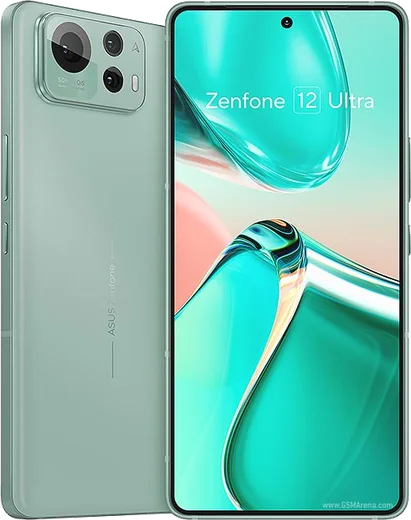
WhatsApp on Asus Zenfone 12 Ultra
Asus Android

WhatsApp for Asus Zenfone 12 Ultra

Snapdragon 8 Elite, 6.78-inch 144Hz LTPO AMOLED, 5500mAh

WhatsApp Messenger 4.7 · 64.2M reviews Free · Android · ~40 MB · by WhatsApp LLC
Download WhatsApp

Ask a question / report a problem

You can ask any question about WhatsApp support on the Asus Zenfone 12 Ultra — leave it below and we'll help.

Ask a question

Can the Asus Zenfone 12 Ultra run WhatsApp?

Fully supported
  • Operating systemAndroid
  • ProcessorSnapdragon 8 Elite
  • WhatsApp versionLatest supported

Latest known WhatsApp problems on Asus Zenfone 12 Ultra

1

How do I record WhatsApp calls on the Asus Zenfone 12 Ultra?

WhatsApp encrypts its voice and video calls, so the built-in Phone app recorder in ZenUI cannot capture them and most screen recorders will only catch your own mic audio. The most reliable software workaround is a third-party call-recorder app from the Play Store (such as Cube ACR) with its in-app/VoIP recording mode enabled and accessibility permission granted, though results vary by Android version and WhatsApp update. For important calls, putting the phone on speaker and recording with a second device remains the only consistently clean method. See how others solved this on Reddit
2

Why does ZenUI not have a built-in call recorder for WhatsApp on my Zenfone 12 Ultra?

Google restricts the accessibility APIs that call-recording apps rely on, and Asus's Phone app only records standard cellular calls in regions where it is legally permitted, never internet calls like WhatsApp. To check what is available, open the Phone app, tap the three-dot menu then Settings, and look for Call recording. If it is missing or greyed out it is disabled for your region, so you will need a Play Store recorder plus a separate device for WhatsApp specifically. See how others solved this on Reddit
3

WhatsApp call and video notifications don't show on my Zenfone 12 Ultra lock screen — how do I fix it?

This is almost always Asus's aggressive battery optimization killing WhatsApp in the background. Go to Settings > Apps > WhatsApp > Battery (or App battery usage) and set it to Unrestricted, then in Settings > Apps > WhatsApp make sure auto-start is allowed so the app can run in the background. Finally, in Settings > Apps > WhatsApp > Notifications, confirm the Calls channel is enabled and allowed to show on the lock screen and as pop-up alerts. See how others solved this on Reddit
4

My Zenfone 12 Ultra misses WhatsApp calls when the screen is off or locked — what setting causes this?

ZenUI's power management suspends apps once the screen locks, which delays or blocks WhatsApp's incoming-call notifications. Open Settings > Apps > WhatsApp, set battery usage to Unrestricted, and allow auto-start so WhatsApp can wake the device. Also turn off 'Pause app activity if unused' for WhatsApp under Settings > Apps > WhatsApp > Permissions, then test a call with the screen off. See how others solved this on Reddit
5

Why does my Zenfone 12 Ultra front camera look blurry and low-quality in WhatsApp video calls?

WhatsApp heavily compresses its video stream and uses a lower-resolution camera mode for calls, so the selfie camera looks far softer than it does in the normal Camera app — this is a WhatsApp limitation, not a fault with your phone. Good, even lighting helps the most, and keeping WhatsApp updated from the Play Store ensures you get the latest camera handling. For sharp video, use the stock Camera app or a service that streams at a higher bitrate. See how others solved this on Reddit

Ask a question / report a problem

You can ask any question about WhatsApp support on the Asus Zenfone 12 Ultra — leave it below and we'll help.

Ask a question

Watch: setting up WhatsApp

Prefer to watch? This short walkthrough shows the whole installation and number-verification flow.

How to install WhatsApp on Asus Zenfone 12 Ultra — video walkthrough

How to install WhatsApp on Asus Zenfone 12 Ultra

1

Choose how to download

On your Asus Zenfone 12 Ultra you can get the official app two ways: from the Google Play Store — the easiest option, since it keeps WhatsApp updated automatically — or directly from the official website. You can download an APK file, by clicking a link “Download WhatsApp directly”.

2

Open WhatsApp

Launch WhatsApp from your home screen or app drawer and accept the Terms of Service to start setup.

3

Verify your phone number

Enter your phone number. If your Asus Zenfone 12 Ultra uses dual SIM, pick the line you want WhatsApp tied to, then enter the 6-digit code it sends by SMS — it usually fills in automatically.

4

Restore chats and finish setup

Restore your chat history from Google Drive (use the same Google account), add your name and photo, and tap Allow for notifications so messages and calls arrive reliably.

Stay safe: only ever install WhatsApp from the official Android source. The Download button above already points there — modified copies (GB/Plus/Aero WhatsApp) can get your number banned.

Comments (11)

No registration needed. No email required.
J
jay_officialMay 22, 2026

Yo even my grandma could do this ❤️

Y
yuki.hApr 8, 2026

someone im so confused someone help meeee pls

AppWhatsOfficialApr 11, 2026

Breathe! Follow the steps above one by one, tap Download first, and you will be chatting in no time.

N
newbieDec 11, 2025

Ngl whatsapp is working on my Asus Zenfone 12 Ultra now

L
lina32Oct 25, 2025

finally im not techy and i still managed ✌️

H
halppOct 20, 2025

facilissimo, fatto in 2 minuti grazie

R
rosa38Jul 20, 2025

tbh 10 out of 10 🙏

L
lou55May 11, 2025

Finally clear steps for the Zenfone 12 Ultra, cheers

N
nick21Feb 16, 2025

Tbh got my 12 ultra sorted thanks to you thanks again

K
kev.bJan 26, 2025

wow im not techy and i still managed :)

N
nooooJan 19, 2025

Uff me funcionó al instante en mi Asus Zenfone 12 Ultra

V
val.jOct 2, 2024

Tbh the Asus Zenfone 12 Ultra guide was spot on