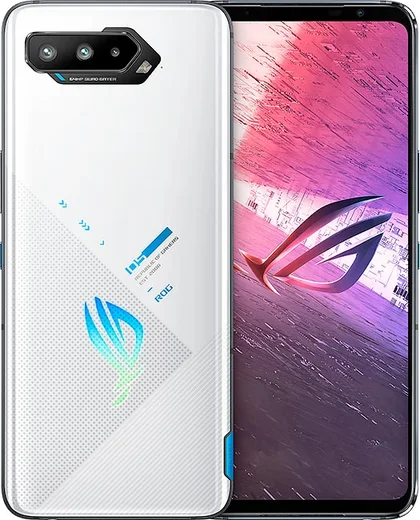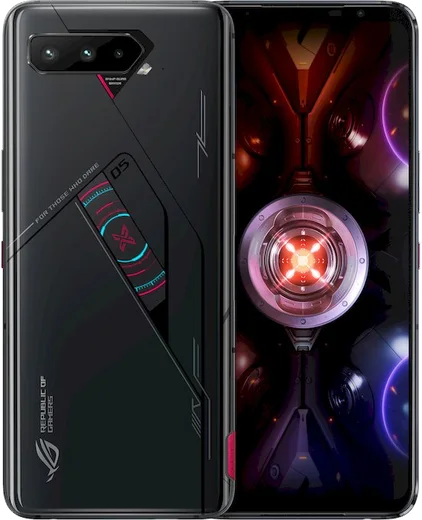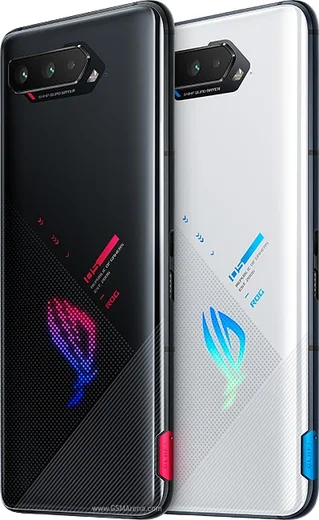
WhatsApp on Asus ROG Phone 5s
Asus Android

WhatsApp for Asus ROG Phone 5s

Snapdragon 888 Plus, 6.78-inch 144Hz AMOLED, 65W charging

WhatsApp Messenger 4.7 · 64.2M reviews Free · Android · ~40 MB · by WhatsApp LLC
Download WhatsApp

Ask a question / report a problem

You can ask any question about WhatsApp support on the Asus ROG Phone 5s — leave it below and we'll help.

Ask a question

Can the Asus ROG Phone 5s run WhatsApp?

Fully supported
  • Operating systemAndroid
  • ProcessorSnapdragon 888 Plus
  • WhatsApp versionLatest supported

Latest known WhatsApp problems on Asus ROG Phone 5s

1

Why are my WhatsApp notifications delayed on my Asus ROG Phone 5s?

ZenUI's aggressive battery management is the usual cause, so open Settings > Apps > WhatsApp > Battery and set it to Unrestricted, then go to Settings > Battery > PowerMaster and enable Auto-start for WhatsApp. Also turn off any battery saver or Ultra Saving mode, since the ROG's power-saving profiles can freeze background syncing and hold messages until you open the app. See how others solved this on Reddit
2

WhatsApp messages only arrive when I open the app on my ROG Phone 5s, how do I fix it?

This means WhatsApp is being killed in the background, so go to Settings > Apps > WhatsApp > Battery and choose Unrestricted, then lock WhatsApp in the recent-apps view by tapping the app icon at the top of its card and selecting Lock. Finally turn off Adaptive Battery under Settings > Battery so the system stops suspending the app's live connection. See how others solved this on Reddit
3

I suddenly get no WhatsApp notifications at all on my Asus ROG Phone 5s, what should I check?

First confirm notifications are enabled in Settings > Apps > WhatsApp > Notifications and that the Messages and Calls categories are switched on, since a single muted category silences those alerts. Then check that Do Not Disturb is off under Settings > Sound & vibration, and reboot the phone once to re-register the Google push connection. See how others solved this on Reddit
4

My WhatsApp notification sound or pop-up changed by itself on the ROG Phone 5s, how do I restore it?

App updates can reset notification categories, so open Settings > Apps > WhatsApp > Notifications, tap the Messages category and re-pick your Sound and Vibration. To get the banner back over the screen, set that category's importance to High (or enable Pop on screen) so it isn't downgraded to Silent. See how others solved this on Reddit
5

The notification indicator and pulldown shade don't show new WhatsApp messages on my ROG Phone 5s, what's wrong?

If the status-bar badge or pulldown shade isn't updating, go to Settings > Apps > WhatsApp > Notifications and turn on Allow notification dot, then clear WhatsApp's cache via Settings > Apps > WhatsApp > Storage > Clear cache. A reboot after clearing the cache usually restores the badge and the entries in the notification shade. See how others solved this on Reddit
6

WhatsApp gives me no notifications even though everything looks enabled on my Asus ROG Phone 5s, any other fix?

When all settings appear correct, the culprit is usually a stale Google Play Services push registration, so update both WhatsApp and Google Play Services from the Play Store and clear the cache of Google Play Services under Settings > Apps > Google Play Services > Storage > Clear cache. If it persists, make sure WhatsApp is allowed in PowerMaster's Auto-start list, and as a last resort reinstall WhatsApp and restore your chats from the Google Drive backup. See how others solved this on Reddit

Ask a question / report a problem

You can ask any question about WhatsApp support on the Asus ROG Phone 5s — leave it below and we'll help.

Ask a question

Watch: setting up WhatsApp

Prefer to watch? This short walkthrough shows the whole installation and number-verification flow.

How to install WhatsApp on Asus ROG Phone 5s — video walkthrough

How to install WhatsApp on Asus ROG Phone 5s

1

Choose how to download

On your Asus ROG Phone 5s you can get the official app two ways: from the Google Play Store — the easiest option, since it keeps WhatsApp updated automatically — or directly from the official website. You can download an APK file, by clicking a link “Download WhatsApp directly”.

2

Open WhatsApp

Launch WhatsApp from your home screen or app drawer and accept the Terms of Service to start setup.

3

Verify your phone number

Enter your phone number. If your Asus ROG Phone 5s uses dual SIM, pick the line you want WhatsApp tied to, then enter the 6-digit code it sends by SMS — it usually fills in automatically.

4

Restore chats and finish setup

Restore your chat history from Google Drive (use the same Google account), add your name and photo, and tap Allow for notifications so messages and calls arrive reliably.

Stay safe: only ever install WhatsApp from the official Android source. The Download button above already points there — modified copies (GB/Plus/Aero WhatsApp) can get your number banned.

Comments (10)

No registration needed. No email required.
N
nick_xMar 4, 2026

franchement super guide merci merci

M
marc.rDec 3, 2025

Omg two thumbs up

M
maxx.iNov 12, 2025

well set up whatsapp on my dads rog phone 5s no problem

J
joe_zoeNov 7, 2025

So perfect, exactly what i needed ❤️

N
nick21Oct 27, 2025

will this really work on my rog phone 5s anyone

AppWhatsOfficialNov 2, 2025

No worries, yes, WhatsApp supports the your phone. Just make sure your phone is on an up to date version of its operating system for the best experience. Feel free to ask if you get stuck.

T
the_real_solSep 6, 2025

well whatsapp works fine on my phone 5s

AppWhatsOfficialSep 8, 2025

Glad we could help!

T
theo.yAug 16, 2025

hey my whole family is waiting pls help me install it 🙏

AppWhatsOfficialAug 20, 2025

Don't worry, you can do this! Use the Download button, install the app, and enter your number to verify. It is easier than it looks, promise.

S
saaaaamMar 11, 2025

verified my number on the phone 5s with no trouble lol

A
andy_kDec 10, 2024

guys thank u, whatsapp installed on my ROG Phone 5s thanks again

Q
quickfixSep 2, 2024

ohne probleme installiert danke