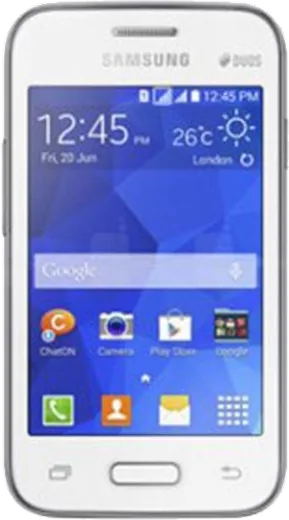
WhatsApp on Samsung Galaxy Young 2 SM-G130
Samsung Android

WhatsApp for Samsung Galaxy Young 2 SM-G130

Install the official WhatsApp on your Samsung Galaxy Young 2 SM-G130 in a few simple steps.

WhatsApp Messenger 4.7 · 64.2M reviews Free · Android · ~40 MB · by WhatsApp LLC
Download WhatsApp

Ask a question / report a problem

You can ask any question about WhatsApp support on the Samsung Galaxy Young 2 SM-G130 — leave it below and we'll help.

Ask a question

Can the Samsung Galaxy Young 2 SM-G130 run WhatsApp?

Not supported
  • Operating systemAndroid
  • WhatsApp versionNot supported

Latest known WhatsApp problems on Samsung Galaxy Young 2 SM-G130

1

WhatsApp notifications not showing on my Galaxy Young 2 SM-G130 - how do I fix it?

First, inside WhatsApp tap Menu > Settings > Notifications and make sure Notification tone is set (not None) and that the Light/Vibrate options are on for both Message and Group notifications. Then on the phone go to Settings > Application manager > WhatsApp and confirm 'Show notifications' is ticked. Because the Young 2 runs Android 4.4 KitKat with very little RAM, also avoid running a task-killer or aggressive power-saving app, as those can force-close WhatsApp in the background and stop alerts. See how others solved this on Reddit
2

WhatsApp messages only arrive when I open the app on my SM-G130 - notifications are delayed

This is usually a background-data restriction. Go to Settings > Data usage, scroll to WhatsApp, tap it and make sure 'Restrict background data' is NOT checked, so the app can sync while the screen is off. Also turn off any Power saving / Ultra power saving mode under Settings, since on KitKat these cut the data connection in the background and hold messages until you reopen WhatsApp. See how others solved this on Reddit
3

WhatsApp notification sound stopped working on my Galaxy Young 2 - it's silent

Open WhatsApp > Menu > Settings > Notifications and re-pick a Notification tone for both Message notifications and Group notifications, since a blank or 'None' tone silences alerts. Then check that the phone isn't in Blocking mode (Settings > Blocking mode) and that media/notification volume is up. A specific chat can also be muted from inside that chat, so verify the conversation isn't individually muted. See how others solved this on Reddit
4

How do I get WhatsApp message alerts to pop up on screen on the Galaxy Young 2?

On Android 4.4 there is no system heads-up/banner toggle, so the on-screen behavior comes from WhatsApp itself. In WhatsApp go to Menu > Settings > Notifications and enable 'Popup notification' (choose 'Always show popup' or 'Only when screen on') for Message notifications. Make sure 'Show notifications' is also ticked for WhatsApp under Settings > Application manager so the alert can appear. See how others solved this on Reddit
5

After reinstalling WhatsApp on my SM-G130, notifications are completely broken - how do I restore them?

Reopen WhatsApp and re-verify your number, then go to Menu > Settings > Notifications and re-set the tone, vibrate and popup options, which reset on a fresh install. Confirm 'Show notifications' is enabled under Settings > Application manager > WhatsApp, then restart the phone once so the settings take effect. If alerts still don't appear, clear WhatsApp's cache (Application manager > WhatsApp > Clear cache, not Clear data) and reboot. See how others solved this on Reddit

Ask a question / report a problem

You can ask any question about WhatsApp support on the Samsung Galaxy Young 2 SM-G130 — leave it below and we'll help.

Ask a question

Watch: setting up WhatsApp

Prefer to watch? This short walkthrough shows the whole installation and number-verification flow.

How to install WhatsApp on Samsung Galaxy Young 2 SM-G130 — video walkthrough

How to install WhatsApp on Samsung Galaxy Young 2 SM-G130

1

Choose how to download

On your Samsung Galaxy Young 2 SM-G130 you can get the official app two ways: from the Google Play Store — the easiest option, since it keeps WhatsApp updated automatically — or directly from the official website. You can download an APK file, by clicking a link “Download WhatsApp directly”.

2

Open WhatsApp

Launch WhatsApp from your home screen or app drawer and accept the Terms of Service to start setup.

3

Verify your phone number

Enter your phone number. If your Samsung Galaxy Young 2 SM-G130 uses dual SIM, pick the line you want WhatsApp tied to, then enter the 6-digit code it sends by SMS — it usually fills in automatically.

4

Restore chats and finish setup

Restore your chat history from Google Drive (use the same Google account), add your name and photo, and tap Allow for notifications so messages and calls arrive reliably.

Stay safe: only ever install WhatsApp from the official Android source. The Download button above already points there — modified copies (GB/Plus/Aero WhatsApp) can get your number banned.

Comments (6)

No registration needed. No email required.
R
ray_maxApr 2, 2026

ugh plz heeeelp me how to download on my young2sm-g130 pls

AppWhatsOfficialApr 6, 2026

No panic needed. The Download button takes you to the official app, then just install and verify your number.

I
im_theoNov 20, 2025

Anyone? im not getting the sms code anyone

AppWhatsOfficialNov 26, 2025

Sure, if the SMS will not arrive, you can choose the call option to hear the code, just make sure your number is entered correctly.

S
sol84Apr 15, 2025

Guys took me 5 min total thx

M
ms_gregApr 6, 2025

endlich beste seite, hat sofort geklappt auf meinem Samsung Galaxy Young 2 SM-G130 danke

P
priya67Dec 9, 2024

did this on my samsung galaxy young 2 sm-g130 and it just worked :)

T
the_real_jayOct 25, 2024

ok so my new galaxy young2sm-g130 is all set up now cheers

AppWhatsOfficialOct 26, 2024

Thanks for the feedback!