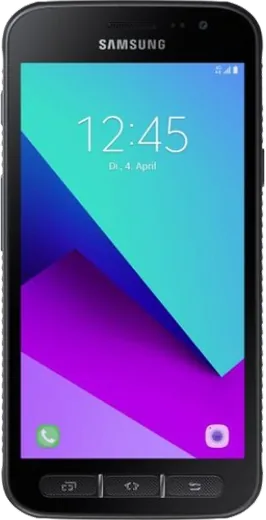
WhatsApp on Samsung Galaxy Xcover 4
Samsung Android

WhatsApp for Samsung Galaxy Xcover 4

Install the official WhatsApp on your Samsung Galaxy Xcover 4 in a few simple steps.

WhatsApp Messenger 4.7 · 64.2M reviews Free · Android · ~40 MB · by WhatsApp LLC
Download WhatsApp

Ask a question / report a problem

You can ask any question about WhatsApp support on the Samsung Galaxy Xcover 4 — leave it below and we'll help.

Ask a question

Can the Samsung Galaxy Xcover 4 run WhatsApp?

Fully supported
  • Operating systemAndroid
  • WhatsApp versionLatest supported

Latest known WhatsApp problems on Samsung Galaxy Xcover 4

1

Will WhatsApp stop working on my Samsung Galaxy Xcover 4?

Eventually, yes. The Xcover 4 launched on Android 7 (Nougat) and its last official update was Android 8.1 (Oreo), so it can't go any higher. WhatsApp keeps raising its minimum Android version over time, and once it passes Android 8.1 the app will stop receiving updates and security patches on this phone. Before that happens, back up your chats so you can restore them on a newer device: open WhatsApp, tap the three dots > Settings > Chats > Chat backup > Back up to Google Drive. See how others solved this on Reddit
2

WhatsApp keeps freezing and acting buggy on my Galaxy Xcover 4 — how do I fix it?

The Xcover 4 only has 2 GB of RAM, so WhatsApp lags once chats and media pile up. Clear the app cache via Settings > Apps > WhatsApp > Storage > Clear cache (do NOT tap Clear data — that wipes your chats). Then turn off auto-download under WhatsApp > Settings > Storage and data, and stop Android from force-closing it in the background via Settings > Apps > WhatsApp > Battery > Unrestricted. See how others solved this on Reddit
3

Why am I not getting WhatsApp popup notifications on my Xcover 4?

On the Xcover 4's older One UI, aggressive battery saving usually kills the popups. Go to Settings > Apps > WhatsApp > Notifications and make sure Messages notifications are on and set to a 'pop-up' / banner style. Then set Settings > Apps > WhatsApp > Battery to Unrestricted, and remove WhatsApp from any Sleeping apps list under Settings > Battery and device care > Battery > Background usage limits. See how others solved this on Reddit
4

How do I transfer my WhatsApp chats from the Galaxy Xcover 4 to a new phone?

For another Android phone, use a Google Drive backup: in WhatsApp tap the three dots > Settings > Chats > Chat backup, sign in to your Google account, and tap Back up now. On the new phone install WhatsApp, verify the same phone number, and choose Restore when prompted. If you're switching to an iPhone instead, a Drive backup won't restore there — use WhatsApp's official 'Move to iOS' transfer flow, which copies the chats directly during setup. See how others solved this on Reddit
5

Is the rugged Samsung Xcover a good simple phone for just WhatsApp and calls?

The Xcover 4 works fine as a basic, durable phone for calls and texting, but its 2 GB of RAM and dated Android build make modern WhatsApp feel slow, especially in busy media-heavy chats. To reduce distraction you can disable unused apps under Settings > Apps and install a minimal launcher. Just be aware that WhatsApp's rising Android requirements mean a newer model (Xcover 5 or 6 Pro) is the safer long-term choice. See how others solved this on Reddit
6

Is a Samsung Xcover a reliable rugged work phone for WhatsApp business use?

The Xcover line is popular for field and enterprise use because it's IP68 rugged with a removable battery and enrolls cleanly in Android Enterprise / Intune. For the Xcover 4 specifically, though, its end-of-support Android 8.1 build means WhatsApp and many MDM-managed apps will stop getting updates, so for active deployments it's better to standardize on a current Xcover (5 or 6 Pro) that still receives security patches. See how others solved this on Reddit

Ask a question / report a problem

You can ask any question about WhatsApp support on the Samsung Galaxy Xcover 4 — leave it below and we'll help.

Ask a question

Watch: setting up WhatsApp

Prefer to watch? This short walkthrough shows the whole installation and number-verification flow.

How to install WhatsApp on Samsung Galaxy Xcover 4 — video walkthrough

How to install WhatsApp on Samsung Galaxy Xcover 4

1

Choose how to download

On your Samsung Galaxy Xcover 4 you can get the official app two ways: from the Google Play Store — the easiest option, since it keeps WhatsApp updated automatically — or directly from the official website. You can download an APK file, by clicking a link “Download WhatsApp directly”.

2

Open WhatsApp

Launch WhatsApp from your home screen or app drawer and accept the Terms of Service to start setup.

3

Verify your phone number

Enter your phone number. If your Samsung Galaxy Xcover 4 uses dual SIM, pick the line you want WhatsApp tied to, then enter the 6-digit code it sends by SMS — it usually fills in automatically.

4

Restore chats and finish setup

Restore your chat history from Google Drive (use the same Google account), add your name and photo, and tap Allow for notifications so messages and calls arrive reliably.

Stay safe: only ever install WhatsApp from the official Android source. The Download button above already points there — modified copies (GB/Plus/Aero WhatsApp) can get your number banned.

Comments (4)

No registration needed. No email required.
T
tom_nicAug 2, 2025

clear steps for the Galaxy Xcover 4, cheers ✌️

AppWhatsOfficialAug 3, 2025

Thanks, enjoy the app!

N
nick.hJun 24, 2025

omg i been trying since morning pleaseee how to install on xcover 4 🙏

AppWhatsOfficialJun 26, 2025

No panic needed. The Download button takes you to the official app, then just install and verify your number. You got this!

L
lou51Sep 11, 2024

whatsapp works fine on my galaxy xcover4 thanks again

K
kev_xXAug 2, 2024

Ahora mi xcover 4 tiene whatsapp, genial gracias