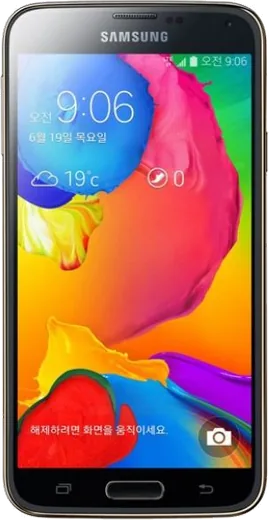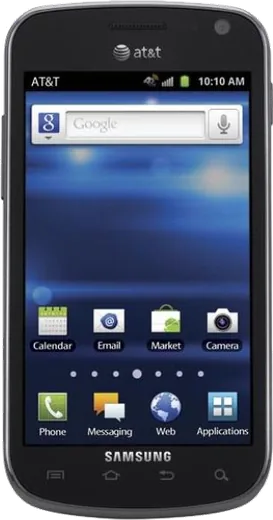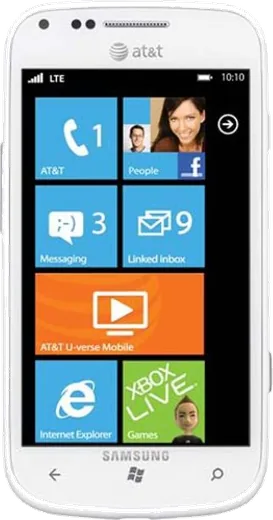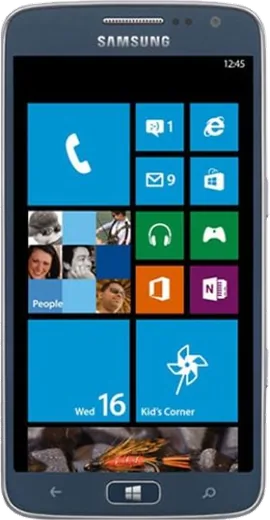
WhatsApp on Samsung Galaxy S5 LTE-A
Samsung Android

WhatsApp for Samsung Galaxy S5 LTE-A

Install the official WhatsApp on your Samsung Galaxy S5 LTE-A in a few simple steps.

WhatsApp Messenger 4.7 · 64.2M reviews Free · Android · ~40 MB · by WhatsApp LLC
Download WhatsApp

Ask a question / report a problem

You can ask any question about WhatsApp support on the Samsung Galaxy S5 LTE-A — leave it below and we'll help.

Ask a question

Can the Samsung Galaxy S5 LTE-A run WhatsApp?

Support ending soon
  • Operating systemAndroid
  • WhatsApp versionLatest supported

Latest known WhatsApp problems on Samsung Galaxy S5 LTE-A

1

Can I still use WhatsApp on a Samsung Galaxy S5 LTE-A in 2025?

Yes. WhatsApp needs Android 5.0 or newer, and from 8 September 2026 it will require Android 6.0, so check your version under Settings > About device > Software info. The Galaxy S5 LTE-A officially updated all the way to Android 6.0.1 Marshmallow, so a fully updated phone still qualifies. If you are stuck on 4.4 KitKat, install pending updates via Settings > About device > Software update, then update WhatsApp from the Play Store. If no official update is offered, a custom ROM like LineageOS is the only way to move to a newer Android. See how others solved this on Reddit
2

Is the Galaxy S5 LTE-A still good enough for daily WhatsApp use, or is it too slow now?

For messaging, voice notes, and calls it still holds up, but years-old storage and a full cache cause lag. Clear WhatsApp's cache under Settings > Apps > WhatsApp > Storage > Clear cache, and free internal space by moving photos to the microSD card via My Files. Turning off auto-download under WhatsApp > Settings > Storage and data keeps the 2GB of RAM from choking on large media. See how others solved this on Reddit
3

Why are my WhatsApp notifications delayed or not coming through on the Galaxy S5 LTE-A?

Samsung's power saving features put WhatsApp to sleep, which blocks background notifications. Open Settings > Battery and turn off Power saving and Ultra power saving mode, and on Marshmallow check Settings > Smart Manager > Battery so WhatsApp is not being optimized. Then confirm notifications are switched on in WhatsApp > Settings > Notifications, and make sure background data is allowed under Settings > Apps > WhatsApp > Mobile data. See how others solved this on Reddit
4

Should I install Ubuntu Touch or a custom OS on my Galaxy S5 LTE-A to keep WhatsApp working?

Ubuntu Touch does not run native WhatsApp and its web-based workaround is unreliable, so it is not a good way to keep messaging alive. A better choice is a maintained Android custom ROM such as LineageOS, which can bring the S5 to a much newer Android and run current WhatsApp normally. Before flashing, back up your chats via WhatsApp > Settings > Chats > Chat backup to Google Drive so you can restore them after reinstalling. See how others solved this on Reddit
5

Can I keep using my old Galaxy S5 LTE-A as a backup WhatsApp phone?

Yes, it works well as a spare on Wi-Fi, and because the S5's battery is user-removable you can drop in a fresh one to revive it. Each phone number can only be the primary WhatsApp account on one phone at a time, so the backup either uses its own number or you re-register your main number on it (which logs you out of your current phone). Keep WhatsApp updated from the Play Store while support lasts, and disable unused bloatware under Settings > Apps to keep the aging hardware responsive. See how others solved this on Reddit

Ask a question / report a problem

You can ask any question about WhatsApp support on the Samsung Galaxy S5 LTE-A — leave it below and we'll help.

Ask a question

Watch: setting up WhatsApp

Prefer to watch? This short walkthrough shows the whole installation and number-verification flow.

How to install WhatsApp on Samsung Galaxy S5 LTE-A — video walkthrough

How to install WhatsApp on Samsung Galaxy S5 LTE-A

1

Choose how to download

On your Samsung Galaxy S5 LTE-A you can get the official app two ways: from the Google Play Store — the easiest option, since it keeps WhatsApp updated automatically — or directly from the official website. You can download an APK file, by clicking a link “Download WhatsApp directly”.

2

Open WhatsApp

Launch WhatsApp from your home screen or app drawer and accept the Terms of Service to start setup.

3

Verify your phone number

Enter your phone number. If your Samsung Galaxy S5 LTE-A uses dual SIM, pick the line you want WhatsApp tied to, then enter the 6-digit code it sends by SMS — it usually fills in automatically.

4

Restore chats and finish setup

Restore your chat history from Google Drive (use the same Google account), add your name and photo, and tap Allow for notifications so messages and calls arrive reliably.

Stay safe: only ever install WhatsApp from the official Android source. The Download button above already points there — modified copies (GB/Plus/Aero WhatsApp) can get your number banned.

Comments (6)

No registration needed. No email required.
L
lina21Jun 5, 2026

Honestly my new s5 lte-a is all set up now 😍

S
saaaaamJan 13, 2026

ngl downloaded and installed on my samsung galaxy s5 lte-a ✌️

I
im_danSep 13, 2025

très simple, fait en 2 minutes sur mon Samsung Galaxy S5 LTE-A 😍

B
big_noahJul 9, 2025

Update worked even on my old phone

R
rosa23May 8, 2025

pls help verification keeps failing for me pls

AppWhatsOfficialMay 13, 2025

Of course, double check the country code and that you have signal, then request a fresh SMS code. If it still fails, wait a few minutes before trying again. Let us know if you need anything else.

M
mike33Nov 5, 2024

HELP it just wont work on my Samsung Galaxy S5 LTE-A

AppWhatsOfficialNov 8, 2024

You are almost there! Tap Download, allow the install, open WhatsApp and confirm your number.