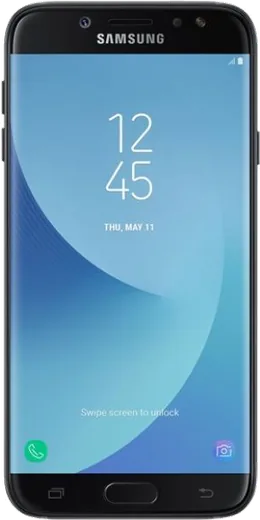
WhatsApp on Samsung Galaxy J7 (2017)
Samsung Android

WhatsApp for Samsung Galaxy J7 (2017)

Install the official WhatsApp on your Samsung Galaxy J7 (2017) in a few simple steps.

WhatsApp Messenger 4.7 · 64.2M reviews Free · Android · ~40 MB · by WhatsApp LLC
Download WhatsApp

Ask a question / report a problem

You can ask any question about WhatsApp support on the Samsung Galaxy J7 (2017) — leave it below and we'll help.

Ask a question

Can the Samsung Galaxy J7 (2017) run WhatsApp?

Fully supported
  • Operating systemAndroid
  • WhatsApp versionLatest supported

Latest known WhatsApp problems on Samsung Galaxy J7 (2017)

1

Why does my Galaxy J7 (2017) keep saying "Running out of storage space"?

The J7's small internal storage fills up fast, mostly from app caches, downloaded WhatsApp media, and OS updates. Go to Settings > Device maintenance > Storage, tap Clean now, then open Settings > Apps, pick heavy apps like WhatsApp and Chrome and clear their cache. For a longer-term fix, insert a microSD card and move photos/videos there, and in WhatsApp go to Settings > Storage and data > Manage storage to delete large forwarded files. See how others solved this on Reddit
2

My Galaxy J7 (2017) has gotten really slow and laggy — is it worth keeping or should I upgrade?

After several years the J7's 3GB of RAM and aging chip struggle with modern apps, so first try Settings > Apps to uninstall ones you don't use, then Settings > Device maintenance > Battery to put background apps to sleep. A factory reset (Settings > General management > Reset > Factory data reset) after backing up to Google Drive often restores a lot of speed. If it still can't keep up with current WhatsApp and browsing, the phone is past its support window and an upgrade is reasonable. See how others solved this on Reddit
3

Should I replace my Galaxy J7 (2017) or can I keep using it safely in 2025?

The J7 (2017) stopped getting Android and security updates years ago, so it's stuck on an old, unpatched OS that newer banking and chat apps may eventually drop. You can keep using it for calls, WhatsApp, and light browsing if you avoid sensitive logins and keep apps updated from the Play Store, but for security and app compatibility a newer model is the safer choice. If it still does what you need day to day, there's no urgent reason to rush. See how others solved this on Reddit
4

How do I move everything from my old Galaxy J7 (2017) to a new Samsung phone?

Use Samsung Smart Switch, which is built into both phones: on the new device go to Settings > Accounts and backup > Smart Switch (or Bring data from old device) and choose to receive, then on the J7 open Smart Switch and send. It transfers contacts, photos, messages, and most apps over Wi-Fi or by cable (the J7 uses a micro-USB connector, so you'll need the right cable or adapter). For WhatsApp specifically, back up your chats to Google Drive first (WhatsApp > Settings > Chats > Chat backup) so they restore when you sign in on the new phone. See how others solved this on Reddit
5

Why has my Galaxy J7 (2017) battery life gotten so bad and how can I improve it?

An aging J7 battery holds far less charge than when new, and old background apps drain it faster. Go to Settings > Device maintenance > Battery, enable power saving mode, and tap the three-dot menu to put unused apps to sleep; also lower screen brightness and turn off Wi-Fi, Bluetooth, and location when you're not using them. If it still dies within hours, the battery itself is worn out and a replacement (or a new phone) is the real fix. See how others solved this on Reddit

Ask a question / report a problem

You can ask any question about WhatsApp support on the Samsung Galaxy J7 (2017) — leave it below and we'll help.

Ask a question

Watch: setting up WhatsApp

Prefer to watch? This short walkthrough shows the whole installation and number-verification flow.

How to install WhatsApp on Samsung Galaxy J7 (2017) — video walkthrough

How to install WhatsApp on Samsung Galaxy J7 (2017)

1

Choose how to download

On your Samsung Galaxy J7 (2017) you can get the official app two ways: from the Google Play Store — the easiest option, since it keeps WhatsApp updated automatically — or directly from the official website. You can download an APK file, by clicking a link “Download WhatsApp directly”.

2

Open WhatsApp

Launch WhatsApp from your home screen or app drawer and accept the Terms of Service to start setup.

3

Verify your phone number

Enter your phone number. If your Samsung Galaxy J7 (2017) uses dual SIM, pick the line you want WhatsApp tied to, then enter the 6-digit code it sends by SMS — it usually fills in automatically.

4

Restore chats and finish setup

Restore your chat history from Google Drive (use the same Google account), add your name and photo, and tap Allow for notifications so messages and calls arrive reliably.

Stay safe: only ever install WhatsApp from the official Android source. The Download button above already points there — modified copies (GB/Plus/Aero WhatsApp) can get your number banned.

Comments (6)

No registration needed. No email required.
A
amy.sMay 31, 2026

Man couldnt be easier

R
rob_tanSep 16, 2025

hat super funktioniert auf meinem Galaxy J7 👍

U
ugh_helpSep 13, 2025

does this cost money pls

AppWhatsOfficialSep 16, 2025

Of course, no payment needed at all. WhatsApp is free, you just need an internet connection. Let us know if you need anything else.

O
omar.nJun 21, 2025

omg pleeeease i really need whatsapp on my Samsung Galaxy J7 today 😭😭

AppWhatsOfficialJun 25, 2025

Take a breath, we got you. Press Download above, then Install, then verify your number. That is all it takes.

J
joe.pDec 15, 2024

should i remove the old version before this

AppWhatsOfficialDec 21, 2024

Of course, you can keep the old one. Installing the newest build simply updates it and your chats stay put. Enjoy WhatsApp on your your phone!

A
ash54Sep 17, 2024

Ok so super easy to follow