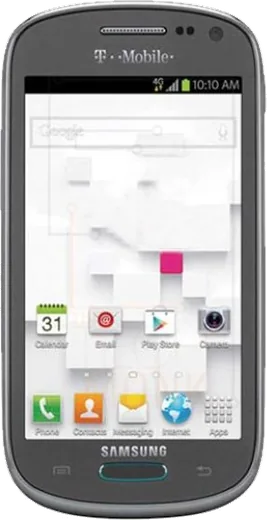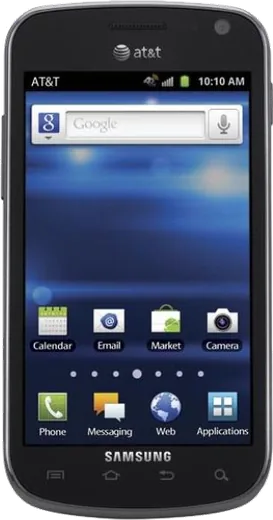
WhatsApp on Samsung Galaxy Exhibit T599
Samsung Android

WhatsApp for Samsung Galaxy Exhibit T599

Install the official WhatsApp on your Samsung Galaxy Exhibit T599 in a few simple steps.

WhatsApp Messenger 4.7 · 64.2M reviews Free · Android · ~40 MB · by WhatsApp LLC
Download WhatsApp

Ask a question / report a problem

You can ask any question about WhatsApp support on the Samsung Galaxy Exhibit T599 — leave it below and we'll help.

Ask a question

Can the Samsung Galaxy Exhibit T599 run WhatsApp?

Not supported
  • Operating systemAndroid
  • WhatsApp versionNot supported

Latest known WhatsApp problems on Samsung Galaxy Exhibit T599

1

Why does WhatsApp keep lagging and crashing on my Galaxy Exhibit T599?

The Exhibit T599 has limited RAM and an older Android version, so close background apps and clear WhatsApp's cache under Settings > Application manager > WhatsApp > Clear cache (avoid Clear data, which deletes your chats unless you have a backup). Newer WhatsApp releases are heavy for this hardware, so keep your chat list trimmed by deleting old media and clearing large group chats to free up memory. See how others solved this on Reddit
2

Why am I not getting WhatsApp notifications on my Galaxy Exhibit T599?

Open Settings > Application manager > WhatsApp and make sure Show notifications is checked, then inside WhatsApp go to Menu > Settings > Notifications and confirm the message tone and notification settings are enabled. Also check that any battery-saving or task-killer app is not force-closing WhatsApp in the background, since killing the app stops it from receiving alerts. See how others solved this on Reddit
3

Why do WhatsApp notifications arrive late or only when I open the app on my Galaxy Exhibit T599?

Delayed notifications usually mean WhatsApp loses its connection when the screen is off, so go to Settings > Wi-Fi > Menu > Advanced and set Keep Wi-Fi on during sleep to Always. Also turn off Power saving mode under Settings > Power saving, since it restricts background data and stops WhatsApp from staying connected in real time. See how others solved this on Reddit
4

Why won't WhatsApp photos and videos download or show up on my Galaxy Exhibit T599?

This is almost always low storage on the Exhibit, so check Settings > Storage and clear space before media will save. In WhatsApp, go to Menu > Settings > Data and storage usage > Media auto-download and enable downloads over Wi-Fi (and mobile data if needed). If internal storage stays full, free it up or move other files to a microSD card so incoming media has room to save. See how others solved this on Reddit
5

Why do I get duplicate or repeating WhatsApp notifications on my Galaxy Exhibit T599?

Repeated alerts often come from a stuck WhatsApp process or a sync glitch, so force stop it under Settings > Application manager > WhatsApp > Force stop, then reopen it. If a single message shows up as two notifications, clear the cache from the same screen and restart the phone, which clears out the duplicated background instance. See how others solved this on Reddit
6

How do I get WhatsApp message pop-ups to show on screen on my Galaxy Exhibit T599?

Open WhatsApp, then go to Menu > Settings > Notifications and set Popup notification to Always show popup (this option exists on the older Android version the Exhibit runs). Also make sure Show notifications is enabled for WhatsApp under Settings > Application manager > WhatsApp, and turn off any blocking mode that hides on-screen alerts. See how others solved this on Reddit

Ask a question / report a problem

You can ask any question about WhatsApp support on the Samsung Galaxy Exhibit T599 — leave it below and we'll help.

Ask a question

Watch: setting up WhatsApp

Prefer to watch? This short walkthrough shows the whole installation and number-verification flow.

How to install WhatsApp on Samsung Galaxy Exhibit T599 — video walkthrough

How to install WhatsApp on Samsung Galaxy Exhibit T599

1

Choose how to download

On your Samsung Galaxy Exhibit T599 you can get the official app two ways: from the Google Play Store — the easiest option, since it keeps WhatsApp updated automatically — or directly from the official website. You can download an APK file, by clicking a link “Download WhatsApp directly”.

2

Open WhatsApp

Launch WhatsApp from your home screen or app drawer and accept the Terms of Service to start setup.

3

Verify your phone number

Enter your phone number. If your Samsung Galaxy Exhibit T599 uses dual SIM, pick the line you want WhatsApp tied to, then enter the 6-digit code it sends by SMS — it usually fills in automatically.

4

Restore chats and finish setup

Restore your chat history from Google Drive (use the same Google account), add your name and photo, and tap Allow for notifications so messages and calls arrive reliably.

Stay safe: only ever install WhatsApp from the official Android source. The Download button above already points there — modified copies (GB/Plus/Aero WhatsApp) can get your number banned.

Comments (5)

No registration needed. No email required.
W
whyyyyyOct 5, 2025

restarted the phone and then it installed ✌️

AppWhatsOfficialOct 6, 2025

Perfect, enjoy chatting!

A
apploverMay 6, 2025

Well installed whatsapp on my exhibit t599 with no issues 🎉

O
omar0Apr 27, 2025

guys whatsapp is working on my Samsung Galaxy Exhibit T599 now 😍

B
big_mikeApr 6, 2025

hey cant do this alone HELP how do i download pls

AppWhatsOfficialApr 8, 2025

We are here to help. Hit Download, follow the steps on this page, and if the code is slow just request it again.

S
sam1990Aug 17, 2024

hat super funktioniert auf meinem galaxy exhibit t599 danke