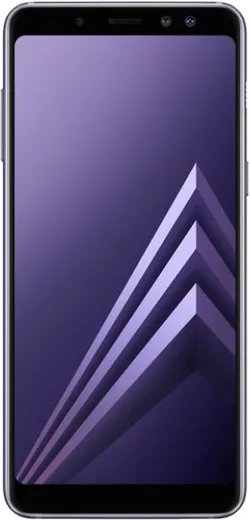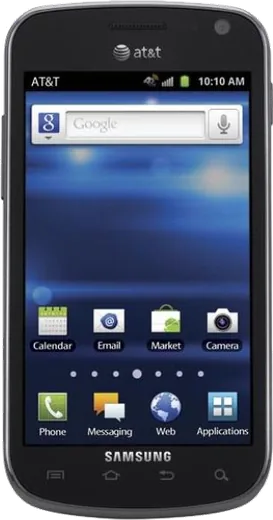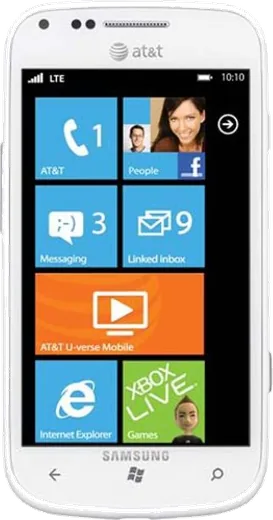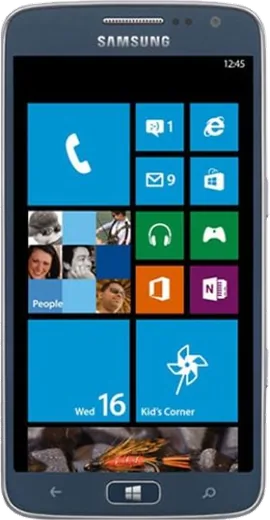
WhatsApp on Samsung Galaxy A8 (2018)
Samsung Android

WhatsApp for Samsung Galaxy A8 (2018)

Install the official WhatsApp on your Samsung Galaxy A8 (2018) in a few simple steps.

WhatsApp Messenger 4.7 · 64.2M reviews Free · Android · ~40 MB · by WhatsApp LLC
Download WhatsApp

Ask a question / report a problem

You can ask any question about WhatsApp support on the Samsung Galaxy A8 (2018) — leave it below and we'll help.

Ask a question

Can the Samsung Galaxy A8 (2018) run WhatsApp?

Fully supported
  • Operating systemAndroid
  • WhatsApp versionLatest supported

Latest known WhatsApp problems on Samsung Galaxy A8 (2018)

1

Why does the Contacts app keep crashing or showing no contacts on my Galaxy A8 (2018)?

First clear the app's local data: Settings > Apps > Contacts > Storage > Clear cache, then Clear data (your contacts are safe in your Google account). Do the same for the hidden system app: Settings > Apps, tap the three-dot menu > Show system apps, open Contacts Storage and clear its cache, then restart the phone. If names are still missing, open Contacts > tap the menu > Settings, and under the contacts-to-display/source option make sure your Google account is included. Finally confirm sync is on: Settings > Accounts and backup > Manage accounts > your Google account > Sync account > turn on Contacts. See how others solved this on Reddit
2

Why don't my RCS chat features work in Samsung Messages on the Galaxy A8 (2018)?

RCS support on the A8 (2018) depends on your carrier, and many networks only enable it through Google Messages rather than Samsung Messages. The simplest fix is to install Google Messages from the Play Store, set it as your default SMS app under Settings > Apps > Choose default apps > SMS app, then open it and turn on chat features under its Settings > RCS chats. If it stays stuck on "Connecting," toggle airplane mode on and off or remove and re-insert the SIM, since RCS registration runs over your mobile data connection. See how others solved this on Reddit
3

Why is WhatsApp missing from Android Auto when I connect my Galaxy A8 (2018) to my car?

In Android Auto, WhatsApp appears as a messaging/notification integration rather than a standalone app icon, so it must have notification access enabled. Make sure both Android Auto and WhatsApp are updated from the Play Store, then open the Android Auto settings on your phone, tap Notifications, and enable WhatsApp. Note the A8 (2018) runs an older Android version (8.0, upgradable to 9), so also confirm your car or head unit still supports the Android Auto version it can run, since some setups have dropped support for older releases. See how others solved this on Reddit
4

Why do deleted photos still appear in my Galaxy A8 (2018) gallery?

This is almost always Google Photos still showing cloud-backed copies after you only deleted the local file. Open the Google Photos app, find the image, delete it there too, then empty its trash under Library > Trash. Also check the Gallery app's own Recycle bin (Gallery > menu > Recycle bin) and the Samsung Cloud trash, since deleted items linger in those for up to 30 days before they fully clear. See how others solved this on Reddit
5

My Galaxy A8 (2018) won't connect to the mobile network after a software update — how do I fix it?

Start by toggling airplane mode on and off, then reseat the SIM card to force the phone to re-register on the network. If there's still no signal, go to Settings > Connections > Mobile networks > Network operators and select your carrier manually, and confirm the correct APN under Settings > Connections > Mobile networks > Access Point Names. If nothing works, reset all connection settings via Settings > General management > Reset > Reset network settings, which clears Wi-Fi, Bluetooth, and mobile-data configs that an update can leave in a bad state. See how others solved this on Reddit

Ask a question / report a problem

You can ask any question about WhatsApp support on the Samsung Galaxy A8 (2018) — leave it below and we'll help.

Ask a question

Watch: setting up WhatsApp

Prefer to watch? This short walkthrough shows the whole installation and number-verification flow.

How to install WhatsApp on Samsung Galaxy A8 (2018) — video walkthrough

How to install WhatsApp on Samsung Galaxy A8 (2018)

1

Choose how to download

On your Samsung Galaxy A8 (2018) you can get the official app two ways: from the Google Play Store — the easiest option, since it keeps WhatsApp updated automatically — or directly from the official website. You can download an APK file, by clicking a link “Download WhatsApp directly”.

2

Open WhatsApp

Launch WhatsApp from your home screen or app drawer and accept the Terms of Service to start setup.

3

Verify your phone number

Enter your phone number. If your Samsung Galaxy A8 (2018) uses dual SIM, pick the line you want WhatsApp tied to, then enter the 6-digit code it sends by SMS — it usually fills in automatically.

4

Restore chats and finish setup

Restore your chat history from Google Drive (use the same Google account), add your name and photo, and tap Allow for notifications so messages and calls arrive reliably.

Stay safe: only ever install WhatsApp from the official Android source. The Download button above already points there — modified copies (GB/Plus/Aero WhatsApp) can get your number banned.

Comments (5)

No registration needed. No email required.
A
ash92Jan 12, 2026

Man smooth and simple, no issues 👍

AppWhatsOfficialJan 15, 2026

That is great to hear!

I
ivan_xXSep 4, 2025

Davvero facilissimo, fatto in 2 minuti sul mio samsung galaxy a8 🙏

M
maxx_kDec 11, 2024

guys the video helped me understand 🙏

G
gabe69Dec 6, 2024

omg im so confused someone help meeee

AppWhatsOfficialDec 7, 2024

Don't worry, you can do this! Use the Download button, install the app, and enter your number to verify. You got this!

X
xX_mikeAug 13, 2024

hi the app crashes every time i open it ?

AppWhatsOfficialAug 17, 2024

Sorry to hear that. Please clear the app cache in Settings, make sure your system software is updated, then reinstall the latest version. Happy chatting!